
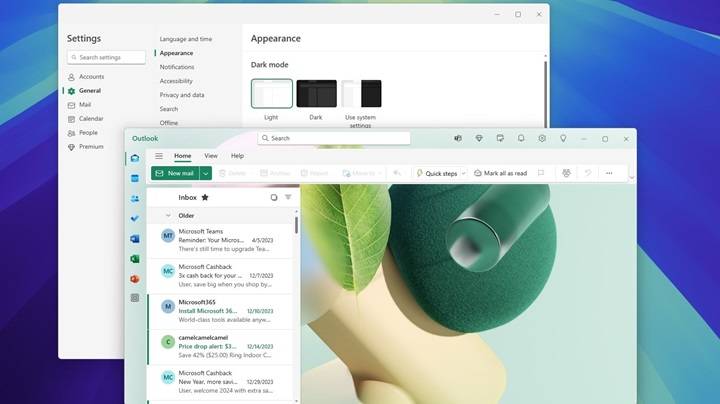
If you’re using Windows 11 and prefer using Gmail, Outlook, Thunderbird, or another email client over the default Mail app, switching your default mail application is a quick process. This 2025 guide will show you exactly how to change your default mail app in Windows 11 whether you’re on a desktop, laptop, or tablet.
Why You Might Want to Change the Default Mail App
Personal Preference
You may prefer a specific interface like Gmail or Thunderbird over the built-in Mail app.
Better Functionality
Third-party mail clients often offer more features, such as better search, filtering, or integrations.
Email Client Sync
If you use a specific app for work or personal use, syncing everything to one default app improves efficiency.
Let’s explore how to make the switch.
How Default Apps Work in Windows 11

Windows 11 Settings System
In Windows 11, you can assign a default app for specific file types (like .eml) or protocols (like mailto:).
Mailto Protocol
The mailto: protocol is what Windows uses to open your default email app when you click on an email link.
You’ll be configuring this protocol to change your default mail app.
How to Change the Default Mail App in Windows 11
Open Settings
Click the Start menu, then select Settings (gear icon).
Or press Windows + I to open it directly.
Go to Apps
In the left sidebar, click on Apps.
Click “Default Apps”
This opens a list of all installed apps and their associated file types or protocols.
Search for Your Preferred Email App
Type the name of your preferred app (e.g., Outlook, Thunderbird, or Google Chrome) in the search bar.
Set Default for “MAILTO” Protocol
- Scroll down to MAILTO under the list of file types and protocols.
- Click the app listed under MAILTO.
- Choose your new preferred mail app from the list.
- Click OK or Set Default if prompted.
Your selected mail app is now the default when clicking email links.
How to Change Default Mail App to Gmail in Windows 11
Since Gmail is a web-based client, you’ll be using your browser to handle mail links.
Set Browser as Default for MAILTO
Follow the steps above and set Google Chrome, Microsoft Edge, or another browser as the MAILTO handler.
Enable Gmail for Email Links in Browser
For Chrome:
- Open Chrome.
- Visit mail.google.com.
- Click the double-diamond icon in the address bar (appears near the bookmark star).
- Choose “Allow Gmail to open email links” and click Done.
Now, clicking an email link will open Gmail in Chrome automatically.
Set Default Mail App Using Control Panel (Alternative Method)

Open Control Panel
Search the Control Panel from the Start menu and open it.
Go to “Programs > Default Programs”
Click “Set your default programs”.
Choose App and Set Defaults
Find your mail app from the list, click it, and select “Set this program as default.”
This sets your selected app for all supported mail-related functions.
Common Issues and Fixes When Changing Mail App
Mail App Not Showing in List
Solution: Ensure the mail app is installed correctly. Restart your device after installing a new app.
Email Links Still Opening in Old App
Solution: Manually change the MAILTO protocol or reset default apps and try again.
Gmail Not Opening in Browser
Solution: Double-check that Gmail is set to handle mailto links in your browser settings.
Can’t Find “MAILTO” Protocol
Solution: Scroll carefully or use the search bar in the “Default Apps” settings window.
Best Practices for Managing Email Apps on Windows 11

Keep Your Email App Updated
Ensure your preferred mail client is regularly updated for compatibility.
Use Lightweight Clients
For better speed and efficiency, lightweight apps like Thunderbird or web-based clients are excellent options.
Consider Privacy and Security
Choose apps that offer secure encryption, spam filtering, and multi-account support.
Frequently Asked Questions (FAQs)
Can I set Gmail as the default mail app on Windows 11?
Yes. Set your browser as the default MAILTO handler, then enable Gmail to open mail links inside that browser.
How do I reset the default mail app in Windows 11?
Go to Settings > Apps > Default Apps, search for the mail app, and click Reset to Microsoft recommended defaults.
Why isn’t my new mail app opening email links?
Check that the MAILTO protocol is correctly assigned to your preferred app or browser.
What’s the best mail app for Windows 11?
Outlook is powerful and integrates well, while Thunderbird and Mailbird are great lightweight alternatives. Gmail works best through browser integration.
Can I use multiple mail apps on Windows 11?
Yes, but only one can be set as the default for email links. You can still use others manually.
Changing the default mail app on Windows 11 is a quick and effective way to streamline your email experience. Whether you’re switching to Gmail, Outlook, or another email client, this guide helps you configure everything easily in just a few minutes.
