
Sending emails to multiple people one by one can be time-consuming and inefficient—especially when it’s the same group of contacts every time. That’s where a distribution list in Gmail comes in handy. Gmail doesn’t call it that directly, but the function exists under labels in Google Contacts.
With a Gmail distribution list (also known as an email group), you can email several people at once by typing a single name. Whether you’re coordinating with a team, sending newsletters, or managing a family group, this feature saves time and simplifies communication.
In this guide, you’ll learn how to create, manage, and use Gmail distribution lists with ease—plus tips for organizing and troubleshooting your groups.
What Is a Distribution List in Gmail?
A distribution list is a group of email addresses saved under a single name so you can send messages to everyone in the group at once. Gmail achieves this through Google Contacts using labels.
For example, you can create a label called “Marketing Team” and add several email addresses. When composing an email, just type “Marketing Team” into the recipient field, and Gmail will auto-fill all the emails linked to that label.
Why Use a Gmail Distribution List?
Creating a Gmail distribution list helps you:
- Save time sending repetitive group emails
- Avoid missing people when emailing teams
- Simplify project management communication
- Maintain clean and organized contact lists
- Send regular updates to clubs, classes, or social groups
Perfect for both professional and personal communication.
How to Create a Distribution List in Gmail (via Google Contacts)
Step-by-Step Instructions:
- Visit Google Contacts
- Click “Create label” on the left sidebar
- Name your distribution list (e.g., “HR Department”)
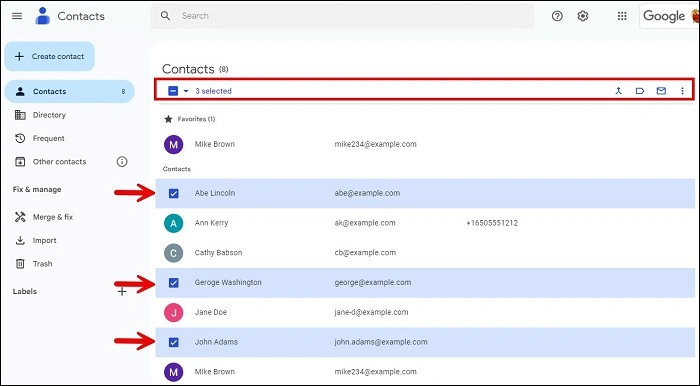
- Now go to Contacts (left menu)
- Select the contacts you want to add to the list
- Click the Label icon at the top
- Choose the label you just created
That’s it! You’ve now created a Gmail distribution list.
How to Use the Distribution List When Sending an Email
Once your label is ready, you can send an email to the entire list:
- Go to Gmail
- Click Compose
- In the To field, type the name of your label (e.g., “HR Department”)
- Gmail will auto-suggest the label—click to insert
- All email addresses under that label will populate the field
- Write your email and send
You can also place the distribution list in the CC or BCC field for added privacy or structure.
How to Add or Remove Contacts from a Gmail Distribution List
To Add:
- Go to Google Contacts
- Search and select the contact
- Click the Label icon
- Check the label (distribution list) you want them added to
- Click Apply
To Remove:
- Open the label (group name) from the left menu
- Hover over the contact
- Click the three-dot icon > Remove from label
This keeps your lists current and relevant.
How to View All Contacts in a Distribution List
- Go to Google Contacts
- Click on the label name in the left sidebar
- You’ll see a list of everyone assigned to that group
- From here, you can also edit or delete contacts
Useful when you want to review or export your group contacts.
How to Delete a Gmail Distribution List
Deleting a label doesn’t delete the contacts themselves.
Steps:
- Open Google Contacts
- Hover over the label name in the left menu
- Click the three-dot menu > Delete label
- Confirm the deletion
Your contacts remain saved, but the label (distribution list) will no longer exist.
Using Gmail Distribution Lists on Mobile
You can’t create or edit labels directly in the mobile Gmail or Google Contacts app, but you can use existing ones.
To Send Email from Gmail App:
- Open the Gmail app
- Tap Compose
- In the To field, type the name of your group label
- Tap the suggested group to populate addresses
- Send your email
For label management, it’s best to use the desktop version of Google Contacts.
Tips for Managing Large Distribution Lists
| Tip | Why It Helps |
| Use clear group names | Avoids confusion between work, personal, and teams |
| Keep contacts updated | Prevents bounced emails or missed communication |
| Segment large groups | Easier to manage when you break them into sub-groups |
| Use BCC for privacy | Hides emails from other recipients |
| Sync with Google Sheets | Advanced users can automate list creation via Sheets |
Proper management makes your email campaigns more professional and effective.
Limitations of Gmail Distribution Lists
- You cannot add external contacts to a label unless they’re in your contacts
- No built-in analytics or open tracking like professional email tools
- Maximum recipients per message:
- 500 emails/day for regular Gmail
- 2,000/day for Google Workspace accounts
- Can’t send from mobile unless label is already created
For heavy outreach, consider tools like Google Groups or email marketing platforms.
Google Groups vs. Gmail Labels
| Feature | Gmail Label | Google Group |
| Use case | Small team, quick messages | Large distribution, community forums |
| Reply behavior | Replies go to sender only | Replies can go to entire group |
| Management | Manual via Contacts | Group settings with admin control |
| Customization | Basic | Advanced (moderation, roles, etc.) |
| Best for | Quick communication | Collaboration or announcements |
If you’re managing a large public mailing list, use Google Groups instead of Gmail labels.
FAQ
What is a Gmail distribution list?
A Gmail distribution list is a group of email addresses grouped under a label in Google Contacts. You can email the entire group by entering the label name in the “To” field.
How do I create a distribution list in Gmail?
Go to Google Contacts, create a new label, and assign contacts to it. Then use that label in Gmail’s recipient field to send group emails.
Can I edit a Gmail distribution list?
Yes. Go to Google Contacts, select the label, and add or remove contacts at any time.
Can I use distribution lists in Gmail mobile app?
Yes, but you must create the label on desktop first. After that, you can use the group in the mobile Gmail app to send messages.
Is there a limit to how many emails I can send to a distribution list?
Yes. Gmail limits you to 500 recipients per day (for free users) and 2,000 for Google Workspace accounts.
