
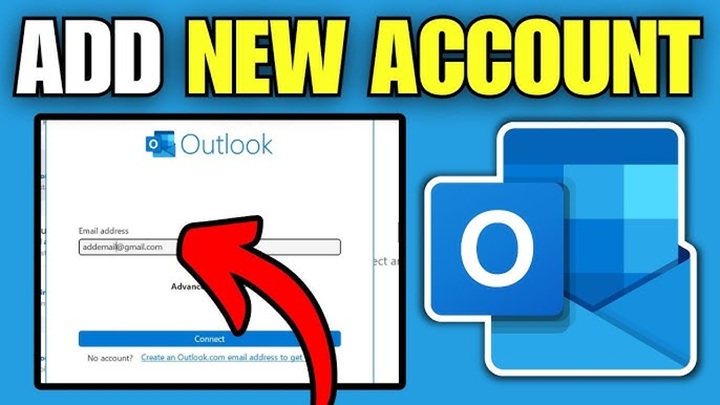
Setting up Outlook should be easy, right?
But then Outlook starts asking weird stuff like:
- IMAP
- POP3
- SMTP
- SSL
- Server ports
And suddenly your brain goes:
“Why is email setup so complicated?”
Yeah. Happens to almost everybody honestly.
Especially if you’re trying to add:
- Gmail
- Yahoo Mail
- Work email
- School email
- Custom domain accounts
The good news?
Most Outlook setups are actually pretty simple now.
Usually it only takes:
- Your email address
- Password
- A few clicks
That’s it.
Still, some accounts need extra settings. And when Outlook throws errors? People panic fast.
What Does Adding an Email Account to Outlook Mean?
Adding an account means connecting your email to Outlook so you can:
- Send emails
- Receive messages
- Sync contacts
- Manage calendars
- Organize everything in one app
Instead of opening multiple websites constantly, Outlook handles everything together.
Pretty convenient honestly.
What Is Outlook?
Microsoft Outlook is Microsoft’s email platform.
People use it for:
- Personal email
- Work email
- School accounts
- Calendars
- Contacts
- Business communication
Very common worldwide.
Why People Use Outlook
Honestly?
Lots of reasons.
One Place for Multiple Emails
You can manage:
- Gmail
- Yahoo
- Outlook accounts
- Work emails
all together.
Better Organization
Folders, flags, rules, calendars. Outlook has tons of tools.
Great for Work
Businesses love Outlook honestly.
Desktop and Mobile Sync
Everything updates across devices.
Types of Email Accounts Outlook Supports
Outlook works with lots of email providers.
Microsoft Accounts
Like:
- Outlook.com
- Hotmail
- Live accounts
Gmail Accounts
Works very well now.
Yahoo Mail
Supported too.
Custom Domain Emails
Like:
[email protected]
School or Work Accounts
Usually Microsoft 365 or Exchange systems.
Before Adding an Email Account
You’ll usually need:
- Email address
- Password
- Internet connection
Sometimes also:
- App passwords
- IMAP settings
- Server details
Depends on the provider honestly.
How to Add an Email Account to Outlook Desktop App
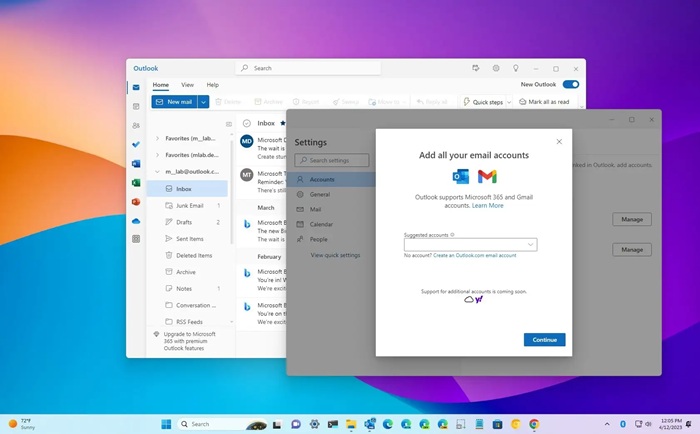
Let’s start with Windows or Mac Outlook.
Step 1: Open Outlook
Launch Outlook normally.
Step 2: Go to File
Top-left corner usually.
Step 3: Click Add Account
You’ll see:
“Add Account”
Click it.
Step 4: Enter Your Email Address
Type your email.
Example:
[email protected]
Then hit Connect.
Step 5: Enter Password
Type your email password.
Outlook usually handles setup automatically now.
Step 6: Finish Setup
If everything works:
- Emails sync
- Inbox loads
- You’re ready
Pretty easy honestly.
How to Add Gmail to Outlook
Very common setup.
Gmail Setup Usually Needs
- Gmail address
- Gmail password
Sometimes also:
- Two-factor verification
- App password
Gmail Permission Screen
Google may ask:
“Allow Outlook access?”
Click Allow.
Then Outlook connects automatically.
What Is an App Password?
Google sometimes blocks normal passwords for security.
App passwords are special one-time passwords used for:
- Outlook
- Mail apps
- Older devices
Useful honestly.
How to Create Gmail App Password
Usually:
- Open Google Account settings
- Security section
- Turn on 2-Step Verification
- Generate App Password
Then use that password in Outlook.
How to Add Yahoo Mail to Outlook
Yahoo works similarly.
Usually you’ll need:
- Yahoo email
- Password
Sometimes Yahoo also requires app passwords now.
How to Add Work Email to Outlook
This depends on company setup honestly.
Most businesses use:
- Microsoft 365
- Exchange
- IMAP systems
Usually IT departments provide:
- Email address
- Password
- Server settings
What are IMAP and POP3?
These confuse everybody honestly.
IMAP
Keeps emails synced across devices.
Best option usually.
POP3
Downloads emails locally.
Older system.
Most people should use IMAP honestly.
What Is SMTP?
SMTP handles outgoing email.
Basically:
sending messages.
Very important setting during manual setup.
Common Outlook Email Ports
These look scary but really aren’t.
IMAP Port
993
POP3 Port
995
SMTP Port
465 or 587
Used during manual configuration.
How to Add an Email Account Manually
Sometimes automatic setup fails.
Then you need manual setup.
Usually requires:
- Incoming server
- Outgoing server
- Port numbers
- SSL/TLS settings
Provided by your email provider.
Common Manual Setup Information
Example IMAP setup:
Incoming:
imap.gmail.com
Port 993
Outgoing:
smtp.gmail.com
Port 465
SSL enabled usually.
How to Add an Email Account on Outlook Mobile
Using a phone app?
Very easy honestly.
Steps
- Download Outlook app
- Open app
- Tap Add Account
- Enter email
- Enter password
- Finish setup
Done.
Outlook Mobile Supports Multiple Accounts
You can add:
- Gmail
- Yahoo
- Work email
- Outlook accounts
all together.
Very convenient honestly.
Can You Add Multiple Email Accounts to Outlook?
Absolutely.
Lots of people manage:
- Personal email
- Work account
- School email
- Side business email
inside one Outlook app.
Huge time saver.
How to Switch Between Email Accounts
Outlook usually shows accounts in the sidebar.
Just click:
- Inbox
- Sent
- Drafts
for whichever account you want.
Pretty simple.
Can Outlook Sync Contacts and Calendars Too?
Yep.
Depending on account type, Outlook can sync:
- Contacts
- Calendars
- Meetings
- Notes
- Tasks
Very useful for work honestly.
Common Problems Adding Email Accounts to Outlook
People hit issues constantly.
Wrong Password
Most common honestly.
Two-Factor Authentication Problems
Needs app password sometimes.
Wrong Server Settings
Manual setup errors happen a lot.
SSL Errors
Encryption settings may fail.
Internet Problems
Connection issues stop setup.
What Does “Cannot Connect to Server” Mean?
Usually:
- Wrong server details
- Firewall problems
- Internet issues
- Security settings
Very common error honestly.
What Does “Authentication Failed” Mean?
Usually Outlook couldn’t verify:
- Password
- Login
- Security settings
Double-check credentials first.
Can Antivirus Software Affect Outlook Setup?
Sometimes yes.
Security software may block:
- Email ports
- Connections
- SSL traffic
Rare but possible.
How to Remove an Email Account From Outlook
Need to delete the account later?
Easy enough.
Usually:
- Open Account Settings
- Select account
- Remove account
Simple process honestly.
Does Removing an Account Delete Emails?
Depends.
Usually removing an account only disconnects Outlook.
Emails still exist on:
- Gmail servers
- Outlook servers
- Yahoo accounts
unless permanently deleted separately.
Best Practices for Outlook Email Setup
Want a smoother setup?
Do this stuff.
Use IMAP Instead of POP3
Better syncing honestly.
Turn On Two-Factor Authentication
Much safer.
Keep App Updated
Old Outlook versions cause issues.
Double-Check Server Settings
Especially during manual setup.
Use Strong Passwords
Very important.
Can Outlook Be Used Offline?
Yep.
Outlook can store local copies of emails.
So you can:
- Read messages
- Draft emails
without the internet sometimes.
Outlook vs Webmail
People ask this constantly.
Webmail
Browser-based email.
Examples:
- Gmail website
- Yahoo website
Outlook App
Dedicated email software with more tools.
Both work fine honestly.
Why Businesses Prefer Outlook
Businesses love Outlook because of:
- Calendars
- Meetings
- Microsoft integration
- Security
- Shared mailboxes
Very common in offices worldwide.
FAQs About Adding Email Accounts to Outlook
Can Outlook work with Gmail?
Yep, absolutely.
Is Outlook free?
Basic versions often are. Some business features require Microsoft 365.
What is IMAP in Outlook?
Email syncing system across devices.
Why won’t Outlook connect to my email?
Usually wrong password or server settings.
Can Outlook handle multiple email accounts?
Definitely.
Do I need app passwords for Gmail?
Sometimes yes with two-factor authentication.
Can Outlook sync calendars too?
Yep for supported accounts.
Is Outlook good for business email?
Very popular for business honestly.
Adding an email account to Outlook sounds complicated at first.
Especially when settings like:
- IMAP
- SMTP
- SSL
- Ports
start appearing everywhere.
But honestly?
Most modern email accounts connect automatically in just a few minutes.
And once everything’s set up, Outlook becomes way easier for managing:
- Work emails
- Personal accounts
- Calendars
- Contacts
- Multiple inboxes
all in one place.
Which honestly saves a ton of time once your inbox starts getting crazy.
