
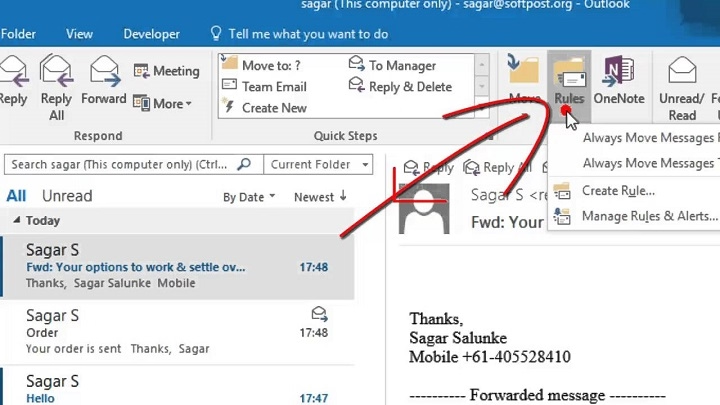
Managing communication with multiple contacts is easier when you use a group email in Outlook. Whether you’re coordinating with a team or planning an event, sending an email to a group saves time and ensures consistent messaging. Here’s how to set up a group email in Outlook.
What is a Group Email in Outlook?
A group email in Outlook allows you to create a distribution list of multiple contacts. You can then send one email to all members of the group simultaneously.
How to Create a Group Email in Outlook (Desktop Version)

- Open Outlook: Launch the Outlook application on your computer.
- Navigate to People or Contacts:
- Click on the People icon at the bottom-left corner.
- Select New Contact Group on the toolbar.
- Name Your Group:
- Enter a meaningful name (e.g., “Project Team” or “Marketing Group”).
- Add Members:
- Click Add Members.
- Choose contacts from your Outlook Contacts, Address Book, or enter new email addresses manually.
- Save the Group:
- Once all members are added, click Save & Close.
How to Create a Group Email in Outlook (Web Version)
- Log in to Outlook Web: Go to https://outlook.office.com and sign in.
- Click on People Icon: Select the People icon from the left-hand side.
- Create a New Group:
- Click New Group.
- Fill in the group name and description.
- Add Members: Enter email addresses of the people you want to add.
- Finalize and Create Group: Click Create to save the group.
How to Send an Email to the Group
- Open a new email draft in Outlook.
- In the To field, type the name of the group.
- Compose your message and click Send.
Benefits of Using Group Emails in Outlook
- Efficient Communication: Send one message to multiple recipients.
- Organized Contacts: Keep related contacts grouped together.
- Time-Saving: No need to manually enter multiple email addresses.
FAQs About Group Emails in Outlook
Can I edit the group later?
Yes, you can add or remove members anytime by opening the contact group.
Is there a limit to how many contacts I can add to a group?
Outlook allows large groups, but your organization’s policies may set limits.
Will recipients see each other’s email addresses?
Yes, unless you use the Bcc field to keep addresses private.
Can I use group emails for newsletters?
For large email campaigns, consider using Outlook’s built-in mailing features or external tools to comply with spam regulations.
Can I create a group email in Outlook mobile app?
The mobile app supports viewing and emailing groups but creating or editing groups is easier via the desktop or web version.
Creating a group email in Outlook simplifies communication with multiple contacts. Whether you’re using the desktop or web version, the steps above will help you set up and manage group emails efficiently.
