
Recalling an email in Microsoft Outlook can save you from awkward typos, wrong recipients, or missing attachments. If you’ve sent a message too soon and wish to undo it, Outlook provides a built-in feature to help you fix the mistake—provided a few key conditions are met. This guide walks you through everything you need to know about how to recall email in Outlook, including limitations, step-by-step instructions, troubleshooting tips, and best practices.
Understanding the Email Recall Feature in Outlook
What Does Recalling an Email Mean?
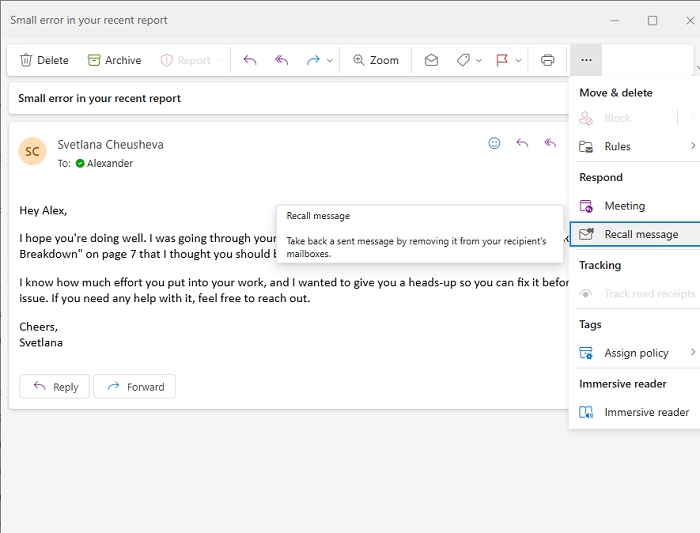
Recalling an email in Outlook means attempting to delete the original message from the recipient’s inbox before they read it. You can also choose to replace the message with a corrected version. This is only possible under specific conditions, and success is not always guaranteed.
When Can You Recall an Email in Outlook?
Recalling a message in Outlook only works when:
- Both sender and recipient are on Microsoft Exchange or Microsoft 365 accounts in the same organization.
- The recipient hasn’t opened the email yet.
- Both users are on Outlook desktop (not mobile or web).
- The email is still in the recipient’s inbox (hasn’t been moved or filtered).
Knowing these prerequisites will save time and frustration when attempting to recall an email.
How to Recall Email in Outlook: Desktop Version
Open the Sent Email
- Launch Microsoft Outlook.
- Navigate to the “Sent Items” folder.
- Double-click on the email you want to recall. Ensure it opens in a new window.
Select the Recall Option
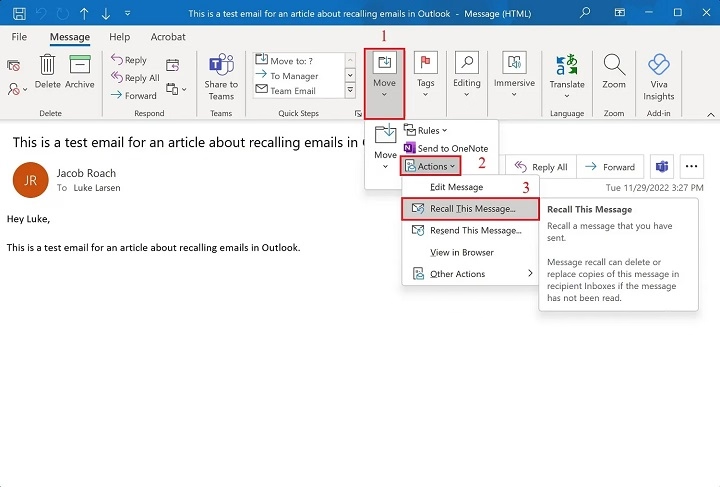
- In the newly opened window, go to the Message tab on the ribbon.
- Click Actions in the “Move” section.
- Choose Recall This Message from the dropdown menu.
Note: If you don’t see this option, your Outlook may not be set up to allow recalls, or the message doesn’t meet recall conditions.
Choose Recall Settings
After clicking “Recall This Message,” you’ll see two options:
- Delete unread copies of this message
- Delete unread copies and replace with a new message
Choose one based on your need. If you want to send a corrected version, choose the second and edit the replacement message.
Track the Recall Request (Optional)
Check the box for “Tell me if recall succeeds or fails for each recipient.” This allows you to get feedback about who successfully received the recall and who didn’t.
Confirm and Send
Click OK to finalize the recall. If you opted to replace the email, Outlook will open a new editing window for the updated version. Make your corrections and send the new email.
Limitations of Email Recall in Outlook
The Recipient Has Already Opened the Email
If the recipient opens the email before you initiate the recall, it’s too late. The message cannot be deleted once it’s been read.
Cross-Platform and External Emails Don’t Work
Recalls don’t work with:
- Gmail, Yahoo, or other external services
- Outlook Web Access (OWA)
- Outlook mobile apps
- Different organization domains
Rules and Filters Interference
If the recipient has rules that move messages from the inbox to another folder automatically, the recall will likely fail.
Tips to Increase Your Recall Success Rate
Act Quickly
Initiate the recall as soon as you realize a mistake. The quicker you act, the less likely the recipient will have opened the original email.
Use “Undo Send” for Outlook Web Users
For Outlook Web or Outlook.com users, consider enabling Undo Send in settings to delay emails by up to 10 seconds, giving you a brief window to stop the send.
Follow Up with a Clarification Email
Even if your recall fails, send a follow-up message clarifying the error. Being proactive can mitigate misunderstandings.
How to Recall an Email in Outlook Web or Mobile
Unfortunately, Outlook Web App (OWA) and Outlook Mobile do not support the message recall feature. If you use these platforms, you’ll need to rely on delayed sending or clarification emails.
Alternative Methods to Avoid Mistakes in Outlook
Enable Delay Delivery
You can set Outlook to delay email delivery by a few minutes to give you time to catch errors:
- In the new email window, go to Options > Delay Delivery.
- Under “Delivery options,” check Do not deliver before, and set your preferred delay time.
Use Message Templates
Avoid repetitive errors by creating standard templates. This helps ensure consistency and reduces the chance of missing details.
Turn on Confirmation Prompts
There are Outlook add-ins that prompt you before sending an email. These prompts help confirm recipients, attachments, or email subjects.
Why Does the Email Recall Feature Fail?
Recalling an email in Outlook is not foolproof. Here are the most common reasons it may not work:
- The recipient is not using Outlook desktop or on a different email client.
- The message was moved from the inbox by a rule or manually.
- The recipient already read the message.
- The organization is using different Microsoft Exchange servers.
Understanding these limitations helps manage expectations when trying to recall email in Outlook.
Best Practices to Avoid Recalling Emails
Double-Check Before Sending
Take an extra moment to:
- Verify email addresses.
- Review attachments.
- Check grammar and tone.
- Ensure all relevant info is included.
Use Delay Rules for All Outgoing Messages
Set a global rule in Outlook:
- Go to File > Manage Rules & Alerts.
- Create a rule for outgoing messages.
- Select “Defer delivery by a number of minutes” and set the delay.
This rule gives you a safety net in case of errors.
FAQs
Can you recall an email in Outlook after it has been read?
No, once the recipient opens the email, the recall will fail.
Does email recall work in Outlook Web App or mobile?
No, the recall feature only works in the Outlook desktop version with Microsoft Exchange accounts.
How do I know if my email recall was successful in Outlook?
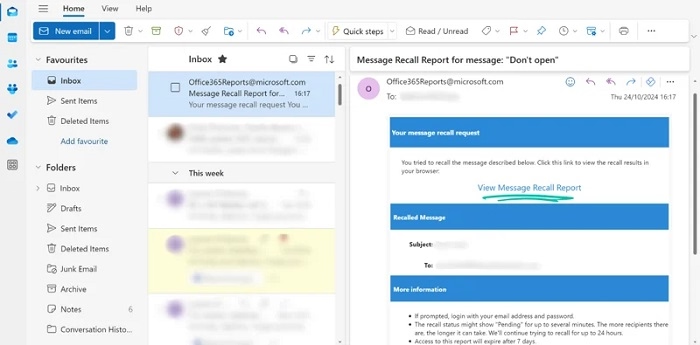
If you selected the “tell me if recall succeeds or fails” option, you’ll get a notification indicating the outcome for each recipient.
Can I recall an email sent to someone outside my organization?
No, email recall only works within the same Microsoft Exchange environment. External domains are not supported.
Is there a way to delay all emails in Outlook?
Yes, you can create a rule to delay delivery for all emails by a specific number of minutes. This helps catch mistakes before the message is actually sent.
Learning how to recall email in Outlook is a valuable skill, especially in professional environments where mistakes can affect credibility. While not always successful, using this feature correctly—along with alternatives like delay delivery and undo send—can help you maintain better control over your email communication. Being proactive, careful, and informed is your best defense against email blunders.
