
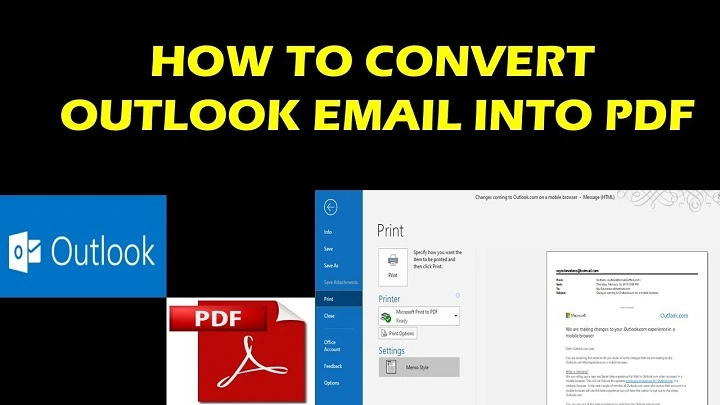
Outlook is one of the most widely used email platforms for both personal and professional communication. Whether you’re saving important emails for reference, archiving them for documentation purposes, or simply keeping a record of a particular conversation, converting an Outlook email to a PDF can be extremely helpful. PDFs are portable, easy to share, and maintain the original formatting of the email. In this article, we’ll walk you through how to save an Outlook email as a PDF in just a few simple steps.
Why You Might Want to Save an Outlook Email as a PDF

There are several reasons why saving an email as a PDF is useful:
Archiving Important Emails
Saving emails as PDFs is a great way to keep a permanent record of important communications, such as contracts, receipts, or project discussions.
Sharing Emails with Others
PDFs are universally accessible, making them an ideal format for sharing emails without worrying about compatibility issues with other email clients or platforms.
Professional Documentation
In business or legal settings, converting emails to PDFs is often done for documentation and compliance purposes. PDFs maintain the email’s original formatting, making them ideal for creating official records.
Security and Privacy
Unlike emails, PDFs can be password-protected or encrypted, providing an extra layer of security when sharing sensitive information.
How to Save an Outlook Email as a PDF: Methods for Different Devices
Depending on the device or platform you’re using, the process to save an email as a PDF may vary. Below are the methods for saving an Outlook email as a PDF on various platforms.
How to Save an Outlook Email as a PDF on Windows
If you’re using the Outlook desktop app on a Windows computer, saving an email as a PDF is straightforward.
Step 1: Open Outlook
Launch the Outlook application on your Windows PC.
Step 2: Open the Email You Want to Save
Go to your inbox or folder and open the email you want to save as a PDF.
Step 3: Print the Email
Click on File in the top-left corner of the window, then select Print from the dropdown menu.
Step 4: Choose “Microsoft Print to PDF”
In the Printer dropdown menu, select Microsoft Print to PDF. This option allows you to “print” the email as a PDF file.
Step 5: Choose PDF Settings
Select the appropriate printer settings, such as the number of pages or paper size, if necessary.
Step 6: Save as PDF
Click Print. A new window will appear asking where you want to save the PDF. Choose your desired location, name the file, and click Save.
Step 7: Confirm PDF Creation
Navigate to the location where you saved the file, and you should see your email saved as a PDF.
How to Save an Outlook Email as a PDF on Mac
If you’re using Outlook for Mac, the steps are similar to those on Windows but slightly adjusted for macOS.
Step 1: Open Outlook
Launch the Outlook app on your Mac.
Step 2: Open the Email
Navigate to your inbox and double-click the email you want to save.
Step 3: Print the Email
Click on File in the top menu, then choose Print from the dropdown.
Step 4: Select “Save as PDF”
In the print dialog box, click on the PDF button located at the bottom-left corner of the window. From the dropdown, select Save as PDF.
Step 5: Choose the File Location
A new window will prompt you to choose the destination for the PDF file. Select a folder, name the file, and click Save.
Step 6: Access Your PDF
Go to the folder where you saved the file, and you will find the email saved as a PDF.
How to Save an Outlook Email as a PDF Using Outlook Web
If you’re using the web version of Outlook (Outlook.com or Outlook for Office 365), saving an email as a PDF involves using your browser’s print feature.
Step 1: Log Into Outlook Web
Open your preferred browser and go to Outlook.com. Log in with your credentials.
Step 2: Open the Email
Navigate to the email you want to save, then open it by clicking on it.
Step 3: Print the Email
Click on the three dots (More actions) in the upper-right corner of the email, then select Print from the dropdown menu.
Step 4: Choose “Save as PDF”
In the print dialog that appears, select the Destination as Save as PDF.
Step 5: Adjust Print Settings
You can adjust the settings, such as page layout or margins, if needed.
Step 6: Save the PDF
Click Save, and choose the location on your computer where you’d like to save the email as a PDF.
How to Save an Outlook Email as a PDF on Mobile Devices
Unfortunately, mobile devices don’t have a built-in feature to directly save emails as PDFs from the Outlook app. However, you can use a workaround by taking screenshots or using the “Print” option.
Step 1: Open Outlook on Your Mobile Device
Launch the Outlook app on your mobile phone or tablet.
Step 2: Open the Email
Find and open the email you wish to save.
Step 3: Use the Share or Print Option
If you’re using an iPhone or Android device, you can use the Share or Print options available. From there, select the Save as PDF option (if available), or print to a PDF via the print dialog.
How to Save an Outlook Email as a PDF Using Third-Party Tools

If you need more flexibility or are looking for batch conversion, there are several third-party tools that can help you save multiple Outlook emails as PDFs:
Adobe Acrobat
- If you have Adobe Acrobat installed, you can use its PDF creation tools to batch save multiple Outlook emails as PDFs.
Email to PDF Services
- There are online services like Zamzar, Online2PDF, and PDFcrowd that allow you to convert emails (including Outlook emails) to PDFs. Simply upload the email content, and the service will convert it into a PDF.
Common Issues and Troubleshooting
Can’t Find the “Microsoft Print to PDF” Option
- If you’re unable to find the “Microsoft Print to PDF” option on Windows, make sure that the feature is enabled in your Windows settings. You can do this by going to Settings > Devices > Printers & Scanners, then checking that “Microsoft Print to PDF” is listed as a printer.
Email Formatting Doesn’t Look Right
- Sometimes, the email formatting may not appear correctly when printed to PDF. This can be due to issues with embedded images or special formatting. You can try adjusting the print settings or manually copy-pasting the email content into a word processor before saving it as a PDF.
Unable to Save PDF on Mobile
- If you’re unable to save a PDF directly from Outlook on mobile, consider using a third-party PDF app that can convert the email content into a PDF format.
FAQs About Saving an Outlook Email as a PDF
Can I Convert Multiple Emails to PDFs at Once?
Yes, by using third-party tools like Adobe Acrobat or batch conversion services, you can save multiple emails as PDFs at the same time.
Can I Save an Email with Attachments as a PDF?
Yes, when printing or saving as a PDF, you can include attachments as part of the email content. However, the attachments may not appear in the same format.
Does Saving an Email as a PDF Alter the Content?
No, saving an email as a PDF preserves the content and layout of the original email, including text, formatting, and images.
How Do I Access Saved PDFs on My Mobile Device?
Once saved, PDFs are typically stored in the Downloads folder or a designated PDF folder. You can access them via your mobile file manager or PDF reader app.
Can I Add Password Protection to the PDF?
Yes, after saving the email as a PDF, you can add password protection or encryption using tools like Adobe Acrobat or other PDF management software.
