
Sending a Word document via email is one of the easiest ways to share information for work, school, or personal reasons. Whether you’re attaching a resume, submitting an assignment, or collaborating on a project, knowing how to properly send a Word file is essential. This 2025 guide will walk you through how to email a Word document from a computer, phone, and even directly from Microsoft Word.
Why Send a Word Document by Email?
Convenience and Speed
Emailing a Word document allows for instant sharing without needing a flash drive or physical copy.
Easy Collaboration
Recipients can open, edit, or comment on the document quickly, whether they are using Word, Google Docs, or another compatible program.
Universally Accepted Format
.docx files are widely accepted by schools, businesses, and organizations, making Word documents a safe choice for attachments.
Understanding the benefits can help you use Word documents efficiently in your communication.
How to Send a Word Document Through Email on a Computer
Save the Word Document
Before attaching, ensure your document is saved properly.
Click File > Save As in Microsoft Word.
Choose a location like Desktop or Documents and confirm the file format is .docx.
Open Your Email Service
Log in to your preferred email provider (Gmail, Outlook, Yahoo, Apple Mail, etc.).
Click Compose to start a new email.
Attach the Word Document
Click the Attach button, usually represented by a paperclip icon.
Browse your files and select the Word document you just saved.
Click Open or Insert to attach the file to your email.
Add a Message and Send
Type your email subject and message.
Click Send when ready.
Your Word document will be delivered as an attachment with your email.
How to Send a Word Document From Microsoft Word Itself
Open the Word Document
Open your finished document in Microsoft Word.
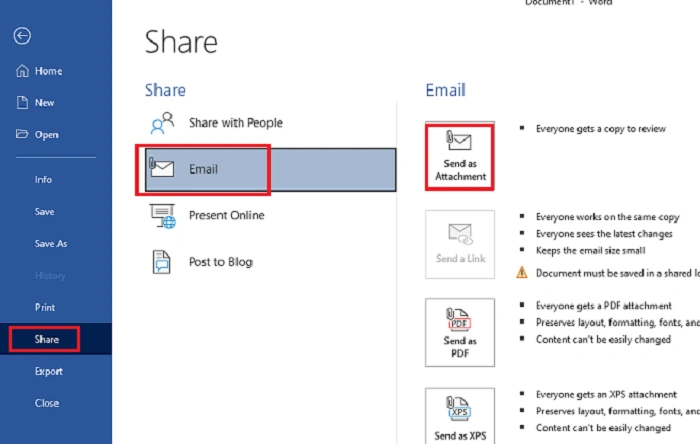
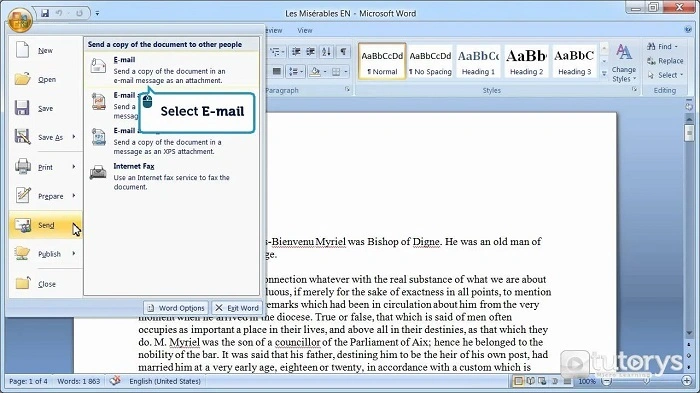
Click File > Share
Go to File > Share > Send as Attachment.
Choose whether you want to send it as a Word document or a PDF.
Choose Email Option
Click Send and your default email app (like Outlook) will open automatically with the document attached.
Fill out the email fields and click Send.
This is a very quick method if you are already working inside Word.
How to Send a Word Document From a Phone (Android or iPhone)
Save the Word Document
If you edited the document on your phone, save it properly in your Files app or OneDrive.
Open Your Email App
Launch Gmail, Outlook, Yahoo, or another email app on your phone.
Tap Compose to start a new email.
Attach the Word File
Tap the Attachment (paperclip) icon.
Navigate to your Files or OneDrive.
Select the Word document you wish to send.
Write Your Email and Send
Type your email subject and message, then tap Send.
Sending Word documents via phone is very convenient when you’re working remotely or on the move.
Best Practices for Emailing Word Documents
Name Your Document Clearly
Use a clear and professional file name like Resume_JohnDoe.docx or ProjectProposal_March2025.docx.
Compress Large Documents
If your file is too large, consider compressing it into a .zip file before attaching.
Always Double-Check the Attachment
Make sure the correct file is attached before hitting Send to avoid sending the wrong document.
Use PDF for Final Versions
If you don’t want the recipient to edit your document, you can convert your Word file to PDF before sending.
Following these practices ensures your emails are professional and error-free.
Common Problems and Solutions When Sending Word Documents
Attachment Size Too Big
Solution: Compress the document, split it into parts, or use a cloud service like Google Drive, OneDrive, or Dropbox and share a link.
Recipient Can’t Open the File
Solution: Ensure the document is saved as a standard .docx file. Older formats like .doc might not work on all devices.
Can’t Find the File to Attach
Solution: Double-check your Save As location and ensure the document was saved properly before trying to attach.
Attachment Blocked by Email Provider
Solution: Save the document to a cloud service and send a link, especially if sending executable or macro-enabled files.
How to Send Large Word Documents Using Cloud Services
Google Drive
Upload your Word file to Google Drive.
Create a shareable link.
Paste the link into your email instead of attaching the file directly.
OneDrive
Upload your Word document to OneDrive.
Share the document link directly through your email.
Dropbox
Upload your document to Dropbox.
Generate a public link and paste it into your email.
Using cloud services avoids attachment size limits and improves file accessibility.
Frequently Asked Questions (FAQs)
Can I send a Word document directly from Word without opening my email?
Yes, use the File > Share > Send as Attachment option inside Word to open your default email app with the document attached.
Why can’t I attach my Word document?
Check if the file is open elsewhere or if it’s too large. Close it and try again, or compress it before attaching.
What is the maximum size for email attachments?
It varies by provider—Gmail allows up to 25 MB; Outlook typically allows up to 20 MB. Use cloud services for larger files.
Should I send Word documents or PDFs?
Send Word files if collaboration or editing is needed. Send PDFs if you want to preserve formatting and prevent editing.
How do I send multiple Word documents in one email?
Simply select multiple files when clicking the Attach button, or compress them into a single .zip file before sending.
Final Thoughts on Sending Word Documents via Email
Sending a Word document through email is a simple but essential skill, whether you’re handling business, schoolwork, or personal projects. By following the correct steps and best practices outlined in this 2025 guide, you can send your Word files quickly, securely, and professionally every time.
