
So you just made a file. Maybe it’s your resume? A report? A receipt you scanned? Now you gotta email it. Sounds easy, right? But wait — how do you attach it? Is it too big? Can you send it from your phone? Will they even open it?
Hey, don’t stress! Sending PDFs is super easy. Like, really easy once you know how. You use Gmail? Outlook? Your phone? This guide shows you everything. How to attach files. Make them smaller. Send them right. By 2025, you’ll be a pro at this stuff.
Ready? Let’s make you look good every time you hit send.
What’s a PDF? Why Email Loves It
PDF means Portable Document Format. Adobe made it. Why? So files look the same everywhere. Your computer. Their phone. Any tablet. Same look! That’s why we use PDFs for:
- Resumes and cover letters
- Bills and receipts
- Reports and essays
- Forms you scanned
- Contracts to sign
Word files? They get messy on different devices. Images? Too big and you can’t search them. But PDFs? They’re small. You can search them. Print them easy. Perfect for email!
Method 1: Send a PDF in Gmail (Computer)
Gmail makes this so simple. Here’s how:
Steps
- Open Gmail on your computer
- Click “Compose” (top left corner)
- See that paperclip? Click it
- Find your PDF file. Click it
- Watch it attach under your subject
- Type who gets it. Add a subject. Write something nice
- Hit Send!
Your file too big? Gmail’s smart. Files over 25 MB? It puts them in Google Drive. Then sends a link. Easy!
Method 2: Send a PDF in Outlook (Computer or Web)
Outlook works the same way. Plus some extras.
Steps
- Open Outlook (or Outlook.com)
- Click “New Email”
- Click the paperclip icon
- Pick your PDF (from your computer or OneDrive)
- Choose “Attach as copy” (best for PDFs)
- Write your message. Click Send
Got OneDrive? You can share a link instead. Great for big files. Or files you update a lot. People can view or download. You pick!
Method 3: Send PDFs from Your Phone
On the go? Your phone does this in seconds.
Steps
- Open your email app
- Tap compose (pencil or plus sign)
- Tap the paperclip
- Tap “Attach file”
- Find your PDF (Downloads? Files? iCloud?)
- Select it
- Write something. Send!
Cool thing? Most apps let you grab files from the cloud. Google Drive. Dropbox. iCloud. No need to save locally!
Method 4: Scan Paper and Send as PDF
Got paper? Make it digital! Your phone is a scanner.
For Android (Gmail or Google Drive)
- Open Google Drive
- Tap the plus (+) → Scan
- Point camera at paper
- Fix the edges. Save as PDF
- Tap three dots → Send copy → Gmail
- Write message. Send!
For iPhone (Mail or Files)
- Open Files → Browse
- Tap camera → Scan Documents
- Scan it. Check it. Save PDF
- Tap Share → Mail
- Add who gets it. Send!
Your phone turns any paper into a PDF. Receipts. Forms. Signatures. Ready to email in seconds!
Method 5: Make Big PDFs Smaller
File too big? Over 25 MB? Email says no. Let’s fix that.
Ways to shrink it
- Use Smallpdf.com — drag your file. Click compress
- Upload to Google Drive — send the link instead
- On Mac: Open Preview → File → Export → “Reduce File Size”
- On Windows: Right-click → Send to → Compressed folder
Now it sends fine. No more “file too large” errors!
Method 6: Send Many PDFs at Once
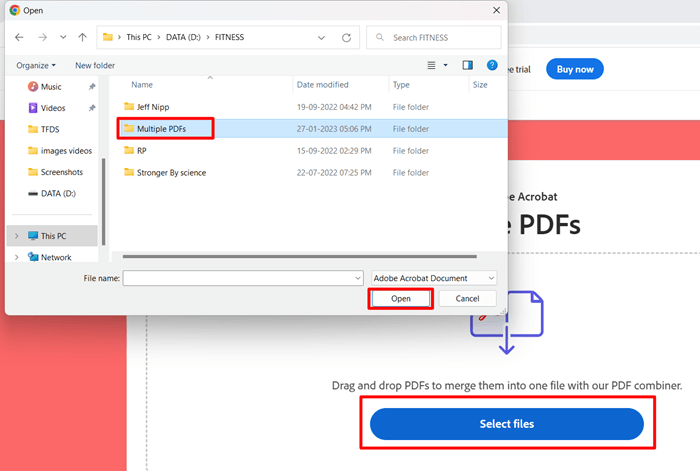
Got lots of PDFs? Send them together!
Steps
- Hold Ctrl (PC) or Command (Mac)
- Click each PDF you want
- Click Open. They all attach!
- Check the total size
- Too big? Zip them first
Or try this: Put all PDFs in one folder. Upload to Drive. Share the folder link. Clean and easy!
Quick Reference Table
| What to Do | Where | How |
| Send PDF from computer | Gmail/Outlook | Compose → Attach → Pick PDF → Send |
| Send big PDF | Gmail/Outlook | Upload to cloud → Share link |
| Send from phone | Email apps | Compose → Attach → Pick PDF → Send |
| Scan and send | Drive/Files | Scan → Save PDF → Share by email |
| Make PDF smaller | Online tools | Upload → Reduce size |
Method 7: Send a Link Instead
Sometimes links work better than attachments.
Google Drive way
- Upload your PDF
- Right-click → Get link
- Pick who can see it
- Copy link
- Paste in email
OneDrive way
- Upload PDF
- Right-click → Share
- Choose “Anyone with link”
- Copy and email it
Links keep emails light. No size limits. Works on any device!
Best Tips for Sending PDFs
Name files right. Not “document123.pdf”. Try “JohnDoe_Resume.pdf”
Keep messages short. Like this:
Hi [Name],
Here’s the file you wanted. Questions? Just ask!
Best,
[Your Name]
Test first. Open the PDF. Make sure it’s right.
Shrink big scans. Compress them first.
Use links for big files. Safer. Easier.
Fixing Problems: PDF Won’t Send?
Something wrong? Check these:
- Too big? Compress it. Or use a link
- Bad internet? Wait for better signal
- Weird file name? Remove # or & symbols
- Does the company block it? Try cloud link instead
- File broken? Open and save again
Still stuck? Upload to Drive. Send the link. Works every time!
Common Questions
Q: Can I scan with my phone camera?
Yep! Use Google Drive or iPhone Files. Scan to PDF. Email it.
Q: How big can PDFs be?
Most emails take 25 MB max. Bigger? Use cloud links.
Q: Will they open it?
Yes! All devices read PDFs. No special apps needed.
Q: Can I lock it with a password?
Sure! In Adobe: File → Protect with Password. Then send.
Q: Safe for private stuff?
For secret files? Add password. Or use secure links.
Sending PDFs by email? It’s basic stuff that never gets old. Fast. Clean. Works everywhere. Resume? Contract? Report? Now you know how to attach it. Compress it. Share it safe.
Email apps in 2025? They’re smart. But the basics stay the same. Attach right. Name it clear. Send with confidence. Next time someone says “Email me that PDF?” you got this!
