
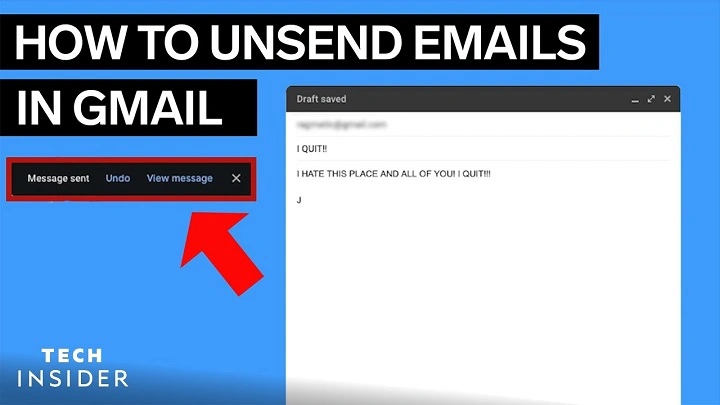
We’ve all had that sinking feeling after hitting “Send” on an email too soon. Whether it’s an unfinished thought, a wrong recipient, or a forgotten attachment, Gmail offers a lifesaver with its “Undo Send” feature. If you’re wondering how to unsend an email in Gmail, this guide walks you through every detail to save you from awkward mistakes.
What Does “Unsend” Mean in Gmail

Unsend in Gmail doesn’t exactly pull an email back from the recipient’s inbox. Instead, it delays sending the email for a few seconds—allowing you a short window to cancel the action. This grace period is what Gmail calls the “Undo Send” feature.
This functionality is crucial for professionals, students, and casual users alike who want to catch last-minute errors before an email becomes irreversible.
How to Unsend an Email in Gmail
Unsend Immediately After Sending
- Compose and Send Your Email
Write your message as usual and click “Send.”
- Look for the Undo Notification
At the bottom left of your screen, you’ll see a small message saying: “Message sent. Undo. View message.”
- Click “Undo” Quickly
You have a few seconds (depending on your settings) to click “Undo.” Once clicked, Gmail stops the email from going out and reopens it in the draft window.
How to Adjust the Unsend Time Window
By default, Gmail offers a short undo window of 5 seconds, but you can increase this to give yourself more time to react.
Steps to Change the Undo Send Period
- Open Gmail in your browser.
- Click the gear icon (Settings) at the top right.
- Select See all settings.
- Under the General tab, find Undo Send.
- Choose between 5, 10, 20, or 30 seconds.
- Scroll down and click Save Changes.
Now you’ll have a longer window to unsend an email in Gmail whenever needed.
Can You Unsend an Email After the Undo Time Expires?
Unfortunately, once the undo window expires, Gmail cannot recall or retract the email. It has already been delivered to the recipient’s inbox.
This is why adjusting the undo time and acting quickly are crucial if you want to unsend an email in Gmail effectively.
How to Use Undo Send on Mobile
For Android and iPhone
- Open the Gmail app on your smartphone.
- Compose and send your email.
- A Snackbar notification will appear at the bottom: “Sent. Undo.”
- Tap Undo within a few seconds to cancel the send.
The app version works exactly like the desktop version, so the steps are almost identical.
Tips to Avoid Needing the Undo Send Feature

While the undo option is helpful, prevention is always better. Here are a few tips to avoid errors before clicking “Send”:
- Review recipients before sending.
- Use grammar and spell checkers to catch basic mistakes.
- Attach files before writing the message to avoid forgetting.
- Use the draft feature to write, pause, and review.
- Enable email confirmation prompts using browser extensions if needed.
These steps reduce the chances of needing to unsend an email in Gmail frequently.
Using Gmail Add-Ons for Extra Safety
If you’re dealing with critical or time-sensitive messages, consider using third-party tools or Gmail extensions. Some offer enhanced undo options or delay sending by default.
Popular tools include:
- Boomerang for Gmail: Offers scheduling, delay send, and reminders.
- Right Inbox: Allows you to set default send delays for every email.
- Mailtrack: Though not directly related to undoing emails, it helps you track whether your email was opened.
While these don’t extend Gmail’s native undo window, they give you more flexibility and control over sending behavior.
How to Prevent Embarrassing Mistakes in Gmail
Aside from using the undo feature, Gmail offers a few smart settings that can reduce your chances of sending the wrong message:
- Enable Conversation View to keep email threads together.
- Use Labels and Filters to keep organized.
- Enable Smart Compose to get suggestions while typing.
- Turn On Confidential Mode for sensitive messages that expire or restrict copying.
Making the most of these features can help you avoid situations where you need to unsend an email in Gmail at all.
Common Issues With Undo Send in Gmail
“Undo” Option Doesn’t Appear
This usually means you’ve disabled the Undo Send feature or the time limit is too short. Go to your settings and increase the undo time to 30 seconds.
Email Still Went Out Despite Clicking Undo
In rare cases, if your internet connection drops right after sending, Gmail might send the email immediately without registering your Undo click. Always ensure you have a stable connection.
Undo Doesn’t Work on Scheduled Emails
If you schedule an email for future delivery, Gmail doesn’t show the Undo option when it’s automatically sent. In such cases, you must cancel the scheduled email before the send time.
Frequently Asked Questions (FAQs)
Can I recall an email after 30 seconds in Gmail?
No, Gmail does not support recalling an email after the Undo Send time expires.
How do I enable the Undo Send feature in Gmail?
It’s enabled by default. You can adjust the time under Gmail settings in the General tab.
Is the Undo Send feature available on mobile?
Yes, both Android and iOS apps support this feature through a pop-up notification after sending.
Does Gmail notify the recipient when I undo an email?
No, if you click Undo in time, the email is never delivered, so the recipient is unaware.
Can I schedule emails and still unsend them?
Only before the scheduled time. Once Gmail sends the scheduled email, you can’t undo it.
Gmail’s Undo Send feature is one of the simplest yet most powerful tools for avoiding costly mistakes. Whether you’re writing a job application, sending a professional reply, or reaching out to someone personally, having that extra few seconds to fix an error can save you from regret. While Gmail doesn’t allow you to retract an email after it’s delivered, configuring your settings and using the Undo Send option effectively can prevent most slip-ups.
Take full advantage of this feature by increasing the send delay, reviewing emails carefully, and using productivity tools when necessary. With just a little precaution, you can send every email with confidence.
