
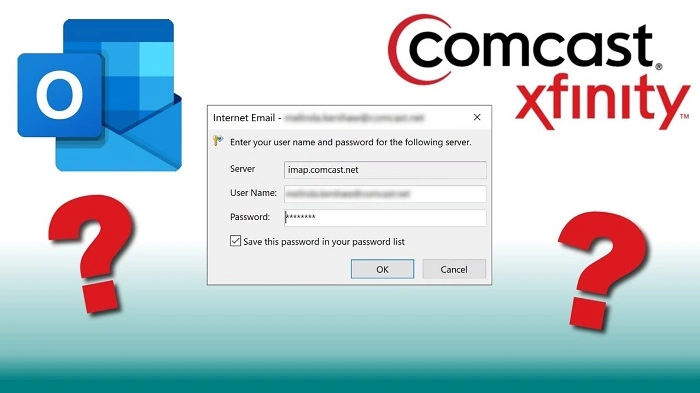
Understanding IMAP for Comcast Email
IMAP (Internet Message Access Protocol) is a standard email protocol used for accessing emails from a mail server. Comcast uses imap.comcast.net as its IMAP server, allowing users to sync emails across multiple devices. However, accessing your Comcast email through IMAP requires the correct password and server settings.
What is IMAP.Comcast.Net?

imap.comcast.net is Comcast’s official IMAP server, allowing users to access their emails remotely without downloading them. This ensures that emails remain on the server, making it easier to access them from different devices.
Key IMAP Settings for Comcast
To set up Comcast email on an email client, you need the following IMAP server settings:
- IMAP Server: imap.comcast.net
- IMAP Port: 993
- Security: SSL/TLS required
- Username: Your full Comcast email address
- Password: Your Comcast email password
Why is My IMAP.Comcast.Net Password Not Working?

If your IMAP password is not working, it could be due to several reasons:
1. Incorrect Password
Double-check your password to ensure there are no typos or incorrect characters. If you recently changed your Comcast password, update it in your email client settings.
2. Two-Step Verification Issues
If you have enabled two-step verification, you may need an app password instead of your regular Comcast password when setting up IMAP access.
3. Outdated or Incorrect IMAP Settings
Ensure that you are using the correct IMAP settings, including the SSL/TLS security option and the correct port (993).
4. Account Lockout or Suspension
Comcast may temporarily lock your account due to suspicious activity or multiple failed login attempts. Try resetting your password to regain access.
5. Third-Party Email Client Issues
If you are using an email client like Outlook, Thunderbird, or Apple Mail, it may not be syncing properly with Comcast’s servers. Try re-entering your credentials or removing and re-adding the account.
How to Reset Your Comcast IMAP Password
If you forget your Comcast email password or need to reset it, follow these steps:
1. Reset Password via Comcast Website
- Visit the Xfinity Comcast login page
- Click Forgot Password?
- Enter your Comcast email address or username.
- Follow the instructions to verify your identity.
- Create a new password and update it in your email client settings.
2. Generate an App Password (For Third-Party Email Clients)
If your email client does not accept your Comcast password, you may need to generate an app password:
- Sign in to your Xfinity account.
- Navigate to Security Settings.
- Select App Passwords and generate a new password for your email client.
- Use this app password instead of your regular password in your email client’s IMAP settings.
Fixing IMAP Authentication Errors

If you encounter authentication errors when connecting to imap.comcast.net, try the following solutions:
1. Update Your Password in the Email Client
Ensure you have entered the correct Comcast password or app password in your email client’s IMAP settings.
2. Enable Third-Party Access
Some email clients require additional permissions to connect. Check your Xfinity security settings to enable access for less secure apps.
3. Use the Correct Comcast IMAP Settings
Double-check that you are using the correct IMAP server settings, including:
- IMAP Server: imap.comcast.net
- Port: 993
- Encryption: SSL/TLS
4. Reconnect Your Email Account
If you continue to experience issues, try removing your Comcast email account from your email client and adding it again using the correct IMAP settings.
5. Contact Comcast Support
If nothing works, visit the Xfinity support page or call Comcast customer support for further assistance.
FAQs
1. How do I find my Comcast IMAP password?
Your IMAP password is the same as your Comcast email password. If you forgot it, reset it through the Xfinity website.
2. Why can’t I log in to a Comcast email using IMAP?
Ensure you are using the correct IMAP settings and your password is up to date. Also, check if two-step verification requires you to use an app password.
3. How do I enable IMAP access for Comcast email?
IMAP is enabled by default for Comcast email. Simply enter the correct IMAP settings in your email client.
4. What should I do if my Comcast email is not syncing?
Try updating your password, ensuring the correct IMAP settings, and restarting your email client. If the issue persists, try removing and re-adding the account.
5. Can I use the same password for IMAP and Webmail?
Yes, your Comcast email password is used for both Webmail (Xfinity) and IMAP access.
