
Sometimes you want to send an email but not right now. Maybe it’s late at night, maybe you want your message to arrive during work hours. Maybe you’re planning ahead for a project, a meeting, a reminder or a follow-up. Outlook makes this possible with its built-in “Schedule Send” feature.
The problem? It’s hidden in different places depending on your device. Outlook Desktop, Outlook Web, Outlook Mobile – each has a different layout. And if you don’t know where the button is, scheduling an email can feel confusing.
This 2025 guide walks you through every method, every device, every version.
Why Scheduling Emails in Outlook Matters
Scheduling an email helps you:
- send messages at professional times
- plan ahead for tasks and projects
- avoid forgetting important reminders
- send follow-ups automatically
- communicate better across time zones
- avoid troubling people outside work hours
- write emails when you’re free but deliver them later
It makes Outlook feel smarter — and makes you look more organized.
Schedule an Email in Outlook Desktop (Windows)
This is the classic, most powerful version.
Steps:
- open Outlook on your Windows computer
- click New Email
- compose your message
- click Options at the top
- click Delay Delivery
- under “Delivery options,” check Do not deliver before
- choose your date
- choose your time
- click Close
- click Send
Outlook holds the message in your Outbox until the exact time you chose.
Tip:
- Outlook must stay open for scheduled send to work on older versions.
Schedule Send in Outlook Desktop (New Outlook / Modern Version)
Microsoft introduced a simpler “Schedule Send” button.
Steps:
- open Outlook
- click New Email
- write your message
- click the small arrow next to Send
- click Schedule Send
- choose date and time
- click Send
Your message is now scheduled without using Delay Delivery.
Schedule an Email in Outlook for Mac
Outlook for Mac makes scheduling quick.
Steps:
- open Outlook
- click New Message
- write your email
- click the arrow next to Send
- click Send Later
- choose date
- choose time
- click Send
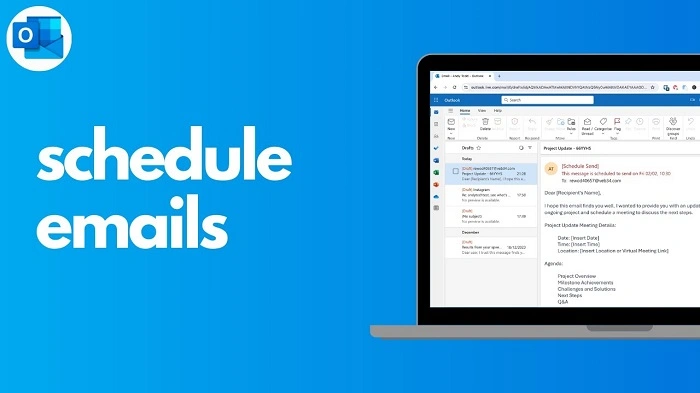
Schedule Send in Outlook Web (Outlook.com)
If you use Outlook.com in your browser:
Steps:
- open your browser
- go to outlook.com
- sign in
- click New Message
- write your email
- click the arrow next to Send
- click Send later
- choose the date
- choose the time
- click Send
The email goes into the Scheduled folder.
Tip:
- Outlook Web schedules emails even if your computer is off.
Schedule Outlook Emails on Android
Outlook mobile supports scheduling.
Steps:
- open Outlook app
- tap Compose
- write your email
- tap the three dots (top right)
- tap Schedule send
- select one of the preset times OR
- tap Pick date & time
- choose your custom time
- tap Done
- send
Your email sends automatically later.
Schedule Outlook Emails on iPhone (iOS)
Steps:
- open Outlook app
- tap New Message
- type your message
- tap the three dots in the top-right corner
- tap Schedule Send
- choose date and time
- tap Send
Edit or Cancel a Scheduled Email in Outlook Desktop

If you need to change the time:
Steps:
- go to your Outbox
- double-click the scheduled email
- click Options
- click Delay Delivery
- update the date and time
- click Close
- click Send again
To cancel:
- open the Outbox
- delete the scheduled email
Easy and fast.
Edit or Cancel a Scheduled Email in Outlook Web
Steps:
- open Outlook.com
- go to Scheduled folder
- click the email
- choose Cancel send
- email moves back to Drafts
- edit or resend as needed
You stay in control even after scheduling.
Why Your Scheduled Email Didn’t Send (Fixes)
If the message didn’t send:
Check:
- Outlook was offline
- your PC was shut down (older versions)
- you have no internet
- Outbox is full
- account authentication expired
- send & receive settings are blocked
- VPN or firewall interrupted
Fix:
- open Outlook and stay online
- restart the app
- clear Outbox
- sign in again
- check internet connection
- disable VPN
- update Outlook
Schedule Recurring Emails in Outlook
Outlook does not have built-in recurring email scheduling but you can work around it.
Steps:
- write the email
- save it as a template (Outlook Template file)
- open it when needed
- use Schedule Send
- choose your future time
Or use:
- Microsoft Power Automate
- Rules + templates
Schedule Emails Across Different Time Zones
Outlook adjusts based on your system time zone.
Steps:
- open Outlook
- schedule email at your local time
- Outlook converts the time for the recipient based on their zone
For international scheduling:
- click File → Options → Calendar
- turn on Time Zone
- choose secondary zones if needed
Everything stays precise.
Use Delay Delivery for Advanced Scheduling (Desktop)
Delay Delivery includes extra features.
You can:
- hold email until a specific time
- prevent sending before certain hours
- set expiry time
- tag importance
- create rules for delayed sending
Steps:
- open email
- click Options
- click Delay Delivery
- customize options
Useful for advanced email control.
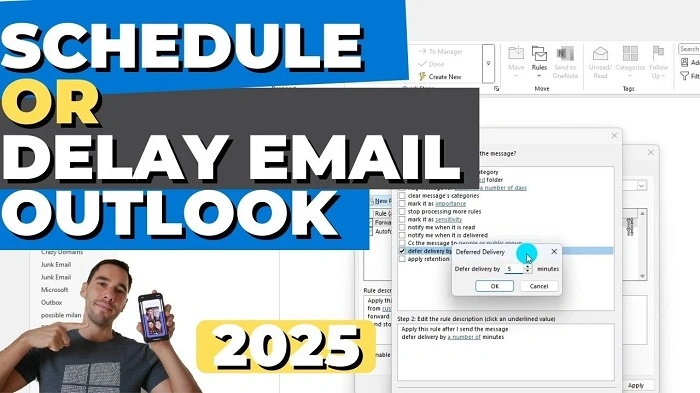
Use Outlook Rules to Auto-Delay Every Email Sent at Night
If you want Outlook to automatically schedule emails during off-hours:
Steps:
- go to File
- click Manage Rules & Alerts
- click New Rule
- choose “Apply rule on messages I send”
- set conditions (optional)
- choose “Delay delivery by X minutes”
- apply
Outlook delays every message by the time you set.
Troubleshooting: When Schedule Send Button Is Missing
The button might not appear if:
- you’re using outdated Outlook
- you’re in POP/IMAP account mode
- app needs update
- email account is offline
- server is restricted (work accounts)
Fix:
- update Outlook
- switch to Microsoft Exchange or Office 365 account
- restart app
- reinstall Outlook
- ask IT admin to enable scheduling
Most issues are due to old versions.
Organization Tips After Scheduling Emails
To stay organized:
- check the Scheduled folder regularly
- cancel accidental schedules
- review times for accuracy
- use templates for repeated scheduled emails
- clean Outbox to avoid conflicts
- note time-zone differences for receivers
- double-check attachments before scheduling
A clean scheduled list = fewer mistakes.
Quick Summary
How to schedule an Outlook email:
- Desktop: Options → Delay Delivery OR arrow → Schedule Send
- Mac: arrow next to Send → Send Later
- Outlook Web: arrow next to Send → Send later
- Mobile: three dots → Schedule Send
- Edit or cancel in Outbox or Scheduled folder
Two clicks — and Outlook sends your email at the perfect moment.
FAQs
Does Outlook send scheduled emails if it’s closed?
Yes on Outlook Web and new Outlook.
Older desktop versions require Outlook to stay open.
Can I send recurring scheduled emails automatically?
Not directly — use templates or Power Automate.
Can I schedule emails on Outlook mobile?
Yes — both Android and iPhone have Schedule Send.
Why is my scheduled email stuck?
Usually due to no internet or Outlook offline.
Does the recipient know it was scheduled?
No — it arrives like a normal email.
