
Saving important messages as PDFs helps you archive, share, or print emails easily. Whether you’re using the Outlook desktop app or web version, this guide shows how to save an Outlook email as a PDF quickly and correctly.
Why Save an Email as a PDF?

- For documentation and recordkeeping
- To share email content outside Outlook
- For offline access
- To print emails professionally
Save an Outlook Email as a PDF (Windows Desktop App)
- Open Outlook and Select the Email
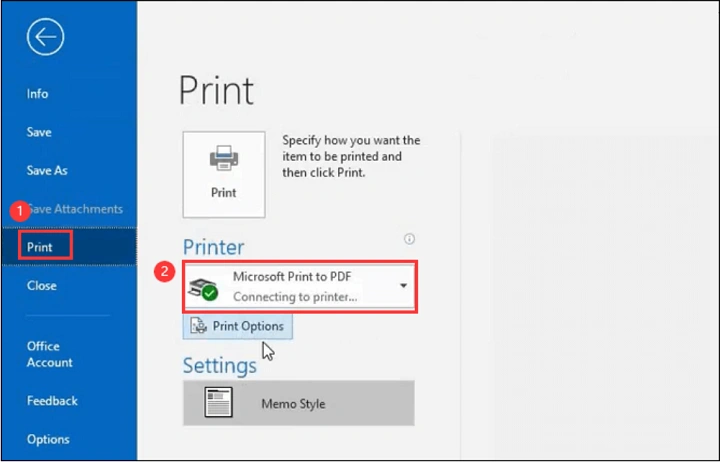
Launch Outlook and click on the email you want to save. - Click File > Print
Choose File from the top menu, then select Print. - Choose “Microsoft Print to PDF” as Printer
From the printer dropdown, select Microsoft Print to PDF. - Click Print
This won’t print but instead open a Save As dialog box. - Save the File
Choose a folder, name the PDF, and click Save.
Save an Email as a PDF (Mac Desktop App)
- Open the email 2. Go to File > Print 3. In the bottom-left corner, click the dropdown and select “Save as PDF” 4. Choose location and save
Save an Outlook Email as PDF (Outlook Web / Outlook.com)
- Open the email in your browser 2. Press Ctrl+P (Cmd+P on Mac) 3. In the Print dialog, choose “Save as PDF” as the printer 4. Click Save and choose the destination folder
Tip: Expand long messages or click “View Entire Message” before printing to PDF so nothing is cut off.
FAQs About Saving Outlook Emails as PDF
Can I save multiple emails as one PDF?
Not directly in Outlook. You’ll need to copy messages into Word or use third-party tools.
Will attachments be saved too?
No, only the email content is saved as PDF. Save attachments separately.
Does saving as PDF keep formatting?
Yes, it preserves most formatting including links and images.
Can I automate saving emails as PDF?
Not with Outlook alone. Consider add-ins or third-party software for automation.
Is the PDF searchable?
Yes, the content is usually searchable like any text-based PDF.
Learning how to save an Outlook email as a PDF is useful for organizing, sharing, or backing up your emails. Whether you’re on the desktop or web version, follow the steps above to convert any message into a secure, portable file.
