
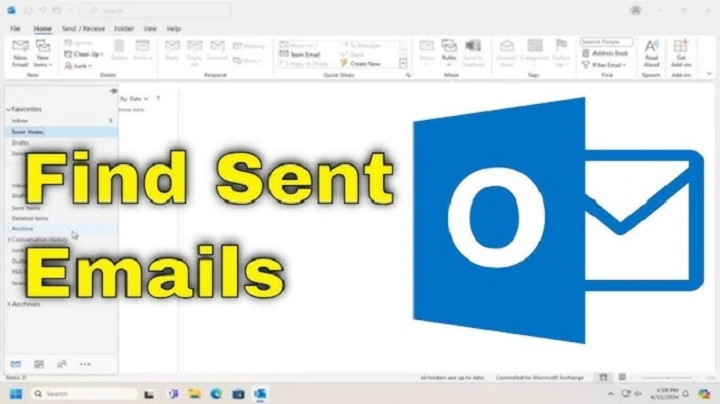
Understanding Sent Emails and How They Work
Sent emails refer to messages that have been successfully dispatched from your email account to a recipient’s inbox. Most email services store these messages in the Sent folder, allowing you to review, track, and manage previously sent communications.
Where Do Send Emails Go?


Once you send an email, it typically moves to the Sent or Sent Items folder of your email client or service. However, the exact location depends on the platform you are using.
Sent Email Storage in Popular Email Services
- Gmail: Emails are stored in the Sent folder. Accessible via the web or mobile app.
- Outlook: Sent emails appear in the Sent Items folder.
- Apple Mail: Sent messages are saved in the Sent mailbox.
- Yahoo Mail: All sent emails can be found in the Sent section.
If your sent emails are missing, there may be an issue with synchronization, settings, or internet connectivity.
How to View Sent Emails
On Desktop (Webmail or Email Client)
- Open your email application (Gmail, Outlook, Yahoo, etc.).
- Locate the Sent or Sent Items folder on the left panel.
- Click on it to see all previously sent messages.
On Mobile Devices (iOS & Android)
- Open your email app.
- Tap on the Menu (☰) or More Options (⋮).
- Select Sent to access your sent emails.
Why Can’t I See My Sent Emails?
Sometimes, sent emails may not appear in the Sent folder. This can happen due to various reasons:
1. Sent Folder is Not Synced
If using an email client like Outlook, Apple Mail, or Thunderbird, your email account may not be set to sync the Sent Items folder.
Solution:
- Go to your email settings and enable synchronization for sent emails.
2. Email Was Not Actually Sent
If your internet connection dropped or there was an issue with the email server, the email may not have been sent successfully.
Solution:
- Check the Outbox folder; if the email is stuck there, try resending it.
3. Auto-Delete or Storage Limits
Some email services automatically delete older sent emails due to storage limits.
Solution:
- Check your email storage settings and increase space if necessary.
4. Filters or Rules Moved the Email
Certain email rules or filters may redirect sent emails to a different folder.
Solution:
- Review your email filters and disable any that affect sent emails.
How to Resend a Sent Email

If you need to resend an email, follow these steps based on your email provider:
In Gmail
- Go to the Sent folder.
- Open the email you want to resend.
- Click on the three-dot menu (⋮) and select Forward or Resend.
In Outlook
- Open the Sent Items folder.
- Double-click the email to open it.
- Click Resend or Recall > Resend This Message.
In Apple Mail
- Open the Sent folder.
- Select the email and choose Send Again from the menu.
How to Delete Sent Emails
If you want to remove a sent email from your email history:
- Navigate to the Sent or Sent Items folder.
- Select the email(s) you want to delete.
- Click the Delete or Trash icon.
Note: Deleting an email from your Sent folder does not remove it from the recipient’s inbox. Once sent, you cannot undo the delivery unless your email provider has a recall feature.
Can You Recall or Unsend a Sent Email?
In some cases, you may want to unsend an email after it has been sent. However, this depends on your email provider:
- Gmail: Allows you to Undo Send within 5-30 seconds (if enabled in settings).
- Outlook: Allows email recall only if the recipient has not read it and both sender and recipient use the same Microsoft Exchange environment.
- Yahoo, Apple Mail, and other services: No recall feature available.
Best Practices for Managing Sent Emails
1. Enable Sent Email Backup
If your email provider allows it, enable automatic backups of sent messages to avoid losing important communications.
2. Use Labels and Folders
Organize sent emails by categorizing them into folders (e.g., Work, Personal, Receipts) to easily locate past emails.
3. Verify Before Sending
Before clicking send, double-check the recipient, subject, and attachments to avoid mistakes.
4. Set Up Email Tracking
Some email clients offer read receipts or third-party tracking services to confirm when recipients have opened your email.
5. Regularly Clear Out Unnecessary Sent Emails
To free up storage, periodically delete outdated or unnecessary sent emails while keeping backups of important ones.
FAQs About Sent Emails
1. Where can I find my sent emails?
Your sent emails are stored in the Sent or Sent Items folder of your email provider.
2. Why did my sent email disappear?
Possible reasons include email filters, storage limits, or synchronization issues with your email client.
3. Can I retrieve a sent email?
If the email was deleted, check your Trash or Archive folder. If permanently deleted, it may not be recoverable.
4. How do I confirm if my sent email was received?
You can enable read receipts (Outlook) or use third-party email tracking services.
5. Can I edit a sent email?
No, once an email is sent, it cannot be edited. You must resend a corrected version.
