

Email is still the best way to talk to people. Sure, we’ve got chat apps and work tools. But email? It’s what we use for big news, updates, and work stuff. The hard part comes when you need to send the same thing to lots of people.
Typing each email one by one takes forever. Plus, you might mess up. You could forget someone. You might type the wrong email. Or worse—send a private note to the whole team. Yikes! That’s why Outlook has group emails.
I’ll show you how to make group emails in Outlook, why they’re handy, and how to manage them properly. Each step is clear and simple, with tips to help you avoid common mistakes.
What Is a Group Email in Outlook?
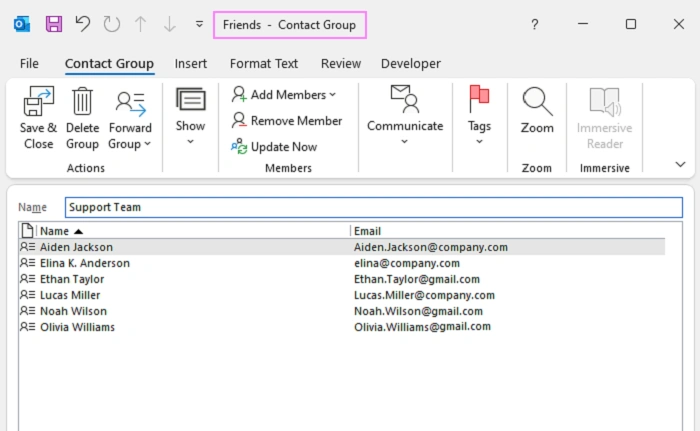
A group email is a saved list of email addresses. Instead of adding people one by one, you type the group name and Outlook sends your message to everyone in that group.
Some people call it a contact group. Others call it a contact list. Different Outlook versions use different names, but the purpose is the same—making it easier to email the same people again and again.
Why Creating Group Emails Is Useful
Group emails save time and reduce errors. Once a group is created, you can reuse it whenever needed.
Here’s why they’re helpful:
- Send one email instead of many
- Avoid forgetting recipients
- Keep messages consistent
- Reduce typing mistakes
- Stay organized
- Save time every day
These small efficiencies add up quickly.
Types of Groups in Outlook
Outlook offers more than one type of group, which can be confusing at first. The right choice depends on how you plan to use it.
Contact Groups (Personal Groups)
Contact groups are simple email lists stored in your Outlook contacts. They’re ideal for personal use, small teams, or recurring emails.
These groups are private to you unless you share them.
Microsoft 365 Groups (Work or School Accounts)
Microsoft 365 Groups are more advanced. They include shared inboxes, calendars, files, and collaboration tools. These are usually managed by IT teams.
This guide focuses on contact groups, which most users need.
How to Make a Group Email in Outlook Desktop (Windows)
Outlook Desktop on Windows gives you the most control over contact groups. It’s ideal if you use Outlook daily on your computer.
Creating a Contact Group in Outlook Desktop
You’ll create the group from the Contacts (People) section.
Steps:
- Open Outlook
- Click People or Contacts
- Select New Contact Group
- Enter a group name
- Click Add Members
- Choose how to add email addresses
- Add contacts or type emails
- Click OK
- Click Save & Close
Your group is now ready.
Sending an Email Using the Group
Once the group exists, using it is easy.
Steps:
- Create a new email
- Type the group name in the To field
- Let Outlook auto-complete it
- Write your message
- Click Send
Outlook sends the email to everyone in the group.
Also Read: Can You Edit a Sent Email?
How to Make a Group Email in Outlook for Mac
Outlook for Mac supports group emails, though the layout is slightly different from Windows.
Creating a Contact List in Outlook for Mac
On Mac, groups are called contact lists.
Steps:
- Open Outlook
- Go to People
- Click New Contact List
- Name the list
- Add email addresses
- Save the list
Using the Group in Emails
When composing an email, type the contact list name in To, CC, or BCC. Outlook will recognize it automatically.
How to Make a Group Email in Outlook Web (Outlook.com)
Outlook Web doesn’t work exactly like the desktop version, but you can still create contact lists that function like groups.
Creating a Contact List in Outlook Web
Steps:
- Sign in to Outlook.com
- Click People
- Select New contact list
- Name the list
- Add email addresses
- Save
Using the Contact List in Emails
When composing an email, type the list name. Outlook will expand it and send the message to everyone in the list.
Editing a Group Email in Outlook
Groups need updates as people join, leave, or change email addresses.
How to Edit a Group in Outlook Desktop
Steps:
- Open People
- Locate the group
- Double-click it
- Add or remove members
- Save your changes
The updated group will be used in future emails.
Using BCC for Group Emails
Privacy matters when emailing groups. Using BCC keeps recipients from seeing each other’s email addresses and prevents reply-all chaos.
When to Use BCC
BCC is best when recipients don’t need to see each other.
A common setup:
- Put your own email in To
- Put the group in BCC
This keeps communication clean and professional.
Common Problems with Group Emails in Outlook
Even though group emails are simple, issues can pop up.
Group Name Not Recognized
This usually happens if the group wasn’t saved properly or is stored in a different contacts folder. Double-check spelling and location.
Emails Not Reaching Everyone
Outdated email addresses or spam filters are common causes. Review your group members regularly.
Duplicate Emails
Duplicates happen when someone is both in the group and added separately. Always review recipients before sending.
Best Practices for Using Group Emails

Good habits make group emails smoother for everyone.
Best practices include:
- Use clear, descriptive group names
- Update groups regularly
- Use BCC when appropriate
- Avoid over-emailing
- Double-check recipients before sending
Group Emails vs Mailing Lists
Group emails are best for small, controlled audiences. Mailing lists are designed for large-scale or automated messaging.
Choose the tool that fits your needs.
Why Group Emails Still Matter
Even with modern chat tools, email remains essential. Group emails in Outlook are still one of the fastest ways to reach many people at once.
They’re ideal for announcements, updates, and formal communication.
Quick Summary
Group emails in Outlook help you send messages to many people efficiently.
You can create them on Windows, Mac, or the web. Edit them anytime. Use BCC for privacy. With the right setup, group emails save time and reduce mistakes.
Frequently Asked Questions (FAQs)
What is a group email in Outlook?
A saved list of email addresses that lets you email multiple people at once.
Can I create group emails in Outlook Web?
Yes. Outlook Web uses contact lists for group emailing.
Should I use BCC for group emails?
Yes, especially when privacy matters.
Can I edit a group after creating it?
Yes. You can add or remove members anytime.
Are group emails the same as Microsoft 365 Groups?
No. Contact groups are simpler and used mainly for emailing.
