
Your iPhone is your pocket-sized email machine. Whether you’re composing a message responding to work emails, sharing a document or including photos the iPhone Mail app streamlines emailing. Once you understand where to find all the features. But for many users, sending an email from an iPhone can feel hidden behind icons, menus, and buttons. Where do you press? What is the method to connect something? How about using Gmail or Outlook, rather than Apple Mail? What is the method to CC someone? What is the process to include a file from iCloud? This 2025 manual presents all techniques. Every app. Every option. Clean, simple and step-by-step.
Why Sending Email From iPhone Matters
An iPhone enables emailing:
- while traveling
- inside a meeting
- during emergencies
- on the go
- without needing a computer
- when forwarding documents
- when replying quickly
- when handling work email remotely
Emails from iPhone are fast, convenient, and always accessible.
How to Send an Email Using the Apple Mail App
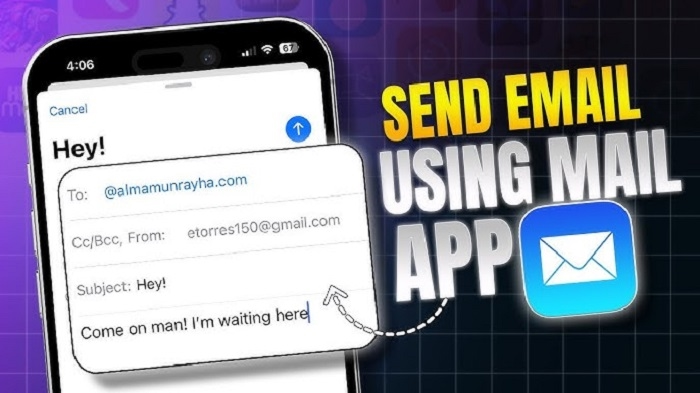
This is the default email application that the majority of users utilize.
Steps:
- open the Mail app
- tap the Compose icon (square with pencil)
- type the email address in the To: field
- add a Subject
- type your message
- tap the Send arrow (blue circle)
Your email is sent instantly.
How to Add Multiple Recipients (To, CC, BCC)
Steps:
- open a new message
- tap Cc/Bcc, From
- type emails under:
- To for main recipients
- Cc for copy recipients
- Bcc for private recipients
- To for main recipients
- send email normally
BCC is excellent for sending bulk email messages.
How to Attach a Photo to an Email (iPhone Mail)
Steps:
- open new email
- tap inside the message body
- tap Photo/Video Library
- choose your photo
- tap Add
The iPhone instantly attaches the photo.
Bonus:
- You may also share by going to Photos → Share → Mail.
How to Attach a Document or File
Steps:
- in the message body, tap and hold
- tap Add Document
- choose from iCloud Drive, Files, or local folders
- select file
- send
You may include:
- PDFs
- Documents, in Word format
- Excel sheets
- images
- scanned documents
- zipped files
Send Email Using Gmail App on iPhone
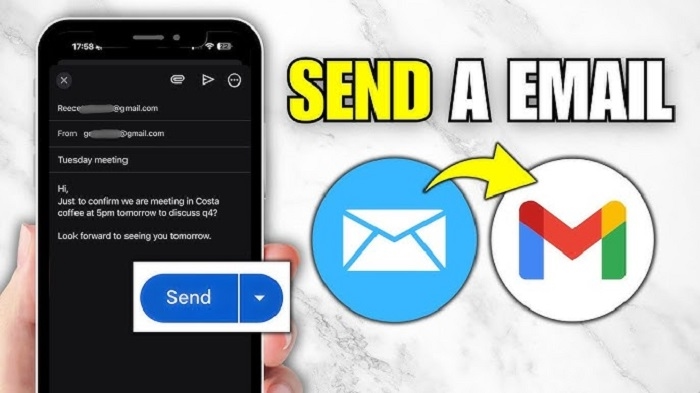
If you choose Gmail:
Steps:
- open Gmail app
- tap Compose
- type email address
- add subject
- type message
- tap Send (paper airplane icon)
To attach:
- tap the paperclip
- choose from Files, Photos, or Drive
Gmail operates smoothly on Apple devices.
Send Email Using Outlook App on iPhone
Steps:
- open Outlook app
- tap the Compose button
- enter email
- add subject
- write your message
- tap Send
To attach files:
- tap the paperclip
- choose Photos, Files, or cloud storage
How to Reply to an Email From iPhone
Steps:
- open Mail
- access the email you intend to respond to
- tap the Reply arrow
- choose Reply or Reply All
- type your response
- tap Send
Reply All sends the message to all recipients, from the email.
How to Forward an Email From iPhone
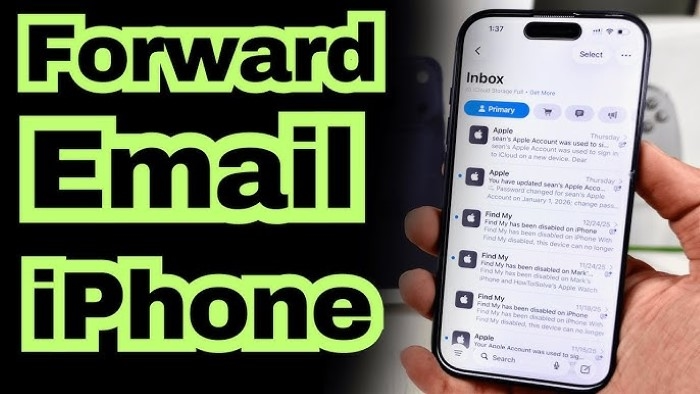
Steps:
- open the email
- tap the Reply/Forward menu
- tap Forward
- type recipient’s address
- send
Files attached to the email are sent automatically.
How to Send Email With a Signature
Steps:
- open Settings
- tap Mail
- tap Signature
- type your signature
- go back to save
Each email you send will contain your signature.
Send Email With a Scanned Document (iPhone Built-In Scanner)
The Mail app, on iPhone, includes a scanning capability.
Steps:
- open new email
- tap inside the email body
- tap Scan Document
- scan paper using camera
- adjust corners
- tap Done
- send
Perfect for school forms, receipts, or contracts.
How to Insert Links, Bold Text, or Format Email
In email body:
Steps:
- tap the screen
- tap Aa
- choose formatting:
- bold
- italic
- underline
- lists
- indentation
- colors
- bold
iPhone Mail offers formatting options, for polished professional messages.
How to Send Email to a Group From iPhone
Steps:
- tap To:
- type group name (if created in Contacts)
- send
In case you lack a team:
- create one in iCloud Contacts
- then send email normally
How to Send a Voice or Audio File From iPhone
Steps:
- open new message
- tap inside body
- choose Attach File
- pick audio from Files
- send
Or record audio:
- open Voice Memos
- tap Share
- choose Mail
Send an Email With Large Files From iPhone
If a file is too large:
Use:
- iCloud link
- Google Drive link
- OneDrive link
- Dropbox link
Steps:
- upload file to cloud
- tap Share
- tap Mail
- send link instead of attachment
This prevents size restrictions.
How to Switch Between Different Email Accounts on iPhone
In case your iPhone contains accounts:
Steps:
- open Mail
- tap Mailboxes
- select the account you prefer
- tap Compose
- ensure “From” field has the correct email
You are able to send from:
- Gmail
- Outlook
- Yahoo
- iCloud
- AOL
- Work email
- School email
All in one place.
Problem Solving: Unable to Send Email From iPhone
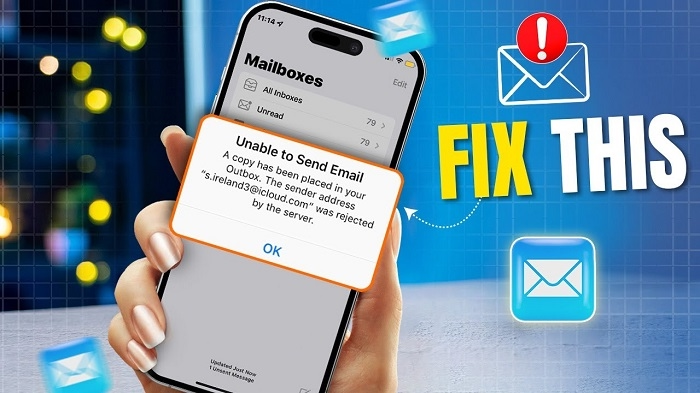
Check:
- no internet
- weak Wi-Fi
- incorrect password
- outdated email settings
- server errors
- wrong outgoing mail server (SMTP)
- flight mode activated
- email verification pending
- inbox full (rare but possible)
Fix:
- restart iPhone
- re-enter password
- toggle Wi-Fi
- delete and re-add the email account
- update iOS
- check Mail settings
- disable VPN
The majority of problems get fixed within sixty seconds.
Organization Tips After Sending Emails
To stay organized:
- check Sent folder
- move important emails to folders
- archive messages after replying
- keep attachments in Files
- add important emails to Notes
- use flags to highlight follow-ups
- delete unnecessary drafts
- keep inbox tidy daily
An organized inbox allows you to dispatch emails, with ease.
Quick Summary
How to send email from iPhone:
- Mail app → Compose → Send
- Gmail app → Compose → Send
- Outlook app → Compose → Send
- add attachments with paperclip or Photo Library
- CC/BCC by expanding fields
- format text with Aa tools
- scan documents directly from Mail
- send large files via Drive or iCloud links
- fix errors by checking internet and settings
Two taps — and your email is on its way.
FAQs
Is it possible to send an email without utilizing the Mail application?
Yes. Gmail, Outlook and Yahoo applications function well.
Why won’t my iPhone send emails?
Your password, internet, or SMTP settings may be incorrect.
Am I able to attach files?
Yes. Upload many as you like via Files.
Is it possible to send a PDF from an iPhone?
Yes — use the Files app or scan documents.
How can I change the email address that sends the message?
Tap the From field and choose another account.
