
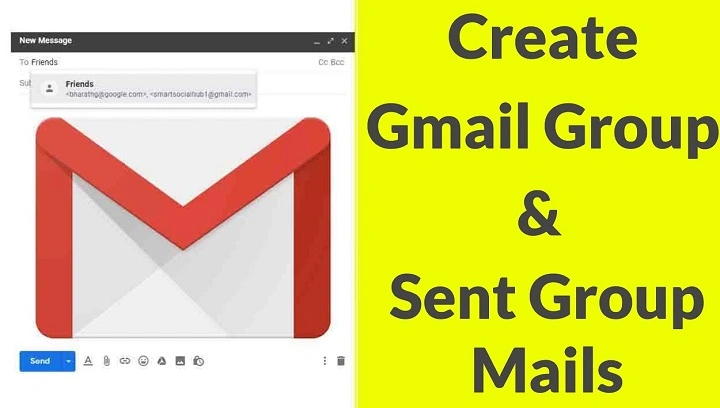
If you often send emails to the same set of people, learning how to make a group email in Gmail can save you time and effort. Gmail doesn’t offer traditional mailing lists, but you can easily create contact groups through Google Contacts.
Open Google Contacts
- Visit https://contacts.google.com
- Make sure you’re signed in to the correct Google account.
Create a New Label (Group)
- On the left-hand menu, click Labels
- Click Create label
- Name your group (e.g., “Family”, “Project Team”) and click Save
Add Contacts to the Group
- Go back to your Contacts list
- Select the checkboxes next to the contacts you want to add
- Click the Label icon at the top
- Choose the label (group) you just created
Send an Email to the Group
- Open Gmail and click Compose
- In the To field, start typing the name of your group
- Gmail will auto-fill the label name
- Select the group and write your email
- Click Send
Tips for Using Group Emails in Gmail
- Keep Your Contacts Updated: Periodically review your groups for changes.
- Use Bcc for Privacy: To hide recipients’ email addresses, use the Bcc field.
- Label Clearly: Use descriptive names to quickly identify groups.
- Test First: Send a test email to yourself before emailing a large group.
FAQs About Group Emails in Gmail
- Can I edit my Gmail group later?
Yes, you can add or remove contacts from the label at any time in Google Contacts. - Is there a limit to how many people I can email at once?
Yes, Gmail has sending limits—typically 500 recipients per day for regular accounts. - Will recipients see each other’s emails?
Yes, unless you place them in the Bcc field. - Can I use groups for promotional emails?
For bulk email campaigns, consider using Google Groups or services like Mailchimp. - Do Gmail groups sync across devices?
Yes, labels and contact groups sync across all devices linked to your Google account.
Creating a group email in Gmail helps you stay organized and saves time when emailing multiple people. With Google Contacts, it’s easy to manage your contact groups and send group messages in just a few clicks.
