
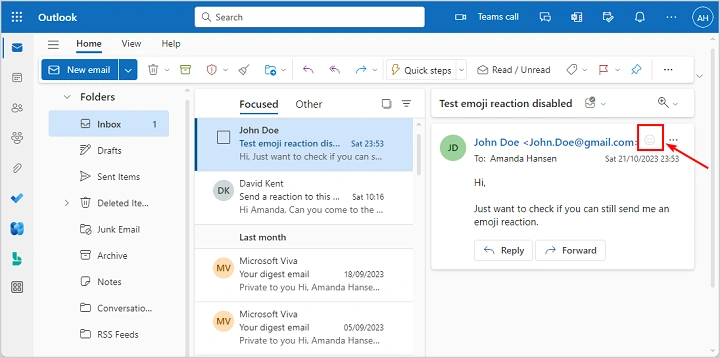
Want to acknowledge an email without writing a full reply? Microsoft Outlook now allows users to react to emails with emojis, making communication faster and more expressive. Here’s how to use this handy feature.
What Is an Email Reaction in Outlook?
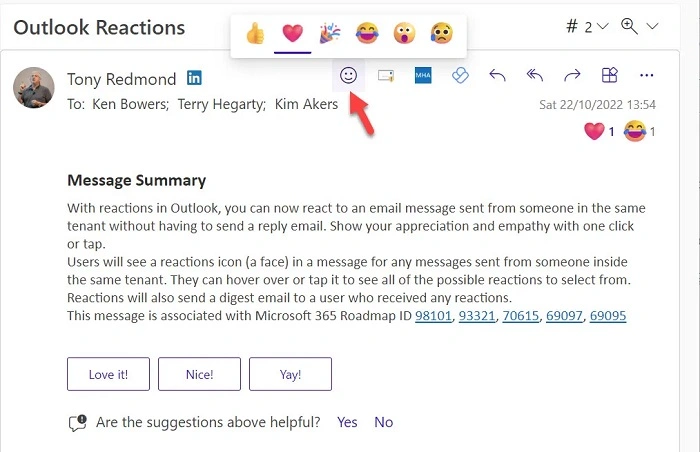
Reactions in Outlook let you quickly respond to an email using an emoji—such as a thumbs-up, heart, or laugh—without typing a reply. It’s perfect for acknowledging a message, showing appreciation, or giving quick feedback.
How to React to an Email in Outlook (Web Version)
- Go to https://outlook.office.com and log in
- Open the email you want to react to
- Hover over the message
- Click the emoji reaction icon (usually a smiley face)
- Select your preferred reaction (e.g., 👍 ❤️ 😂 🎉)
- Your reaction will appear under the email
How to React to an Email in Outlook (Desktop App)
- Open Outlook on your computer
- Click to open the message you want to react to
- Look for the emoji icon or reaction bar near the top of the email
- Click the icon and choose your reaction
Note: Reactions may not be available on older Outlook desktop versions. Ensure you’re using the latest update.
How to React in the Outlook Mobile App
- Open the Outlook app
- Tap the email you want to react to
- Look for a reaction emoji or smiley icon near the top or bottom of the screen
- Tap to choose your emoji
What Happens When You React to an Email?
- The sender receives a notification of your reaction
- Other recipients in the thread may also see your emoji
- You can change or remove your reaction later if needed
FAQs About Outlook Email Reactions
Can I turn off reactions in Outlook?
No, reactions are part of the Outlook experience and can’t currently be disabled.
Can multiple people react to the same email?
Yes, and you’ll see a count for each type of reaction.
Do reactions work on all Outlook versions?
They work on most updated versions of Outlook Web, desktop, and mobile.
Can I see who reacted to an email?
Yes, hover over or tap the reaction to view names.
Are reactions saved in email history?
Yes, reactions stay visible in the thread until removed.
Knowing how to react to an email in Outlook is a great way to engage quickly and clearly. Whether you’re acknowledging receipt or showing support, reactions help streamline communication—especially in busy inboxes.
