
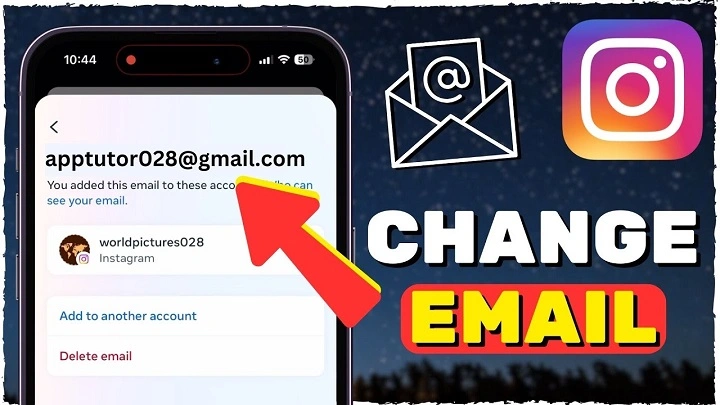
Instagram is one of the most popular social media platforms, and its use spans personal to professional accounts. Whether you need to update your email for privacy reasons, change it to a more convenient address, or just make sure your account is linked to the correct email, knowing how to change your Instagram email is essential. In this article, we’ll walk you through the process of updating your email address on Instagram in a few simple steps.
Why You Might Want to Change Your Instagram Email

There are several reasons why users might want to change their Instagram email:
Switching to a More Active Email Address
Sometimes, people sign up for Instagram with an old or rarely used email account. If your current email is outdated, it may be difficult to retrieve important notifications or reset your password.
Privacy Concerns
For security or privacy reasons, you may choose to update your Instagram email to one that is more secure or private. This can help prevent unauthorized access to your account.
Consolidating Accounts
Many users prefer to have their Instagram account linked to their primary email address, especially when managing multiple accounts or switching to a new email provider.
Recovering Account Access
If you’ve forgotten your password or are having trouble accessing your account, changing your email can be an essential step in regaining control of your account.
Step-by-Step Guide on How to Change Instagram Email
Changing your Instagram email is a straightforward process, and it can be done in a few simple steps through either the mobile app or the website. Here’s a detailed breakdown of both methods:
Changing Your Instagram Email Using the Mobile App
Step 1: Open the Instagram App
Launch the Instagram app on your mobile device. Ensure you are logged into the account you want to update.
Step 2: Go to Your Profile
Once you’re logged in, tap on the profile icon at the bottom-right corner of the screen. This will take you to your profile page.
Step 3: Access Settings
Tap on the three horizontal lines (hamburger menu) in the top-right corner of your profile page. From the dropdown menu, select Settings.
Step 4: Edit Profile
In the settings menu, tap on Account, then select Personal Information. This section contains your registered email, phone number, and other personal details.
Step 5: Update Your Email
Under the Email Address section, tap on the current email listed. Delete the old email and enter your new email address. After entering the new email, hit Done or Save.
Step 6: Confirm the Email Change
Instagram will send a confirmation link to your new email address. Go to your inbox, open the email, and click on the verification link to confirm the email change.
Step 7: Verify the Change
Once you confirm the change, your Instagram email will be updated to the new one.
Changing Your Instagram Email Using the Website
Step 1: Log Into Your Instagram Account
Open a web browser and go to Instagram.com. Log into your account using your current username and password.
Step 2: Go to Your Profile
Once logged in, click on your profile icon in the top-right corner of the screen. Select Profile from the dropdown menu to go to your profile page.
Step 3: Edit Profile
On your profile page, click the Edit Profile button located next to your username.
Step 4: Change Your Email Address
In the Email Address field, delete your current email address and enter the new one. Afterward, click Submit to save your changes.
Step 5: Confirm Your New Email
Just like with the mobile app, Instagram will send a confirmation email to your new email address. Open the email and click on the confirmation link to finalize the change.
Step 6: Ensure the Email Is Updated
Once the change is confirmed, your new email address will be associated with your Instagram account.
What Happens After You Change Your Instagram Email?

Changing your Instagram email doesn’t affect your account or its content in any way. However, the following may happen:
Email Notifications
You will start receiving email notifications at your new email address, including updates about your account, password resets, and activity on your posts and stories.
Password Resets
If you ever forget your password and need to reset it, Instagram will send the password reset link to your new email address.
Account Security
Changing your email is an important step in ensuring the security of your account. By using an email address that is more secure or one that you actively check, you can stay on top of any potential unauthorized activity.
Email Verification
Instagram may require you to verify the new email address. This is to ensure that you are the one making the changes, thus preventing others from accessing your account without your consent.
Troubleshooting: What to Do If You Cannot Change Your Email
If you’re encountering issues while trying to change your Instagram email, here are some common problems and solutions:
Email Already in Use
If the email you’re trying to add is already linked to another Instagram account, you won’t be able to use it for your current account. In this case, try using a different email or remove the email from the other account.
Unable to Receive the Verification Email
If you haven’t received the email to verify your new email address, check your spam or junk folder. If it’s still missing, request the verification email again.
Error Message During Change
If Instagram displays an error message while you’re trying to change your email, try restarting the app or clearing your browser’s cache. If the problem persists, reach out to Instagram support for assistance.
Forgotten Email or Password
If you’ve forgotten the email linked to your account or are unable to access it, you can attempt to recover your account using your username or phone number. Instagram will guide you through the recovery process.
FAQs: Common Questions About Changing Your Instagram Email
Can I Change My Instagram Email Without Accessing My Old Email?
No, you need to verify your new email by clicking on the confirmation link sent to that email address. This step is necessary to ensure account security.
How Often Can I Change My Instagram Email?
You can change your email on Instagram as many times as you need, but be mindful that frequent changes may raise security concerns.
Will Changing My Instagram Email Affect My Posts and Followers?
No, changing your email will not impact your posts, followers, or any other part of your Instagram account. It only updates your email for notifications and account-related correspondence.
What Happens If I Don’t Confirm My New Email?
If you don’t confirm your new email by clicking on the verification link, the email change will not be processed, and your old email will remain in place.
Can I Change My Instagram Email Using Third-Party Apps?
It is not recommended to use third-party apps to make changes to your Instagram account. Always use the official Instagram app or website to ensure account security.
