
Diminutive black body text can be cold. Hard to read. Now and then you require emphasis, clarity, or warmth. Your message must stand out without yelling. That’s where typography and, in this instance, color enters. In this tutorial, you’ll learn how to change font color in Gmail for new messages, replies, signatures, and defaults. We’ll cover desktop and mobile, normal hiccups, contrast best practices, and some not-so-apparent guidelines of email etiquette so your colors stand out in every inbox.
Why Font Color is So Important to Email
Color command. It grabs attention. It differentiates between headings and body text. It tempers a request or reinforces a deadline. But it will be overwhelming. The goal is not rainbow firecrackers. The goal is to be clear. And respectful of the reader’s eyes. As you learn how to change font color in Gmail, you’ll also learn when to be subtle, how to stay readable, and how to avoid surprises through different email clients.
Quick Start: Change Font Color When Writing (Desktop)
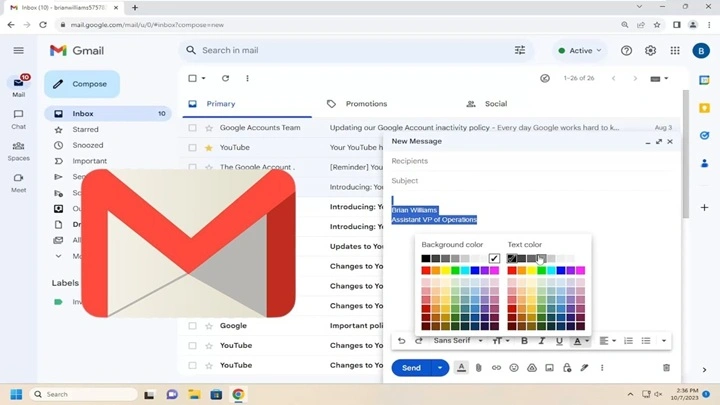
You are typing an email. You want to highlight that one line. The shortcut to change font color in Gmail desktop is given below.
- Open Gmail and access Compose.
- Type your message.
- Choose the words to color.
- Click on the A formatting button at the bottom of the compose window.
- Click on Text color and choose a color from the palette.
Done. Just type away. Highlighted text keeps its color; new text takes on your most recent formatting choice until you switch back to default.
Add a Background Highlight rather than Color
Not all emphasis is served by color. Add a soft highlight instead.
- Choose the text.
- Click the A formatting button.
- Choose Highlight (background color).
- Choose a light, legible color that still reads clearly in dark mode.
Return to the Default Color in an Instant
- Highlight the colored text.
- Open Text color again.
- Choose Default (it is normally indicated as such in the palette).
- Proceed and type normally.
Create a Default Text Color for All Emails (Desktop)
If you are tired of having to change color every time, you may default it. It saves clicks and voice consistency. It is one of the most useful features of how to change font color in Gmail for day-to-day work.
- Click on the gear icon in Gmail.
- Select See all settings.
- In the General section, find Default text style.
- Select your font, size, and color of text using the mini formatter.
- Scroll down and select Save Changes.
New messages now start with your chosen color. You can always override it anytime in Compose.
A Note on Resets
When pasting text from outside, the pasted text can have its own color. It can be normalized with Remove formatting (T× in the compose toolbar) and recorded later with your target or default color.
Change Font Color in Replies and Forwards
Replies are the same as new messages. There is one common trap that makes people think color “doesn’t work.”
Check for Plain Text Mode
In the reply box, click More options. Plain text mode, if active, deactivates rich formatting, including colors. Turn it off. Then your steps on how to change font color in Gmail will work again instantly.
Quote Layers and Clean Replies
Long lines can accumulate past styles. If quoted material looks quirky, start your reply at the top, use your favorite color sparingly, and attempt to trim excess quoted lines. Nice layout, easier to read.
Change Font Color in Your Gmail Signature
Signatures are your mini-brand. One accent color is useful, but less is better.
- Tap the gear icon → See all settings.
- In general, find Signature and change or create one.
- Choose the text you’d like to color.
- Choose Text color from the mini toolbar.
- Save changes at the bottom.
Choose a single color that works with your logo or site. Avoid using solid blocks of color, and make links readable in both light and dark mode.
Change Font Color in Gmail on Mobile
Here is the bare reality. On your phone, it is simpler. Rich formatting is supported by some phones and app releases; others don’t support it. That will determine how to alter the font color in Gmail on your phone.
When the Color Option Is Available
- Open the Gmail application and create a new message.
- Type your message and select your words.
- If your app has an A formatting menu that contains Text color or Highlight, choose your color.
- Send like normal.
When the Color Option Isn’t Available
Not every version supports color in the mobile composer. If you do not have Text color, do the following:
- Write the email on a desktop where color controls are stronger.
- Or write your text in Google Docs on your phone, add color there, and copy-paste into Gmail.
For more reliable and accessibility testing, finish desktop styling before sending.
Color and Dark Mode: Make Sure It’s Readable Everywhere
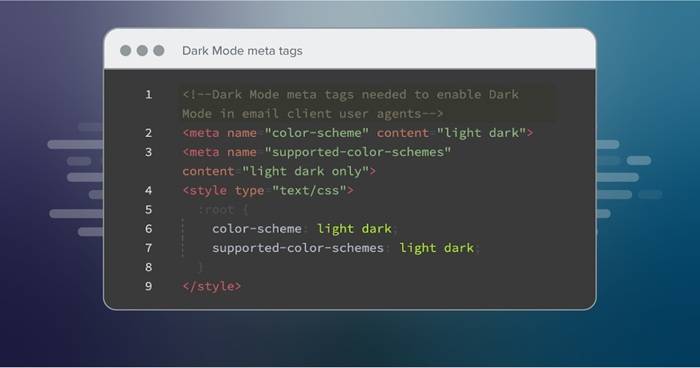
Dark mode is turned on by many readers. Colors that look lovely on white backgrounds fade or glint on dark ones. Pay attention to this as you find out how to change font color in Gmail.
- Apply medium-to-dark shades for coloured text on white.
- Don’t use really light colors that will get overwhelmed in dark mode.
- Use highlight colors sparingly; pale blue and yellow are easier to read in dark mode than brightness.
- Test: send a draft to yourself, view it in light and dark modes, desktop and phone.
Accessibility and Email Etiquette
Color is a helper, not a requirement. Color-vision readers need contrast and context.
- Use color to add to the meaning, not to detract from it. Use a colored date with a brief label like “Deadline:”
- Create contrast: colored text should be legible against the background.
- Don’t use emails in solid color. Use it only for headings, light highlighting, or important lines.
- Body text should be predominantly regular color to be readable and sound professional.
Troubleshooting: When Color Won’t Stick
You tested changing font color in Gmail and something went wrong. Have a try with these solutions.
- Plain text mode is on. Turn it off from the compose menu.
- You copied formatted text. Clear Remove formatting, then re-add a color to it.
- Your signature overwrites the look. Set the signature’s color updated or remove obstructing styles.
- A recipient’s client stripped away styles. Some corporate filters strip away styles. Make vital information visible in default color too.
- You’re replying inside heavy quotes. Trim the thread and reapply color at the top.
- The Gmail mobile app on your device doesn’t expose color. Compose on desktop for full control.
Smart Use Cases for Font Color
- Brief status labels in project emails: “Blocked,” “Action needed,” “Approved.”
- Dates and times for events or deadlines.
- One key sentence in long updates, so busy readers don’t overlook the point.
- Headings in a lengthy message to create soft structure, if you prefer not using big fonts.
Copy, Paste, and Keep or Strip Color
Sometimes you want to preserve the style that you paste. Sometimes you don’t.
- Keep styling: Paste as usual. If the original was colored, it may persist.
- Remove styling: Paste, then Remove formatting. Use the toolbar to change to your favorite color.
- Paste into your browser’s “Paste and Match Style” or via a plain-text editor as an intermediate step.
A Clean Process You Can Use Again
- Compose in plain text.
- Emphasize one or two lines that positively need the highlight.
- Use color with the A → Text color menu.
- Preview on light and dark backgrounds whenever possible.
- Send with confidence that your reader will get the highlight, not a distraction.
FAQs
How do I change the font color for part of an email in Gmail?
Highlight as you type, click the A symbol to format, choose Text color, and choose your color.
How do I set a default font color to use for all messages I send?
Settings → See all settings → General → Default text style, choose your color, and save.
Why can’t I change color when I reply?
You’re probably in Plain text mode. Go to the reply menu, deselect Plain text mode, and try again.
Can I utilize font color using the Gmail mobile app?
Some support it via the formatting menu. If you don’t see color options, write or finish on the desktop.
How can I personalize font color within my Gmail signature?
Change your signature in Settings → General, choose the text, touch the color tool, pick a color, and save.
A Closing Thought
Color is a whisper, not a scream. Used wisely, it leads the eye and soothes the reader. It adds a dash of personality without taking the spotlight away from the words. Having learned how to change font color in Gmail, you can now send messages that are more readable, more thoughtful, and more effective. A respectful highlight at a time, your messages are easier to read—and less likely to go unread.
