
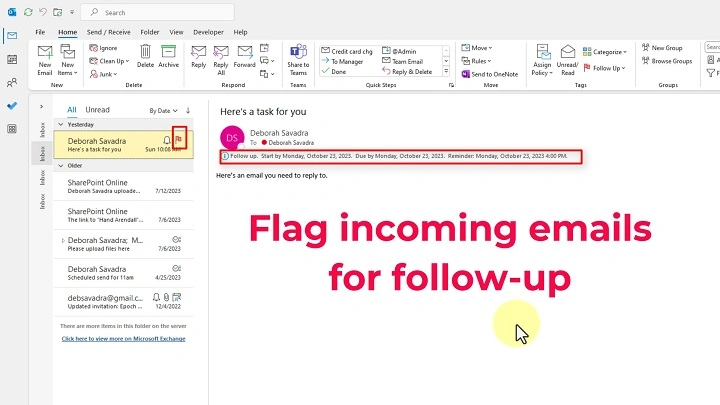
Sometimes your inbox gets crowded. Important messages get buried. You try to remember which email needs a reply. Which email needs follow-up. Which email has a task? Which email has a deadline?
That is when people start asking:
What does flagging an email actually do? Does it send a reminder? Does it mark it as important? Does it move the message? Does it notify the sender? Does flagging help organize my inbox?
Flagging is one of the simplest tools in email — yet one of the most misunderstood. This 2025 guide explains exactly what flagging does in Gmail, Outlook, Apple Mail, and mobile apps.
What Flagging an Email Really Means
Flagging is a way to highlight emails you need to act on.
It helps you:
- remember important messages
- track tasks
- follow up later
- keep things organized
- prioritize what matters
- avoid forgetting conversations
- mark messages for future reference
A flagged email does not send any alert to the sender. It is only for your own inbox.
Why People Flag Emails
People flag emails when they need to:
- reply later
- pay a bill
- complete a task
- save important info
- follow up on something
- mark something urgent
- keep track of deadlines
- highlight messages in large inboxes
Flagging brings order to a busy inbox.
What Flagging an Email Does in Outlook
Outlook uses flags as follow-up reminders.
When you flag an email:
- it turns the email into a “To-Do” item
- it appears in the “Flagged Items” folder
- you can add a reminder
- it becomes part of your task list
- you can set due dates
Steps to flag:
- open Outlook
- right-click an email
- click Follow Up
- choose a flag: Today, Tomorrow, This Week, etc.
Flags appear in your To-Do Bar, Tasks, and Reminders.
Tip: If you click the flag a second time, it marks the task as complete.
What Flagging Does in Gmail
In Gmail, flags are called Stars.
When you star an email:
- it gets highlighted
- it moves into the Starred category
- it becomes easier to find
- you can add multiple star types (yellow, blue, red, purple, etc.)
Gmail treats flags as prioritization, not tasks.
Steps to flag in Gmail:
- open Gmail
- click the star next to the email
- star turns yellow
You can also enable multiple star styles in Settings.
What Flagging Does in Apple Mail (iPhone, iPad, Mac)
Apple Mail uses colored flags.
When you flag an email:
- it adds a colored marker
- it moves into a “Flagged” mailbox
- you can organize by color
- categories appear like folders
Example colors:
- Red for urgent
- Orange for to-do
- Blue for work
- Green for personal
Steps:
- swipe left on an email
- tap Flag
- choose color
Apple Mail makes flagging very visual.
What Flagging Does on iPhone Outlook App
When you flag a message in Outlook mobile:
- it adds a yellow flag
- it puts the email in the “Flagged” filter
- it syncs with Outlook desktop and web
- you can mark it complete later
Steps:
- open Outlook app
- swipe right on an email
- tap the flag
Great for keeping track across devices.
What Flagging Does on Android Email Apps
Most Android apps use:
- stars
- flags
- markers
Flagging highlights emails for quick access later.
Steps:
- long-press an email
- tap the flag or star icon
Your flagged messages show under a special “Starred” or “Flagged” tab.
Does Flagging Notify the Sender?
No. Flagging is only for you, not the email sender.
The sender:
- does not get an alert
- does not get a message
- cannot see the flag
It’s completely internal.
Does Flagging Move the Email?
In most apps:
- flagged emails stay in your inbox
- but also appear in a special flagged folder
This gives you two places to find them.
Outlook: Flagged Items folder
Gmail: Starred folder
Apple Mail: Flagged mailbox
Android: Starred or Important folder
Flagging does not remove the email from the inbox unless you manually move it.
Does Flagging Set a Reminder Automatically?
Depends on the app.
Outlook: Yes — you can add reminders.
Gmail: No reminders — stars only.
Apple Mail: No reminders — only categories.
Mobile apps: No reminders unless using Outlook.
If you want reminders, Outlook is the best option.
How to Use Flagging for To-Do Lists
Flagging can turn your inbox into a task manager.
Steps:
- flag emails that require action
- sort your inbox by flagged
- review them daily
- add reminders (Outlook)
- unflag after completing
- keep flagged list short
This builds a simple productivity system.
How to Use Colors to Organize Flags
Color-coding makes priorities clear at a glance.
Examples:
- Red — urgent
- Yellow — follow up today
- Blue — important but not urgent
- Green — personal
- Orange — reference
- Purple — long-term tasks
Color flags keep everything structured.
How to Use Flags for Travel, Events, and Schedules
Flag messages such as:
- flight confirmations
- hotel bookings
- meeting invites
- webinars
- appointments
- deliveries
- receipts
- tickets
This makes schedules easy to find in seconds.
How to Use Flags for Work Emails
Flag work emails when you need to:
- reply later
- send documents
- complete tasks
- follow up with clients
- wait for approval
- monitor deadlines
- track important messages
Flags act as a built-in work checklist.
How to Use Flags for School Emails
Students can flag:
- assignments
- teacher messages
- schedules
- deadlines
- notices
- grade reports
- project instructions
Flagging prevents missed deadlines.
How to Remove or Clear a Flag
When finished:
Steps:
- click or tap the flag again
- or right-click → Mark Complete (Outlook)
- in Gmail, click the star to remove it
- in Apple Mail, swipe → Unflag
This restores your inbox to normal.
Troubleshooting: When a Flag Does Not Save
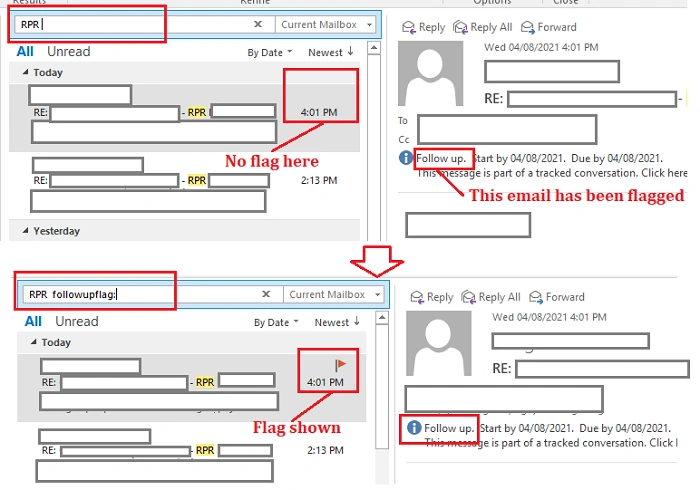
If flagging doesn’t work:
- refresh your inbox
- check if email is synced
- update your app
- check network connection
- make sure mailbox is not full
- verify IMAP or POP settings
- sign out and sign in again
- restart device
Flags usually sync instantly once connection is stable.
Also Read: Contacts SeattleSportsOnline Email – Complete Support & Communication Guide
Organization Tips for Using Flags Well
To keep everything clean:
- flag fewer emails
- keep only what matters
- use colors consistently
- check your flagged list daily
- unflag when tasks are done
- don’t hoard flagged messages
- combine flags with folders
- use Outlook reminders if needed
A tidy flagged list makes your productivity smoother.
Quick Summary
What flagging an email does:
- highlights important emails
- moves them into a flagged folder
- keeps tasks visible
- helps you follow up
- organizes your inbox
- allows reminders (Outlook)
- helps you sort by priority
- keeps important messages from getting lost
Two clicks — and you won’t forget the message again.
FAQs
Does flagging notify the sender?
No — it’s completely private.
Can flagging set reminders?
Only in Outlook.
What is the difference between flagging and starring?
Same idea — Gmail uses stars, Outlook uses flags.
Can I color-code flags?
Yes — in Apple Mail and Gmail (multiple star styles).
Where do flagged emails go?
To a special “Flagged” or “Starred” folder.
