
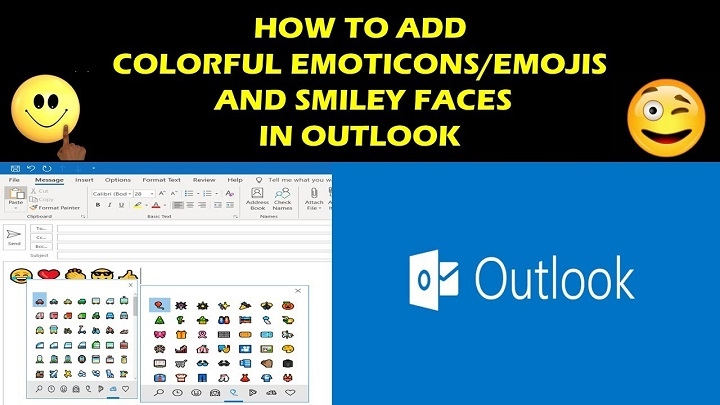
Emails don’t have to seem stiff. Maybe you’d like to bring in some warmth now and then. Or perhaps make things feel more relaxed once in a while. Showing thanks, joy, or just being nice doesn’t require paragraphs. Just one quick emoji hits the spot. Outlook lets you use emojis whether you’re on a computer, phone, or browser. On iPhones and Androids, the icon’s there but kinda hidden. Once you spot it though, tossing smiles into messages feels smooth. It just clicks after a bit. This 2025 guide walks you through adding emojis to Outlook emails – no matter your gadget. Find out where the emoji menu hides. Drop in reactions without hassle. Use quick keys instead of clicking around. Step-by-step tips make chatting feel light, yet keep things running smooth.
Why You May Want to Add Emojis in Outlook Email
Users toss in emojis if they’re aiming to
• give a friendly touch to your words
• lighten up the mood a bit
• say thanks or act kind
• Get teams talking like real people
• make everyday talks easier to understand
• show how you feel without talking much
• stay upbeat when messaging about working from home
• give a bit of character to fast posts
Emojis make emails seem more genuine – also easier to connect with.
How to Add an Emoji in Outlook Desktop (Windows)
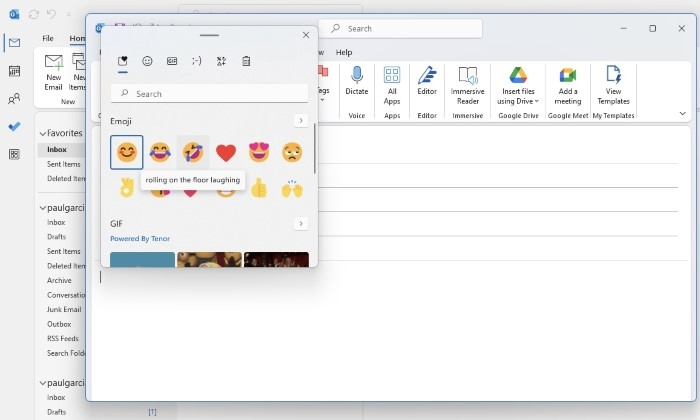
Windows comes with an emoji tool you can use anywhere, like in emails or notes. It just pops up when needed.
Steps:
• open Outlook
• click New Email
• Tap right into the message area
• Hit Win key then press the dot button
• the emoji menu pops up right away
• Tap the smiley face that fits your mood
• shows up right there in your inbox
• Drop your note like you usually do
This here’s the quickest path to toss in emojis – no menu hunts needed.
Tip:
You could try looking up emojis by just typing keywords right in the emoji window
How to Add an Emoji in the New Outlook (Modern Version)
The updated Outlook comes with emojis right inside the toolbar – no extra steps needed.
Steps:
• launch the updated Outlook
• click New Email
• Put your cursor right inside the message
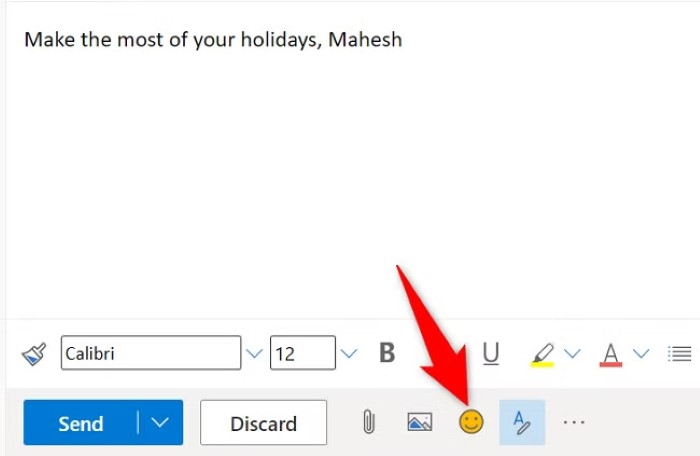
• Tap the grin button up top
• browse emoji categories
• select an emoji
• It lands in your inbox right away
Great for folks who like using clicks rather than key combos.
How to Add Emojis in Outlook Web (Outlook.com)
Outlook Web uses a simple emoji picker in the formatting bar.
Steps:
• go to Outlook.com
• sign in
• click New Message
• Tap the smiley button down below your text
• pick emojis like faces, creatures, actions – maybe even signs
• Tap the smiley face you like
• send your message
The online tool gives you a neat picture-based emoji menu.
How to Add Emojis in Outlook for Mac
On Mac, emojis work everywhere – so you’ve got access to Apple’s emoji picker right at hand.
Steps:
• open Outlook on your Mac
• click New Email
• Tap right within the chat box
• press Control + Command + Space
• The macOS emoji window pops up
• pick the emoji you like
• It shows up right there in the message
• send normally
Mac folks find emojis fast thanks to tidy sections in the menu.
How to Add an Emoji in the Outlook App for iPhone
iPhone makes picking emojis quick since the keyboard comes ready inside.
Steps:
• Launch the Outlook application
• tap New Message
• click into the message area
• Hit the emoji button on your iPhone
• find your emoji
• click here to add it
• send
The full set of iPhone emojis runs in Outlook – no issues at all.
How to Add an Emoji in the Outlook App for Android
Android’s got an emoji keyboard right inside it.
Steps:
• open Outlook app
• tap New Email
• hit the message to open it
• Tap the smiley icon on your phone’s typing screen
• choose any emoji
• hit to add it
• send
Android works with vivid emojis in every app – take Outlook, for example.
How to Add Professional or Subtle Emojis in Outlook
Sometimes you need to show feelings but still seem serious.
Suggestions:
• give a gentle grin 😊
• Use ticks ✔
• use stars ⭐
• give a thumbs up 👍
• Use hearts ❤️ when chatting with friends or loved ones
• Don’t go overboard with emojis when sending work messages
These choices help you stay upbeat – yet still sound sincere – not overly relaxed.
How to Add Emoji Reactions in Outlook Web
Outlook Web allows emoji reactions to emails – no need to type a response.
Steps:
• open Outlook.com
• open an email
• Check out the grin emoji up above
• pick how you feel – maybe a thumbs-up or a chuckle
• click to apply
This works well when a group needs to agree or reply fast – so use it then.
How to Add Emojis Using Copy and Paste
If you’re after emojis from different places,
Steps:
• Head to an emoji site or use a tool on your phone instead
• grab the emoji you like
• Slip it into your Outlook message
Easy, works fine for emojis missing on your keypad – also handy when you need extras fast.
How to Use Emoji Shortcodes in Outlook
Some icons pop up once you type basic codes such as:
:)
:(
;)
:D
Outlook changes them into simple smileys without asking.
How to Resize or Format Emojis in Outlook
You can change how big emojis look – same way you do with words.
Steps:
• highlight the emoji
• adjust how big the letters look
• change the boldness or hue if it helps
Bigger emojis make key points stand out more.
Troubleshooting: When Emojis Do Not Show Correctly
If your emoji shows up as a box or a ? symbol, look into this:
• outdated Outlook version
• old Windows or Mac system
• Some emojis might not show up right if the other person’s app doesn’t handle them well
• unsupported font
• switched email layout to basic text rather than HTML
Fix:
Change your email layout to HTML mode instead
Refresh the Outlook app on your device
update Windows, Mac, Android or iPhone
resend the email
Many times, updating solves emoji problems right away.
Organization Tips When Using Emojis in Email
Use emojis carefully ✨ so your point doesn’t get lost 🤔 instead.
• Use fewer emojis when messaging at work – since they can seem unprofessional. Or skip them entirely if unsure
• Don’t use a bunch of emojis together in a single message
• add smileys close to the period 🌟
• pick basic cheerful smileys
• use emojis to show tone – keep things clear ✅
• skip smileys if you’re sharing sensitive or official info
Using emojis the right way makes emails feel warm while staying clear. A little visual flair helps messages go down easier + keeps readers hooked without clutter.
Quick Summary
How to add emojis in Outlook:
Windows: Windows key + .
New Outlook: smiley icon
Outlook Web: emoji icon
Mac: Control + Command + Space
iPhone: emoji keyboard
Android: emoji keyboard
Reactions: available in Outlook Web
Formatting: resize emojis with font tools
Two taps or clicks and your email becomes expressive.
FAQs
Why can’t I see emojis in my Outlook?
You may be using plain text mode or an outdated version.
Can I use all emojis in Outlook?
Yes. Outlook supports full emoji sets on all platforms.
Will the recipient see the emoji correctly?
Yes if their device supports modern emojis.
Can I add emojis to a subject line?
Yes though it is better for casual emails.
Are emojis professional?
Light emojis are fine for friendly communication.
