
Sliding that block button might seem solid, like shutting a gate tight. Still, some notes sneak past, slipping under like wind-blown paper. You have the tool right there, just waiting. It catches most, though never quite all.
The reason sits beneath the surface in how email moves across networks. Email was designed to connect people without strong barriers. No central hub controls everything. Servers pass messages along much like neighbors sharing news across fences. Because of this design, the block button acts more like a gesture than a guarantee. The system itself was never built to shut down every unwanted message completely.
Why Blocking an Email Address Doesn’t Fully Stop Messages
Many people believe blocking stops email entirely. In reality, messages often land in spam folders instead of disappearing. The inbox stays clear, but servers may still receive the messages quietly.
This happens because email runs on SMTP. It is an older framework that was built without strong identity checks during transfer. Messages can reach your provider’s system before blocking takes effect. That means pressing block does not stop what has already arrived at the network.
What Happens After Blocking an Email
| Situation | Result |
| Sender is blocked | Messages often move to spam or junk |
| Email delivery | Servers may still receive the message |
| Inbox visibility | Messages remain hidden from the inbox |
How to Block an Email Address in Common Email Apps
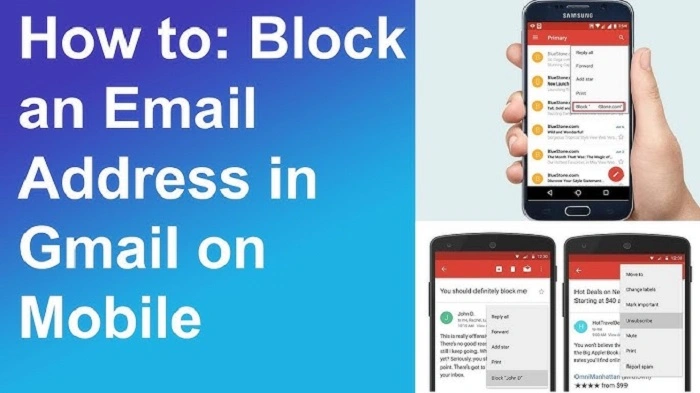
Blocking usually begins inside the email app itself. Most services provide built-in tools that allow users to stop messages from specific senders.
In Gmail, open the message and click the three dots at the top. Choose Block [sender] from the menu. Outlook follows another path. Click Junk, then select Block Sender. Apple Mail places the option beside the sender’s name. A drop-down menu offers Block this Contact.
Each system runs on its own filtering rules. Even when someone is blocked, filters still check message patterns and suspicious behavior. The process happens quietly after you act.
Blocking Senders in Popular Email Services
| Email Service | Blocking Method |
| Gmail | Open message → three dots → Block sender |
| Outlook | Select message → Junk → Block Sender |
| Apple Mail | Open message → sender menu → Block this Contact |
Blocking Entire Domains Instead of Single Addresses
Spammers change their email addresses quickly. The moment one address is blocked, another may appear soon after.
Because of this, blocking an entire domain often works better. Instead of stopping [email protected], users can block @domain.com. That prevents messages from every address connected to that domain.
Domain Blocking Example
| Type | Example |
| Single address | [email protected] |
| Domain block | @domain.com |
Both Gmail and Outlook allow rules that use domains rather than single addresses.
Creating Domain Filters
Open the settings inside your email first. For Gmail users, click Settings followed by See all settings. Head over to Filters and Blocked Addresses next. Hit Create a new filter there. Type the domain into the From box. Proceed forward, picking steps like Delete it or Mark as Spam afterward.
Start by clicking the Home tab if you’re using Outlook. Hit Rules, then tap Create Rule to begin. The sender sets the trigger – build around that detail. Afterward, pick an action like shifting messages elsewhere or removing them outright. What happens next depends on your choice: folders change or emails vanish. Finish setting it up once each piece fits.
These filters prevent unwanted emails from reaching the inbox.
Understanding Subdomains
Subdomains often slip past basic blocking rules. Blocking @example.com may leave @offers.example.com untouched unless you add it separately.
Many companies use layered subdomains for different teams. Marketing emails might come from mkt.example.com, while support requests could come from help.example.com.
Subdomain Examples
| Address | Description |
| example.com | Main company domain |
| mkt.example.com | Marketing communication |
| help.example.com | Support system |
Blocking systems sometimes require extra rules to catch these variations.
Hidden Tracking Inside Email Images
Some emails include hidden tracking pixels. When the image loads automatically, it sends confirmation back to the sender.
Even filtered messages may still trigger this signal if images load by default. That tiny action quietly tells senders the mailbox remains active.
Turning off automatic image loading helps prevent that signal.
Turning Off Automatic Image Loading
Open Settings inside Gmail, keeping yourself on the General tab. Near the bottom, locate Images – choose to confirm before showing outside pictures there. Instead of loading automatically, it waits for your go-ahead.
Start by clicking File inside Outlook on your computer. Move to Options once that menu opens up. The Trust Center lives there – go find it. Inside, look for a section called Automatic Download. You will spot a box labeled Download pictures automatically. Take the mark out of that checkbox. That setting stays changed until you reverse it later.
Slowing down how fast pictures appear comes built into many phone programs. Especially if the device is set to stretch out internet data, images take longer on purpose.
Reporting Suspicious Emails
Most email providers allow users to report suspicious messages. Hidden inside each email are details showing where it came from.
When complaints reach the host provider, action may follow. This becomes more likely when several users report the same sender.
Some companies collect these reports through special addresses. One example is [email protected].
Reporting spam does not stop problems instantly, but it helps reduce them over time.
Checking Email Headers
Email headers contain technical records showing how a message traveled through servers.
In Gmail, open the suspicious message and click the three-dot menu. Select Show original. Copy the full header information and paste it into a header analysis tool.
Tools like Google Messageheader or MXToolbox help interpret these records. Look for lines beginning with Received: from, which reveal the path the message followed.
These clues help identify where the email started.
Email Spoofing and Fake Senders
Some senders disguise their real identity. They change sender details so filters miss them.
Security tools such as SPF, DKIM, and DMARC were created to reduce this problem. However, not every system uses them correctly.
Because of this, spoofed messages sometimes bypass blocking systems.
Using Secondary Email Addresses
Some people protect their main inbox by creating extra email addresses for sign-ups. This keeps the primary account cleaner.
Temporary email services can also help for short-term use. However, many websites block these addresses automatically.
Managing additional accounts requires attention but can reduce spam in the main inbox.
Best Practices for Blocking Email Addresses
Blocking works best when several methods are combined.
Helpful Email Blocking Practices
- Use built-in blocking tools inside your email app
- Block entire domains when necessary
- Disable automatic image loading
- Report suspicious messages to providers
- Check email headers when investigating spam
Using several of these steps together helps reduce unwanted messages over time.
FAQs
How do you block an email address ?
Open the message in your email app and choose the block option from the sender menu.
Do blocked emails disappear completely ?
Most systems move blocked messages to spam or junk instead of deleting them entirely.
Why do spam emails still appear after blocking ?
Spammers often change email addresses or domains quickly.
Can entire domains be blocked ?
Yes. Gmail and Outlook allow filters that block every address from a domain.
Why disable automatic images in emails ?
Images can contain tracking pixels that notify senders when the email is opened.
Blocking an email address helps reduce unwanted messages, but it does not stop them entirely. Email systems were originally designed for open communication rather than strict blocking.
Because messages travel through many independent servers, blocking usually redirects emails instead of preventing delivery.
Combining several habits works better. Domain filters, reporting spam, disabling tracking images, and checking headers all help limit unwanted messages over time.
