
So you wrote the perfect email. It’s clear. It’s a pro. It’s ready. But wait — you don’t want to send it now. Maybe it’s super late. Maybe you want it in your boss’s inbox at 8 AM sharp. Good news! Outlook lets you schedule emails. They send it later. All by themselves.
Using Outlook on Windows? Mac? Web? Phone? This guide shows you everything. Step by step. No fluff. No confusing stuff. You’ll learn to schedule, edit, cancel, and check your emails. Easy peasy.
Why Schedule an Email in Outlook?
Before we jump in, let’s see why this rocks.
You control when people see it — hit their inbox when they’re actually reading.
You can work ahead — write now, send later. Done!
You avoid those late-night sends — look polished, not desperate.
You can manage follow-ups — great for teams and clients.
You can plan your whole week — set it and forget it.
Cool, right? Let’s do this.
Schedule an Email in Outlook Desktop (Windows)
Got Outlook for Windows? The schedule thing is built right in. Super simple.
Steps (Windows Desktop App):
- Click New Email from the Home tab.
- Write your message. Add people. Add subject.
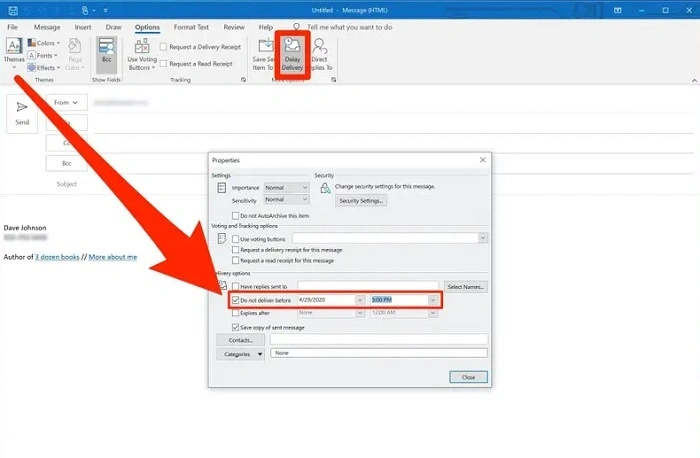
- Up top, click Options.
- Pick Delay Delivery.
- Check the box that says “Do not deliver before”.
- Pick your date and time.
- Click Close to go back.
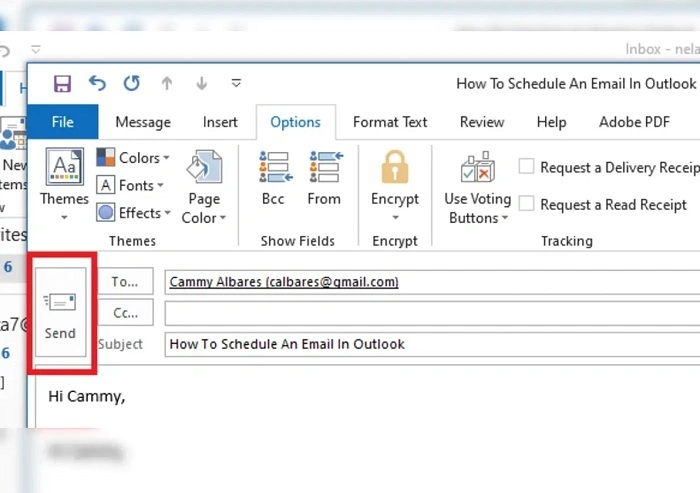
- Hit Send.
That’s it! Outlook holds your email. When your time comes? Boom — it sends.
Quick note: Your Outlook needs to be open. Computer off? It sends next time you open Outlook.
Schedule an Email in Outlook for Mac
Mac users, you get this too. Looks a bit different though.
Steps (Mac App):
- Open Outlook. Click New Email.
- Type your message. Add people and subject.
- See that arrow next to Send? Click it.
- Pick Send Later.
- Choose your date and time.
- Click Send.
Your email chills in Drafts or Outbox. Outlook does the rest when it’s time.
Pro tip: Check your Outbox to see all scheduled emails. Want to change something? Just open and edit before it sends.
Schedule an Email in Outlook Web (Outlook.com or Office 365)
Use Outlook in your browser? This is even easier. Like, way easier.
Steps (Outlook Web):
- Click New Mail on the left.
- Write your email like normal.
- Click the down arrow (˅) next to Send.
- Pick Send later.
- Choose your date and time.
- Click Send.
You’ll see “Your message will be sent on 2026.” Nice!
To check or change scheduled emails:
- Go to Drafts. Find your email.
- Click Edit send time to change it.
- Or pick Send now if you can’t wait.
Schedule an Email in Outlook Mobile (iPhone & Android)
Always on your phone? No problem. Schedule from there too.
Steps (Mobile App):
- Open Outlook app.
- Tap the mail icon (✉️).
- Write your email. Add people.
- Tap the three dots (⋮) up top.
- Tap Schedule send.
- Pick Tomorrow morning or tap Pick date & time.
- Tap Send later.
Done! Your email waits and sends on time. Even if your app is closed. Cool, right?
Bonus: Schedule on phone, check on computer. It all syncs up!
How to Edit or Cancel a Scheduled Email
Changed your mind? Found a typo? No stress. Here’s how to fix it.
Windows & Mac:
- Go to Outbox.
- Double-click your email.
- Fix stuff or click Options → Delay Delivery to change time.
- To cancel? Uncheck “Do not deliver before”. Click Send (sends right away).
Web:
- Go to Drafts. Open your message.
- Click Edit send time. Pick new time or Send now.
Mobile:
- Tap Scheduled (or Drafts).
- Tap your email. Pick Reschedule or Send now.
Easy!
Troubleshooting Scheduled Emails
Sometimes stuff goes wrong. Here’s what to check.
| Problem | Why It Happens | How to Fix |
| Email stuck in Outbox | Outlook wasn’t open | Keep Outlook running |
| Email sent late | Internet was slow | Check connection |
| Can’t find schedule option | Old Outlook version | Update your app |
| Wrong time zone | Clock is off | Check Settings → Time |
| Email gone | You deleted it | Check Sent or Drafts |
Best Practices for Using “Send Later” Effectively
Scheduling isn’t just delaying. It’s smart timing.
- Match Their Hours — Send when they’re working. Check their time zone first.
- Set Up Follow-Ups — After meetings? Schedule a follow-up for 3 days later. Automatic!
- Be Nice — Don’t send at 2 AM. Or on Sunday. Keep it professional.
- Plan Your Week — Write all your updates. Schedule them. Done for the week!
- Get Fancy — Mix scheduling with Outlook rules. Create smart workflows. Like auto-reports!
Keyboard Shortcut Corner (Desktop)
Love speed? Try these:
Alt + H, D, D → Opens delay window (Windows)
Ctrl + Enter → Sends now (careful!)
Ctrl + S → Saves draft
Advanced Option: Schedule Recurring Emails
Outlook doesn’t have a repeat button. But here’s a trick:
- Make a new email.
- Save as Template (File → Save As → Outlook Template).
- Set a calendar reminder.
- When reminded, open template. Schedule it.
Great for weekly reports!
How Scheduling Differs Between Accounts
Not all accounts work the same. Quick guide:
| Platform | Works When Closed? | Where It Lives | Notes |
| Exchange/365 Desktop | Yes ✅ | Server | Sends even if PC is off |
| POP/IMAP Desktop | No ❌ | Your PC | Must be open |
| Outlook Web | Yes ✅ | Cloud | Always sends |
| Mobile | Yes ✅ | Cloud | Works anywhere |
Want 100% reliability? Use Outlook Web or Office 365. They always send.
Extra Pro Tips
- Check your clock. Wrong time = wrong send time.
- Skip huge files. They slow things down.
- Use clear subjects. You’re not there to explain.
- Add a note: “Sent automatically at 9 AM.”
- Test first. Send one to yourself.
Quick Actions Summary
| What to Do | How to Do It |
| Schedule (Windows) | New Mail → Options → Delay → Set Time → Send |
| Schedule (Mac) | New Mail → Arrow by Send → Send Later |
| Schedule (Web) | Write → ˅ by Send → Send later → Pick Time |
| Schedule (Mobile) | Write → ⋮ → Schedule send → Pick Time |
| Edit scheduled | Go to Outbox/Drafts → Open → Change |
| Cancel scheduled | Uncheck delay or delete from Outbox |
| Fix problems | Keep Outlook open, check sync, check time |
Frequently Asked Questions
Can I schedule emails to repeat?
Not directly. But use templates and reminders. Works great!
Will it send if my computer is off?
Web and Office 365? Yes! POP/IMAP? Nope — needs Outlook open.
Can I see my scheduled emails?
Yep! Check Outbox (desktop) or Drafts (web). Look for the clock icon.
Can I cancel a scheduled email?
Sure can! Open it and delete. Or uncheck “Do not deliver before.”
Does mobile have scheduling?
Yes! Tap three dots → Schedule send. Works on iPhone and Android.
Can I schedule too many people?
Absolutely. Add all the people you want. It is sent to everyone.
Can I check if it’s scheduled?
Desktop: Look in Outbox. Web: Check Drafts → Scheduled. You’ll see a clock.
Can I change the time after scheduling?
Yes — if it hasn’t been sent yet. Open it. Change the time. Done!
