
Google Docs has become everyone’s go-to for writing stuff. Whether you’re doing homework, work projects, or just jotting down ideas. It’s super fast, saves to the cloud, and you can use it anywhere. But here’s the thing – when you need to email that doc, lots of folks get stuck.
See, Google Docs isn’t like your old Word program. You can’t just hit “attach” and call it a day. Nope, it gives you a bunch of ways to share. Each one works differently. Which means you gotta know what you’re doing.
In this 2026 guide, I’ll show you every single way to attach a Google Doc to an email. We’ll keep it simple so you can pick the best way for whatever you need.
Why Attaching a Google Doc Properly Matters
Before we jump in, let me explain why this stuff matters. When you share a Google Doc wrong, bad things happen. The person can’t open it. They bug you for access. Or worse – they mess up your work by accident. These little hiccups? They waste time and make you look bad.
Getting it right makes everything smooth. Plus, the person knows exactly what they can do with your doc.
Here’s what happens when you do it right:
- No more “can’t access” emails
- You control who edits what
- People open it easy
- Your emails look pro
- Less back-and-forth confusion
- Your files stay organized
Once you know the tricks, sharing becomes a breeze.
Attach a Google Doc as a Shareable Link
Sharing a link is what most people do. Instead of sending a file, you send a link they can click. The doc opens online. This works great when you want to work together or might update it later.
Since the doc stays live, any changes you make show up for them too. Perfect for team stuff, drafts, and projects that aren’t done yet.
Steps to attach a Google Doc as a link
Here’s exactly how to share using a link:
- Open Google Docs
- Open your document
- Click Share (top-right corner)
- Pick who can do what (View, Comment, or Edit)
- Click Copy link
- Open your email
- Paste the link in your message
- Hit send
Quick and easy. People use this all the time.
Attach a Google Doc as a File (PDF or Word)
Sometimes a link won’t cut it. Your boss, teacher, or client might want a file that can’t change. That’s when you download the Google Doc as a real file.
When you turn it into a PDF or Word doc, anyone can open it. Even if they don’t use Google. Plus, nobody can mess with it later.
Steps to attach a Google Doc as a file
Here’s how to download and attach it:
- Open your Google Doc
- Click File
- Pick Download
- Choose PDF or Word
- Wait for it to download
- Open your email
- Attach the file you just downloaded
- Send it off
This way rocks for resumes, contracts, reports, and official stuff.
Also Read: Spark Driver Support Email
Attach a Google Doc Directly in Gmail
Got Gmail? Attaching is even easier. Gmail and Google Drive are buddies. Which means you can attach docs without downloading first.
Saves time. Keep your computer clean too.
Steps to attach a Google Doc in Gmail
When you’re writing an email in Gmail:
- Open Gmail
- Click Compose
- Click the Google Drive icon
- Pick your Google Doc
- Choose link or attachment
- Send the email
Gmail even helps with permissions. Nice, right?
Email a Google Doc Directly from Google Docs
Here’s a cool trick – you can send the doc right from Google Docs. No need to open your email. Super handy when you’re already working on something.
Steps to email a Google Doc from Docs
Send your doc straight from the editor:
- Open the document
- Click File
- Click Email
- Pick Email this file
- Type their email address
- Choose the format
- Write a quick note
- Click Send
Boom. It lands in their inbox as an attachment.
Attach a Google Doc Using Outlook, Yahoo, or Other Email Services
Don’t use Gmail? No problem. Google Docs works fine with other email services. You just gotta pick the right way to share.
Most folks use one of two methods. Depends on what you need.
Common options for non-Gmail users
Two solid ways to attach a Google Doc:
- Paste the share link in your email
- Download it and attach the file
Both work great on any email platform.
Attach a Google Doc on Mobile (Android and iPhone)
Need to share from your phone? Happens all the time. The Google Docs app makes it pretty simple.
Mobile sharing is a clutch for urgent stuff and quick replies.
Steps to attach a Google Doc on mobile
On Android or iPhone:
- Open the Google Docs app
- Open your document
- Tap the three dots
- Tap Share & export
- Pick how to share
- Choose your email app
- Send it
Works smoothly on both phones.
Permissions: Control What Others Can Do with Your Document
Permissions are huge. They decide if someone can just look, add comments, or change stuff. People forget this part. But it’s super important.
Pick the right level and your content stays safe.
Common permission levels
Your main choices:
- Viewer (they can only look)
- Commenter (they can add notes)
- Editor (they can change stuff)
Always check this before hitting send.
Convert a Google Doc to PDF for Professional Emails
PDFs look pro on any device. They keep your formatting perfect. Nobody can mess with them. That’s why they’re great for official stuff.
Send a PDF and it looks exactly how you want.
Steps to convert a Google Doc to PDF
Making a PDF is easy:
- Click File
- Pick Download
- Choose PDF
- Attach it to your email
- Send away
PDFs rock for resumes, bills, proposals, and reports.
Send Multiple Google Docs in One Email
Got lots of docs to send? Keep them organized. Sending a bunch of separate files? That’s messy for the person getting them.
Group your files. Makes life easier for everyone.
Smart ways to send multiple documents
Try one of these:
- Download and attach each file
- Put docs in one Google Drive folder, share the folder link
Folders keep everything neat and tidy.
Why Your Google Doc Attachment May Not Work
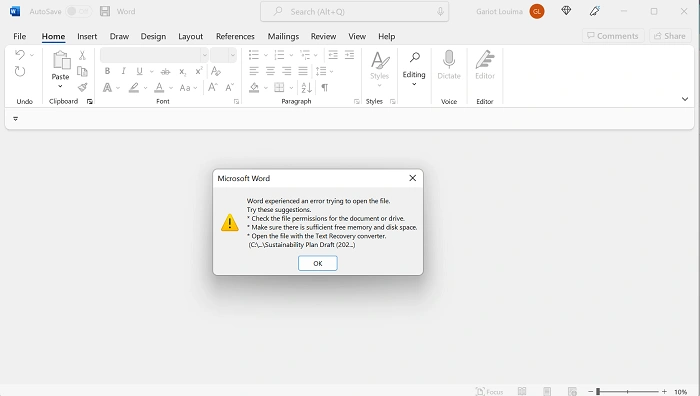
Someone can’t open your doc? Usually it’s a tiny fix. Most times it’s about permissions or access settings.
Know the common problems and you’ll fix them fast.
Common reasons include
The usual suspects:
- Wrong sharing permissions
- They’re not signed into Google
- Your org locked it down
- File’s too big
Quick fixes
These usually work:
- Change to “Anyone with the link”
- Send as PDF instead
- Check you typed their email right
Most problems? Fixed in minutes.
Link vs Attachment: Which Should You Use?
Link or attachment? Depends what you want them to do. Each one shines in different spots.
Know the difference and you’ll never pick wrong.
Use a link when
Links work best for:
- Working together
- Docs that might change
- Big files
Use an attachment when
Attachments are better when:
- The doc is final
- They don’t use Google
- You want it to look pro
Pick right and save yourself headaches.
Best Practices for Sending Google Docs by Email
Little things make a big difference. Take a sec to check before sending. People notice and trust you more.
Good habits to build:
- Name files clearly
- Tell them what you’re sending
- Double-check permissions
- Look over attachments first
- Pick the right format
These details? They matter more than you think.
Quick Summary
Lots of ways to attach a Google Doc in 2026. Pick based on what you need – teamwork or a final doc.
Your options:
- Share a link
- Download as PDF or Word
- Attach through Gmail
- Email from Google Docs
- Share from your phone
Each one has its place.
Frequently Asked Questions (FAQs) About How To Attach A Google Doc To An Email
Can I attach a Google Doc without downloading it?
Yep. Gmail lets you attach straight from Google Drive.
Is a link better than an attachment?
Links rock for teamwork. Attachments win for final docs.
Can non-Google users open my document?
Sure can. Just set permissions right or send a PDF/Word file.
How do I stop others from editing my document?
Set it to Viewer before you send.
Why does my recipient get an access error?
Your permissions are locked down. Time to update them.
