
The world of emails is so fast and at times it is necessary to forward more than one message. Perhaps your boss would like to get a thread to refer to or you have to send a convoluted conversation to your colleague. It is at this point that the ability to know how to add an email in Gmail becomes priceless.
Attaching an email not only helps to retain the original message, the sender details, timestamps, but also helps the recipient of the message to track the conversation easily without distraction as it is in the case of forwarding the message. On desktop or mobile, this tutorial will show you how to attach emails in Gmail, how to attach multiple emails, how to solve issues that may occur, and how to organize your email.
The relevance of attaching emails in Gmail.
It can be helpful to attach emails rather than forward them because of a range of reasons:
- Keep the original form: The email will appear on the screen of the recipient and will look on your inbox.
- Retain sender information: Useful in HR, legal or client correspondence.
- Send several emails simultaneously: Do not forward e-mails individually, but mail several emails together.
- Keep replies In order: Forwards may get untidy with additional text, attachments are more organized.
- Keep as a reference point: Retains the original email in reserve that can be reviewed or audited.
You can learn to attach emails and thereby make your email communications with Gmail more effective and professional.
Method 1: Adding Emails in Gmail to Desktop.
Email attaching is most easily done on a PC. Gmail also lets you attach emails in the form of .eml files, which can be opened in Gmail or any email service compatible.
Step 1: Open Gmail in Browser.
- Go to Gmail.com and log in.
Step 2: Compose a New Email
- To create a new message, click Compose.
- Write in the email address, subject and any message of the recipient.
Step 3: Select Emails to Attach
- Go to another tab on Gmail to check in-box.
- Click and keep the email(s) which you wish to attach.
- Drag and drop email(s) into the new message.
Step 4: Confirm Attachments
- The emails that you have attached will be treated as .eml files that can be seen at the bottom of your compose window.
- Attaching more than one email can be done by choosing the emails and dragging them.
Step 5: Send the Email
- When all is attached, click Send.
- Your recipients will get the emails as attachments and be able to open them and view the original content and metadata.
Method 2: As Forward Attachment.
The other method of attaching the emails is through the forward as attachment option of the Gmail:
- Open the Gmail web client.
- To add emails to the document, be sure to check the boxes next to each message.
- Press the 3-dot menu (x) on the inbox.
- Select Forward attachment.
- You can compose a new email with the email you selected attached as an.eml file.
- Add recipient details, include a subject and send.
This technique is particularly useful when it comes to attaching a number of emails.
Method 3: Add Emails on Mobile.
Sending emails in Gmail on mobile is not as easy as in desktop since Gmail mobile application does not allow drag and drop and forward attachment as desktop. Here’s a workaround:
- Use desktop mode on mobile browser: Click the Gmail on a mobile browser and set the mode to desktop mode to drag the emails.
- Forward single: When it is necessary to send one email, use a normal forward. Add any background to the message body.
- Export emails via a third-party: This feature is available in some email clients on mobile devices to be able to export emails as attachments.
Desktop Gmail is commonly considered as the simplest way of attachment of an email by mobile users.
Email attaching tips in Gmail.
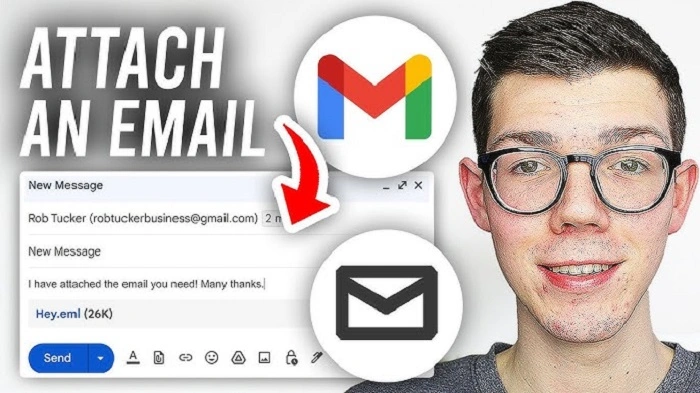
Multiple attachments: Gmail permits a maximum of 25Meg per email which means you can have a number of emails attached at a time provided that the combined total size does not exceed the limit.
- Attachments: Emails can be attached in the form of .eml files and have all original attachments.
- Write subject lines that are descriptive: Attached emails may be confusing; therefore, clarify what you are saying in the subject line.
- Check recipients: Check to verify that recipients are able to open .eml files. They can be opened in most modern email clients (Gmail, Outlook and Apple Mail, etc.).
- Add context in the body: In the new email, add a brief explanation as to why you are sending the attached emails.
Troubleshooting typical Problems.
At times adding emails is not smooth sailing. These are the solutions to typical problems:
- Not showing attachments: Reload Gmail and drag the email once again. Make sure that you are in the desktop version.
- Large attachments: Gmail only allows attachment of up to 25MB of email content. Minimize emissions by compressing email or sending less clumps of email.
- Unable to open .eml files on the recipient side: This says to open the file in the Gmail or more suitable email client.
- Email forwards lose formatting: Not forwarding but attaching as .eml to maintain formatting.
- Mobile features: Mobile Gmail does not allow native email attachment; use desktop or forward one at a time.
Best Practices on Attaching Emails.
- Plan emails in advance: Sort out conversations and delete irrelevant messages.
- Keep attachments pertinent: Attach only the emails that are obligatory in order to prevent being confused.
- Label attached email: With Gmail labels, you can use labels to follow up important threads in your email.
- PDF when required: In case your recipient is unable to open the .eml files, convert email to PDF and attach.
- Keep things to a minimum: Huge email attachments can take up too much space and go over Gmail size quotas.
Gmail Efficiency Daily Habits.
Sending emails as an attachment is one of the requirements of a professional working routine. The following is how to incorporate it into your day to day emailing:
- Check duplication: Before attachment, check that you are not sending the same content more than once.
- Filter repetitive emails: Organize those emails automatically and don’t have to attach many emails manually.
- Archive when you have added: It is always good to keep your inbox clean by archiving already attached emails that have been sent.
- Preview attachments: Make sure that attached emails are accurate before sending.
- Keep the threads straight: Adding context in your new email helps make sure that the recipients comprehend the messages attached.
FAQs
Is it possible to attach several emails in Gmail?
Yes, it is possible to add a few emails as .eml files, by dragging them across a new message or by clicking forward as an attachment.
Does mobile Gmail support attachment of emails?
Not directly. You should use the desktop in a mobile browser or send emails one at a time.
Will there be attachments with original sender and time?
Yes. The attachment of emails in the form of .eml files can retain all original information about the sender, time stamp and attachments.
What file size limits apply?
Gmail has a 25MB email with attachment caps. Attachments of larger sizes might be split or use Google Drive links.
Does Gmail support the opening of .eml files?
Yes, Gmail, and most of the modern email applications, do allow .eml files. The email can be seen in its original form by the recipients.
Being aware of the skills of how to add an email in Gmail is a strong means of professional and personal communication. Attaching emails instead of sending them allows you to maintain formatting, the sender information, and context and that enables recipients to more readily comprehend the conversation.
You can use these steps, regardless of the platform you are on (desktop or mobile using the desktop mode with attachments) to make the process of sending multiple emails clean, fast and professional. Combined with effective email organization and labeling, email attaching in Gmail can save you time and lessen the inbox clutter.
