
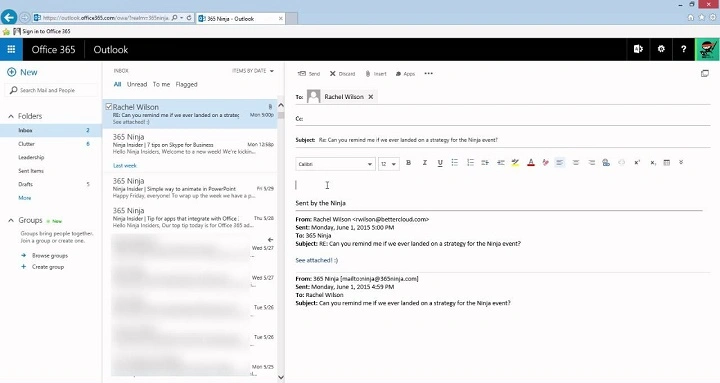
Sometimes just sending an email isn’t good enough. But you actually need the whole thing saved as a file. Because keeping timestamps matters – also who sent it, plus how it looks. So when you’re sharing a chat for feedback, yet giving evidence of what was said, or passing along a talk from start to end without retyping bits… that’s when this helps.
Outlook lets you add emails easily – whether you’re on a computer, phone, or tablet. Find the button once, then drop in messages real quick.
This 2025 walkthrough breaks down how to link one email into another on Outlook – use dragging, menu picks, file inserts, or save-as-PDF tricks. Friendly tips help you stay tidy without cluttered messages.
Why You May Need to Attach an Email in Outlook
Individuals include email messages once they require:
- so it keeps the meaning just right
• to send documentation
• to spread entire conversations across groups
• to send in messages
• so your files stay just like you sent them
• so things don’t get mixed up if there’s more than one email
• for sorting out reports or messages from clients
An attached message stays the same – so you can trust it later; no edits mean less confusion down the line.
How to Attach an Email to an Email in Outlook Desktop (Windows)

This method’s quick – it fits every Outlook version.
Steps:
- open Outlook
• click New Email
• shrink the email window a bit – this way you can still see your inbox
• Slide the message you’d like to include over here
• put it in the fresh message
• Outlook saves it like an .msg file
• write your message
• click Send
This keeps things neat – simple, easy to follow.
Tip:
You’re able to add more than one email by tapping a few then pulling them over at once
How to Attach an Email Using Outlook’s Attach Item Tool
If you like lists better than dragging stuff around,
Steps:
- open Outlook
• click New Email
• head up to the top bar
• click Attach Item
• choose Outlook Item
• locate the file or message you need
• click OK
The message shows up attached within your inbox.
How to Attach an Email in the New Outlook (Modern Version)
The fresh Outlook design makes things easier.
Steps:
- launch the updated Outlook
• click New Message
• Check your email in a separate tab
• Move the email to your sent folder by pulling it there
• drop it inside
• send normally
A fresh look that works well each day.
How to Attach an Email in Outlook Web (Outlook.com)
Outlook Web won’t let you drag emails straight in – though tossing them as attachments works fine.
Steps:
- open Outlook.com
• click on the message you’d like to link
• Tap the little dots grouped together
• click Download
• keep the message in a .eml format
• click New Message
• Tap the clip symbol
• Link up the saved .eml document
• send
The receiver gets the entire initial message.
How to Attach Multiple Emails in Outlook Desktop
If you’re looking to add multiple notes in one go,
Steps:
- open Outlook
• Head over to your mail folder
• Press Ctrl then tap each email you’d like
• slide them over to the fresh note
• drop them inside
• send
All picked messages show up as separate files attached.
How to Attach a Full Email Thread in Outlook
Messages work the same way threads do when you add them.
Steps:
- find the conversation
• open it fully
• move the full conversation over to the next note
• or grab it as a .eml straight from Outlook Web
• attach it
• send
This puts each answer in line using different links between thoughts.
How to Attach an Email in Outlook for Mac
macOS comes with an easy-to-use drag-and-drop feature that lets you move files by pulling them around.
Steps:
- open Outlook on your Mac
• click New Email
• open your inbox
• Move the email into the main area by dragging it
• drop it
• send
Outlook on Mac saves attached emails either as .eml or .msg – depends on the type. Format decides which one shows up. No fixed rule here, just how it works.
How to Attach an Email in Outlook App for iPhone
The Outlook mobile app lacks a built-in option to attach emails directly – yet you can use an alternative method that performs just fine.
Steps:
- Launch the message you’d like to link
• Hit the three little dots
• tap Print
• tap and spread your fingers to see the whole page
• Hit the share button
• tap Save to Files
• save the file
• start a fresh message online
• tap the paperclip
• Link up the stored PDF file
• send
You attach the complete email as a neat PDF file.
How to Attach an Email in Outlook App for Android
Android uses that approach too.
Steps:
- open the email
• Hit the three little dots
• tap Print
• Keep the PDF on your phone or computer using a different option each time you do it
• write a fresh message
• attach the PDF
• send
This keeps the whole thing clear by making it easier to follow along without confusion.
How to Attach an Email as a PDF in Outlook Desktop
Some folks like emailing files as PDFs since they’re simpler to open – or maybe because it skips formatting issues when switching devices.
Steps:
- open the email
• click File
• click Print
• choose Microsoft Print to PDF
• save the file
• Link the PDF straight to your fresh email
• send
This performs fine in official talks or written records, while also fitting casual use now and then.
When You Cannot Attach an Email in Outlook

If linking fails, look at:
- message too large
• outdated Outlook version
• stopped .msg or .eml files from opening on the person receiving them
• corrupted email file
• Drag or drop isn’t working – device setup turned it off
• wrong kind of file when you hit download
Fix:
- update Outlook
• give it a go as a PDF file
• restart Outlook
• send through Outlook Web
• shrink the email data
• Call it something else if the letters seem odd
Many problems fix themselves after a fast upgrade or an easy switch. But sometimes it takes more than just one step.
Organization Tips After Attaching Emails
To stay on track with things:
- Use simple titles that show what the email’s about
• Tag each label attachment using dates
• Sort the linked messages based on each task
• keep attachments small
• delete duplicates
• put a note in your text that tells more
This keeps things clear while making them simple to track.
Quick Summary
How to add an email inside Outlook:
- On desktop: just move it by dragging straight into a fresh message
• Desktop: Attach Item → Outlook Item
• New view: pull email into separate pane
• Outlook Web: download .eml → attach
• Move it to the chat – just pull with your mouse
• iPhone: turn into PDF then add it
• Android: save as PDF → attach
• Threads: include every part of the chat
• Pick a few emails at once – just grab them and move
Two steps and the email is attached.
FAQs
- Can I attach an email to another email in Outlook Web?
Yes. Download the message then attach the .eml file.
- Why drag and drop not work?
Your Outlook window may be maximized or blocked by system settings.
- Can I attach more than one email?
Yes. Select multiple and drag them all.
- Can I attach emails on mobile?
Yes by saving the message as a PDF first.
- Will the attached email keep formatting?
Yes. Outlook preserves full formatting in .msg and .eml files.
