
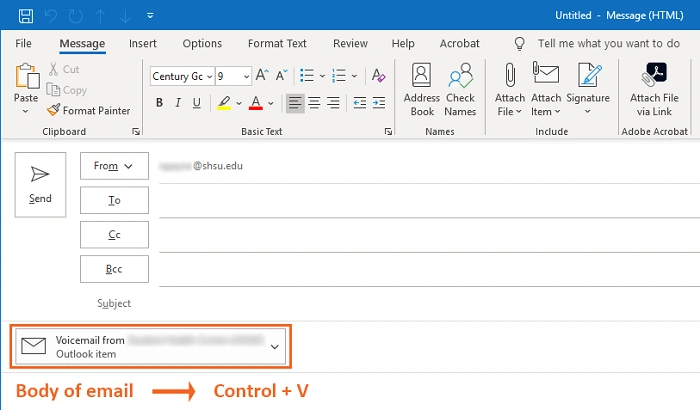
Need to forward a message to someone but want it to look clean and professional? Sometimes, the best way is not just to forward—it’s to attach an email to an email. Whether you’re referencing previous correspondence or sharing email chains with colleagues, this feature can save time and improve clarity.
In this guide, you’ll learn how to attach an email to another email in Gmail, Outlook, Apple Mail, and other platforms—on both desktop and mobile.
What Does It Mean to Attach an Email to an Email?
Attaching an email to another email means you’re inserting the entire message as a .eml file, or as an inline reference, within a new email. This method:
- Retains the original format
- Keeps headers, metadata, and attachments intact
- Helps create context when sharing complex threads
- Looks cleaner than long forwards or copied text
It’s different from just forwarding—attached emails are treated as files inside your new message.
How to Attach an Email to Another Email in Gmail (Desktop)

Gmail makes attaching emails simple through drag-and-drop or pop-out windows.
Method 1: Drag and Drop
- Open Gmail in your browser
- Open your Inbox in one tab
- Click Compose to open a new email in a separate window
- Drag the email you want to attach from your inbox
- Drop it into the Compose window
- Gmail will attach it as a .eml file
Method 2: Use “Forward as Attachment”
You can also select and attach emails without dragging.
- Check the box next to the email you want to attach
- Click the three-dot menu at the top
- Select Forward as attachment
- Gmail opens a new email with the selected email attached
Now you can add recipients and send it like a regular email.
How to Attach an Email to an Email in Outlook
Microsoft Outlook offers multiple ways to attach messages to another message.
Outlook Desktop App:
- Open Outlook
- Click New Email to compose
- From your inbox, drag the email you want to attach into the new message window
- It appears as a .msg file in the attachment section
Alternatively:
- Click Attach Item from the ribbon in the new email window
- Choose Outlook Item
- Browse your inbox and select the email
- Click Insert
Outlook Web Version:
- Log in to Outlook.com
- Click New message
- Open another tab or split view with your inbox
- Drag and drop the desired message into the new email
- It will attach as a .eml file
This method works best on a computer.
How to Attach an Email to an Email in Apple Mail (macOS)

Apple Mail allows attaching emails using the drag-and-drop method.
Steps:
- Open Mail on your Mac
- Start a new email
- Go to the mailbox containing the email you want to attach
- Drag that email into your compose window
- It attaches as an .eml file automatically
Recipients can open it in any compatible mail client.
Can You Attach an Email in Gmail Mobile App?
Unfortunately, Gmail mobile (iOS and Android) does not support attaching emails to another email directly.
Workaround:
- Forward the original email manually
- Or go to Gmail on a desktop browser using your phone’s web browser in desktop mode
- Use the drag-and-drop or “Forward as attachment” method there
For full functionality, use Gmail on the desktop.
How to Attach Multiple Emails at Once
In Gmail or Outlook (web/desktop), you can attach more than one email:
- Check multiple emails in your inbox
- Click More (three dots) > Forward as attachment
- A new email will open with all selected emails as .eml attachments
This is perfect when sending a batch of related messages.
Opening an Attached Email
When you receive an email with .eml or .msg attachments:
- In Gmail: Click the attachment to preview
- In Outlook: Click to open in a new window
- In Apple Mail: Double-click to open in a separate tab
- Mobile apps: You may need a compatible app to view the content
Most email platforms support viewing these files natively.
Benefits of Attaching Emails Instead of Forwarding
| Reason | Why It Helps |
| Preserves formatting | Keeps original layout, metadata, and content |
| Keeps inbox clean | No extra clutter from forwards |
| Retains attachments | Attached emails maintain their files |
| Easy to reference multiple threads | Better than copying content manually |
| Works well in professional communication | Especially for legal, HR, or support cases |
Attaching offers better presentation and control.
Use Cases for Attaching Emails
- Forwarding proof of communication in business scenarios
- Sharing internal email threads with external contacts
- Including prior correspondence in ongoing legal cases
- Submitting support tickets with full context
- Sending reminders to teams with linked previous emails
This method ensures full transparency and communication continuity.
Common File Types When Attaching Emails
| Platform | Attachment File Type |
| Gmail | .eml |
| Outlook Desktop | .msg |
| Apple Mail | .eml |
| Yahoo Mail | (Requires download, then reattach as file) |
Both .eml and .msg files can be opened in most modern email clients.
Tips for Attaching Emails Properly
| Tip | Why It Helps |
| Rename the attachment file | Helps recipients know what it contains |
| Use BCC if emailing multiple parties | Maintains privacy |
| Preview the attachment before sending | Avoids mistakes |
| Add a message explaining the attachment | Provides context to recipients |
| Compress multiple emails in a .zip file | Useful when sending large batches |
Always ensure the attached content is appropriate for the recipient.
FAQ
How do I attach an email to another email in Gmail?
Open Gmail on desktop, select the email you want to attach, click the three-dot menu, and choose Forward as attachment. Or, drag the email into a new compose window.
Can I attach multiple emails in one message?
Yes. Select multiple emails in your inbox, then choose Forward as attachment. Gmail and Outlook will attach them as individual .eml files.
Is there a way to attach emails on mobile?
Not directly. Use a desktop browser for full functionality. On mobile, forwarding is your best option.
What’s the difference between forwarding and attaching?
Forwarding copies the content into a new email. Attaching keeps the original email as a file attachment, preserving formatting and metadata.
Are attached emails secure?
Yes, but use caution. Like any attachment, make sure you’re not sharing sensitive info unintentionally. Always double-check recipients.
