
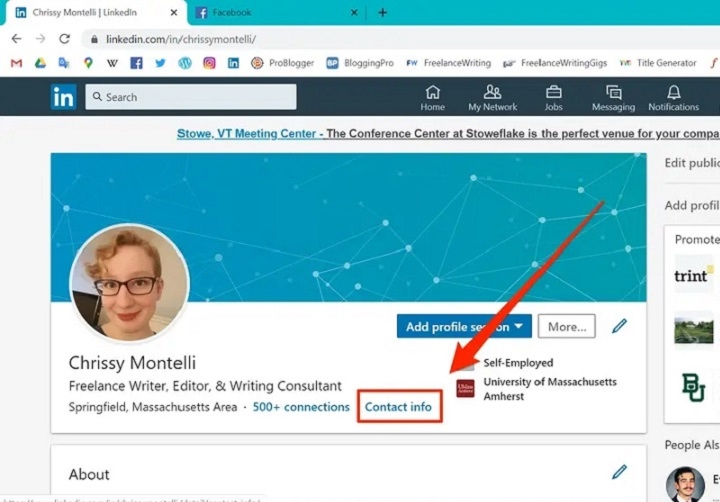
LinkedIn is one of the most widely used professional networking platforms. Whether you’re updating your contact information or switching to a more frequently used email, changing your email on LinkedIn is a simple process. In this guide, we will walk you through the steps to change your email address on LinkedIn, ensuring that you can continue receiving notifications and staying connected with your network.
Why You Might Want to Change Your Email on LinkedIn
Changing your email on LinkedIn can be necessary for several reasons. Here are some of the most common scenarios:
Switching to a More Active Email
If you’ve recently started using a new email address and want all your LinkedIn notifications to come to that address, updating your LinkedIn email is the first step.
Improving Security
For security reasons, you may want to change the email associated with your LinkedIn account. You might prefer a more secure or frequently monitored email to ensure you receive important notifications about your account.
Email Migration
You might be migrating from one email provider to another (e.g., switching from a work email to a personal one or vice versa). This is a good reason to update your LinkedIn account with your new email.
Recovering Access to Your Account
If you no longer have access to the email you initially used to register on LinkedIn, changing the email address is essential for account recovery and maintaining control over your profile.
How to Change Your Email on LinkedIn
Changing your email on LinkedIn is a simple process that can be done through either the desktop website or the LinkedIn mobile app. Below is a step-by-step guide for both methods.
How to Change Your Email on LinkedIn (Desktop)
Log In to Your LinkedIn Account
Open your preferred browser, go to LinkedIn, and log in to your account using your current email and password.
Go to Settings & Privacy
Once logged in, click on your profile icon in the top-right corner of the screen. From the dropdown menu, select Settings & Privacy.
Navigate to the Account Settings Section
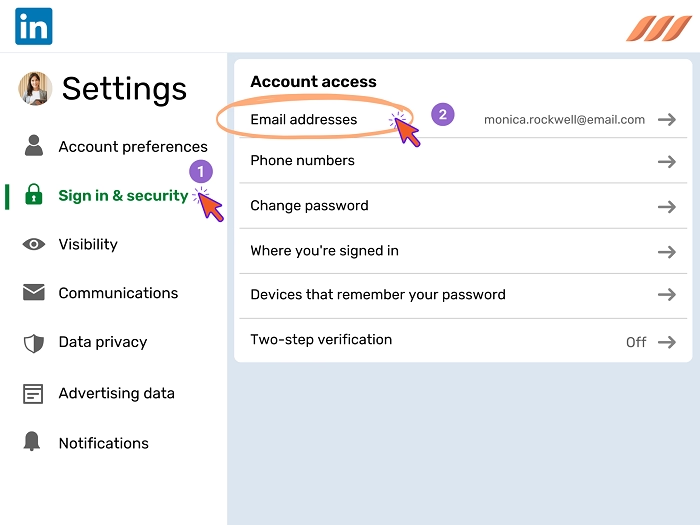
In the Settings & Privacy menu, click on the Account tab. Under this tab, you will find various options for managing your LinkedIn account.
Find the “Email Addresses” Section
Within the Account section, scroll down to the Email addresses section. Here, you will see a list of all the email addresses currently linked to your LinkedIn account.
Add a New Email Address
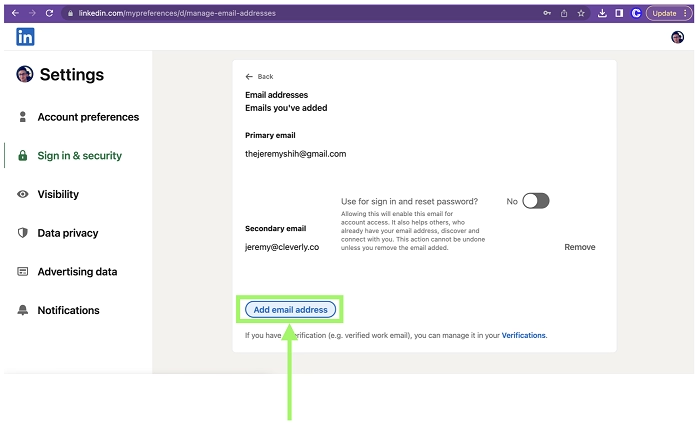
To add a new email address, click on Add email address. A new pop-up window will appear where you can type in the new email address you want to use.
Verify Your New Email Address
LinkedIn will send a verification email to your new email address. Go to your inbox, open the email, and click on the Verify button to confirm that you want to associate the new email with your LinkedIn account.
Make the New Email Your Primary Address
After verifying the new email, you will return to the Email addresses section in Settings & Privacy. Next to your new email, click on Make Primary to set it as your main LinkedIn email.
Remove the Old Email (Optional)
If you no longer wish to use your old email address, you can remove it by clicking on the Remove button next to the old email. Be sure that your new email is set as the primary before doing so.
How to Change Your Email on LinkedIn (Mobile App)
Changing your email on LinkedIn through the mobile app follows a similar process to the desktop version but with some minor differences in navigation.
Open the LinkedIn App
Launch the LinkedIn app on your mobile device. Log in using your current email and password.
Access Your Profile Settings
Tap on your profile icon in the top-left corner of the screen. Then, tap on Settings from the dropdown menu.
Go to Account Settings
In the Settings menu, scroll down to the Account section. Tap on Account settings, and then look for the Email addresses option.
Add a New Email Address
Tap on Add email address to add your new email. Enter the new email address you want to link to your LinkedIn account.
Verify Your New Email
LinkedIn will send a verification email to the new address. Open the email on your device and click the Verify button to confirm the new email.
Set the New Email as Primary
Once the new email is verified, go back to the Email addresses section in the Settings and select Make Primary next to the new email.
Remove the Old Email (Optional)
If you wish to remove the old email, tap on Remove next to the email you no longer want to use.
Things to Keep in Mind
LinkedIn’s Email Confirmation Process
LinkedIn requires you to verify your new email address before it becomes active on your account. This is a security measure to ensure that you have access to the new email.
Multiple Emails
LinkedIn allows you to associate more than one email with your account, so you can add a backup email or use multiple addresses for different purposes. However, only one email can be set as the primary one, which is the address LinkedIn will use for notifications.
Email Notifications
Changing your email address will affect how you receive notifications from LinkedIn. Make sure you’ve updated your email to one that you check regularly to stay updated with job offers, messages, and network requests.
Logging In
After changing your email, LinkedIn will continue to allow you to log in with your old email for a period of time. Once you are ready, you can log in using the new primary email.
Common Issues and Troubleshooting
I Didn’t Receive the Email Verification Link
Check your spam or junk folder to ensure that the verification email didn’t end up there. If you still can’t find it, click on Resend Verification in your LinkedIn settings.
Can’t Remove My Old Email
If you have trouble removing your old email, ensure that the new email is set as the primary one. LinkedIn requires the new email to be your primary address before you can remove the old one.
New Email Still Not Showing Up
If the new email isn’t showing up after verification, log out of your LinkedIn account and log back in. This should refresh your account and show the updated email.
FAQs About Changing Your Email on LinkedIn
Can I Use a Business Email Address for LinkedIn?
Yes, you can use a business or personal email for LinkedIn. However, it’s recommended to use an email you’ll have continued access to, such as a personal email if you change jobs frequently.
Can I Change My Email on LinkedIn if I Don’t Have Access to the Old Email?
Yes, if you no longer have access to your old email, you can change it by following LinkedIn’s account recovery process. You’ll need to verify your identity to make this change.
Will Changing My Email Affect My LinkedIn Profile?
No, changing your email will not affect your LinkedIn profile, connections, or any content on your account. It only affects how you receive notifications and access your account.
Can I Add Multiple Emails to My LinkedIn Account?
Yes, you can associate multiple email addresses with your LinkedIn account. However, only one email address can be set as your primary email.
How Do I Change the Email on My LinkedIn Business Profile?
You can change the email on a LinkedIn business profile by following the same steps as for a personal account. This ensures that all business notifications are sent to the new email address.
