
We’ve all been there. You type out that super important message. Hit send. Then hope they get it’s urgent. But here’s the thing – if it doesn’t look urgent? It gets lost. Like, totally buried under tons of other emails.
That’s where Outlook helps out. Big time.
You sending a rush project update? Maybe a deadline that’s today? Or need a reply like, right now? You gotta know this trick. This guide shows you everything. How to mark stuff as high priority. What it looks like when they get it. How to undo it if you change your mind. Even how to make it automatic. Pretty cool, right?
Understanding Outlook’s Priority System
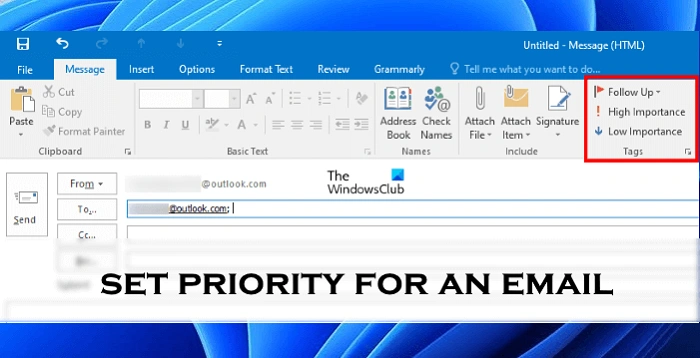
So Outlook has this neat flag system. It lets you show how important your email is. Three levels exist:
- High Importance (that’s urgent!)
- Normal Importance
- Low Importance
When you pick High? A red exclamation mark (!) shows up. Right there in their inbox. They see it and think “Oh snap, better read this now!” Low importance? That gets a blue down arrow. Good for FYI stuff.
Here’s the deal though. The marker doesn’t force anyone to reply faster. But it does make your email stand out. Use it right? You look professional. Use it too much? People start ignoring it. So pick your battles, you know?
Marking an Email as Urgent (Outlook Desktop App)
Using Outlook on your computer? Windows or Mac? This is super easy. Just a few clicks.
Steps:
- Open Outlook. Click New Email.
- Type your message. Add subject. Put in who gets it.
- Look up top. See the Tags group? It’s in the ribbon.
- Click that red exclamation point. That’s High Importance.
- Make sure it’s highlighted. That means it worked!
- Send it off.
When they get your email? Boom. Red exclamation mark right there. Next to your name. Inside the email too. The header says “High Importance.” It’s like a gentle tap saying “Hey, read me now please!”
Marking an Email as Urgent in Outlook Web (Outlook.com or Office 365)
Like using Outlook in your browser? No problem. It’s a bit different but works the same.
Steps:
- Log into Outlook.com. Or use Office 365.
- Click New mail. Start typing.
- See those three dots (⋯)? Click them. Might say More options.
- Pick Set importance. Then pick High.
- Finish your message. Hit Send.
You’ll see that red mark appear. Right by the subject line. Once sent? The person sees it marked urgent. Works in both desktop and web view. Nice!
Tips:
Using Outlook? You can use the web. Or download the app. It’s faster. Using Gmail? Always log in through Penn’s Gmail page. Not regular Google. It’s safer that way. And hey — using someone else’s computer? Log out! Don’t forget!
Marking an Email as Urgent on Mobile (Outlook App for iPhone or Android)
On your phone? You can do this too. It’s just hidden a bit.
Steps:
- Open Outlook app. iPhone or Android.
- Tap the pencil icon. That’s compose.
- Write your stuff. Subject, message, who gets it.
- Tap three dots (⋯) in the top right.
- Tap Importance. Or Set Importance. Depends on your version.
- Pick High. Then send.
Done! Your urgent email shows up urgent everywhere. Mobile and desktop. Perfect for when you’re out and about. Need to send that rush message? Now you can.
What Happens When You Mark an Email as Urgent
So you flag it “High Importance.” What happens? Outlook adds that visual symbol. But wait – there’s more! It also changes how the message shows up. Sorts different. Displays different.
The person sees:
- Red exclamation point by your email
- “High Importance” in the header
- Maybe a notification sound (depends on settings)
- Might show at the top of their inbox
But here’s the thing. Mark too many as urgent? People stop caring. It’s like crying wolf, you know? Save it for real stuff. Deadlines. Meeting changes. Critical feedback. System alerts. That kind of thing.
Changing or Removing the Urgent Tag
Oops. Marked it urgent by mistake? Or maybe it’s not that big a deal? You can fix it. Easy.
Steps:
- Open that draft email.
- Click Message. Then Tags. Pick Low or Normal.
- Red mark goes away. Poof!
- Send it normal.
Already sent it? Can’t change that one. But you can send another email. Mark it Normal. Or just add a line: “Hey, this isn’t super urgent after all.”
Marking Incoming Emails as Urgent (Rules and Alerts)
This is cool. Outlook can auto-mark certain emails as urgent. Based on who sends them. Or keywords. Never miss your boss’s emails again!
Steps:
- Go to Home. Click Rules. Then Manage Rules & Alerts.
- Click New Rule.
- Pick “Apply rule on messages I receive.”
- Click Next. Pick your conditions. Like “from [boss email]” or “has ‘Urgent’ in subject.”
- Next step? Choose what happens. Desktop Alert or mark as high.
- Name your rule. Click Finish.
Now Outlook does the work. Flags important stuff automatically. Pretty sweet, right?
Quick Reference
| What You Want | Where to Find It | What Happens |
| Mark urgent (desktop) | Message tab → Tags → High Importance | Adds red mark |
| Mark urgent (web) | Three dots → Set importance → High | Makes it urgent |
| Mark urgent (mobile) | Compose → Three dots → Set Importance → High | Mobile urgent |
| Remove urgency | Message tab → Tags → Normal | No more red flag |
| Auto-flag stuff | Rules → Manage Rules & Alerts | Marks certain emails high |
Tips for Writing an Urgent Email Professionally
Red mark is great. But how you write matters more. Urgent emails should be calm. Clear. Tell them what to do. Not panicked or vague.
Best ways to do it:
- Start with why it’s urgent. Like: “Need this signed by 3 PM today for submission.”
- Clear subject line. Try: “Urgent: Report Needs Approval by 3 PM”
- Keep it short. Urgent doesn’t mean long. Get to the point.
- Say what you need. And when you need it.
- Stay nice. Even when rushed. “Please” and “thanks” help lots.
Being urgent and respectful? That’s the sweet spot. Write clear. Mark right. Get attention without being pushy.
Troubleshooting: When “Urgent” Doesn’t Show
Sometimes the mark doesn’t show up. Weird, right? Here’s what to check:
- In Plain Text mode? Switch to HTML or Rich Text.
- Can’t see Tags toolbar? Make it visible.
- Using Apple Mail? The tag might not carry over.
- Shared mailbox? Icon might not show till opened.
Still not working? Just add “(High Priority)” to your subject. Not as fancy. But it works everywhere.
When (and When Not) to Mark an Email as Urgent
This power is real. Use it wisely. Good times to use it:
- Project needs approval NOW
- Meeting changed to today
- Client needs answer fast
- System is broken
Don’t use it for:
- Regular updates
- Basic follow-ups
- Casual reminders
Mark everything urgent? Nothing is urgent. Your rep matters. Keep it real.
Best Practices to Keep Your Inbox Balanced
Urgent emails help. But balance is key. Make folders like “Action Needed” and “Follow-Up.” Use rules to sort stuff.
When you get urgent emails? Reply fast. Even just “Got it – working on this!” That helps the sender relax.
End of day? Check your urgent folder. Issue fixed? Mark it done. Archive it. Keep your urgent list fresh.
Marking emails urgent in Outlook? Simple. But powerful. It’s not just a red mark. It shows focus. Shows you care. Shows you’re professional.
Desktop to mobile – Outlook makes it easy. Just remember: be clear. Time it right. Use the right tone. The tag gets eyes. Your words get action.
Next time you need that fast reply? Use High Importance. Not as panic mode. But as a smart tool. Mark it. Send it. Get results.
