
From streaming movies and gaming to working from home and interacting with others online, a fast and dependable Wi-Fi connection is crucial in today’s digital world. Many consumers, however, battle poor Wi-Fi connectivity, leading to frustration and lost productivity. If you’re wondering how to boost Wi-Fi speed, you’re not alone. Fortunately, a few sensible actions can significantly improve your connection and enhance your overall experience.
Understanding the Elements Affecting Wi-Fi Speed
Understanding the factors behind slow Wi-Fi speeds can help you avoid rushing into fixes. Several factors could affect your Wi-Fi performance, including:
Router Placement
The power and coverage of your Wi-Fi signal depend critically on the location of your router. Routers positioned centrally usually offer better coverage all around your house or business. Avoid putting routers near microwaves, large metal items, or walls to avoid interference.
Bandwidth Limitations
The maximum bandwidth—or speed—that your network can handle is determined by your internet service plan. A plan’s restrictions could be the reason for poor speeds even with a good signal. If you require extra bandwidth for several users or data-intensive operations, think about upgrading to a higher-speed plan.
Interference from Other Devices
Your Wi-Fi signal may be hampered by other gadgets in your house or workplace. Congestion and poor connections can be caused by items like cordless phones, baby monitors, and even nearby Wi-Fi networks. Particularly troublesome are devices that use the same frequency band (2.4 GHz) as your Wi-Fi.
Outdated Equipment
Older routers or devices might not be able to handle modern high-speed internet connections. Verify that your modem and router support the latest Wi-Fi standards—such as Wi-Fi 5 or Wi-Fi 6.
Methods of Accelerating Wi-Fi: Workable Solutions
Move Your Router to a Central Location
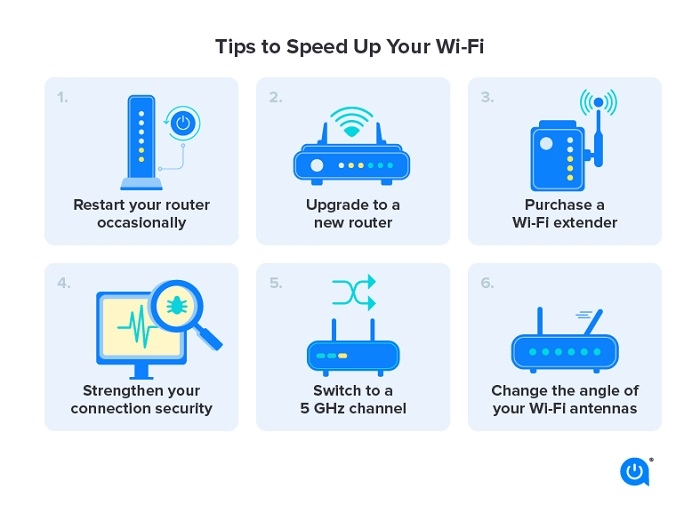
As noted above, the location of the router is crucial. Place your router in a central area of your house, away from walls and bulky furniture. The router should not be tucked inside a cabinet; ideally, it should be raised on a shelf or table. This will help improve the range and strength of your Wi-Fi signal, as well as reduce interference.
Modify the Wi-Fi Channel
Wi-Fi routers broadcast on certain frequencies using designated channels. Changing the channel can help prevent congestion if other networks are causing interference with your Wi-Fi network. While most modern routers select the optimal channel automatically, manually choosing a less congested channel can increase your speeds.
Apps or software solutions can help you find the least crowded channels in your neighborhood. For the 2.4 GHz spectrum, for example, you should target channels 1, 6, or 11, as they typically overlap the least.
Leverage the 5 GHz Band
Dual-band technology allows many modern routers to emit Wi-Fi signals on both the 2.4 GHz and 5 GHz frequency ranges. While 2.4 GHz provides better range, it is more prone to interference. Conversely, the 5 GHz band offers faster speeds with fewer interferences but has a shorter range.
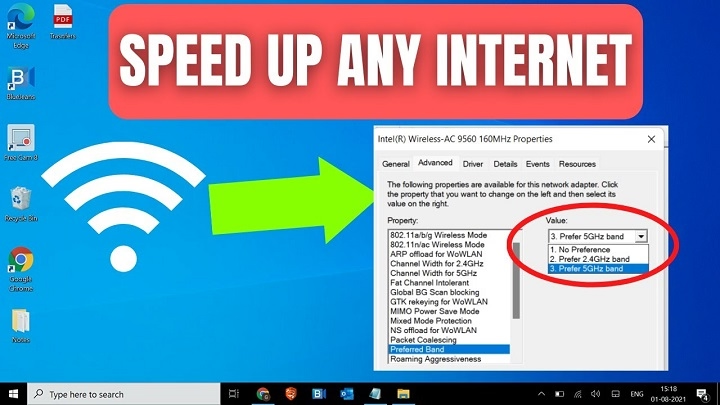
To boost your Wi-Fi speed, connect your devices to the 5 GHz band—especially if you’re close to the router. Usually, your device’s Wi-Fi settings or the router’s control panel will allow you to switch between bands.
Change Your Router
If your router is several years old, upgrading may be necessary. In settings with multiple devices, newer routers provide faster speeds, better range, and more stable performance. Look for routers that support the latest Wi-Fi standards, such as Wi-Fi 5 or Wi-Fi 6, which provide faster speeds and better handling of multiple devices.
Reduce the Device Count on Your Network
If too many devices are connected to the network at once, Wi-Fi speeds can slow down. Activities such as gaming, downloading large files, and streaming videos can consume a substantial amount of bandwidth. If your Wi-Fi is slow, consider disconnecting unused devices or prioritize important activities using Quality of Service (QoS) settings in your router.
Secure Your Wi-Fi Network
If your Wi-Fi network is not password-protected, other people might be using your connection without your knowledge. This can lead to slower speeds due to bandwidth consumption. Ensure your Wi-Fi network uses encryption (such as WPA2 or WPA3) and a strong password.
Update Router Firmware
Router manufacturers frequently release firmware updates to fix bugs, improve security, and boost performance. To ensure you have the latest firmware, check your router’s settings or visit the manufacturer’s website. Updating your firmware can often lead to significant improvements in your network’s stability and performance.
Use a Wired Connection When Possible
Although Wi-Fi is convenient, Ethernet cables (wired connections) are generally faster and more reliable. If you’re experiencing persistent slow speeds, consider connecting some of your devices directly to the router using an Ethernet connection. This bypasses potential wireless interference and offers a more stable connection.
Minimize Interference from Devices
Your Wi-Fi signal can be weakened by other household devices, such as Bluetooth devices, cordless phones, and microwaves. To reduce interference, keep your router away from these devices. Additionally, ensure that other electronics aren’t obstructing your router’s signal.
Leverage Mesh Systems or Wi-Fi Extenders
Consider installing a Wi-Fi extender or a mesh Wi-Fi system if your home or office is large and your Wi-Fi signal doesn’t reach certain areas. These devices help extend the coverage area and provide consistent speeds throughout your entire space.
FAQs on How to Quickly Speed Up Wi-Fi
Which Wi-Fi frequency band is fastest?
Though its range is shorter, the 5 GHz band is generally the fastest and provides more speed with fewer interferences compared to the 2.4 GHz band.
Can changing my router really improve Wi-Fi speed?
Yes, upgrading to a newer router that supports Wi-Fi 5 or Wi-Fi 6 will noticeably improve your Wi-Fi speed and performance, especially in households with multiple devices.
How do I change the Wi-Fi channel on my router?
Log into your router’s settings through a web browser and navigate to the Wi-Fi or Wireless tab. From there, you can manually select a less congested channel.
Does adding a Wi-Fi extender slow anything down?
While Wi-Fi extenders can help increase coverage, they may slightly reduce overall speed because they repeat the signal. A mesh network provides better speed and coverage.
Why is my Wi-Fi slow even though I have high-speed internet?
Several factors, such as router placement, interference from other devices, outdated equipment, or network congestion, can result in slow Wi-Fi speeds despite having high-speed internet.
By changing channels, upgrading hardware, and optimizing placement, you can easily speed up your Wi-Fi for a more consistent and faster internet connection.
