
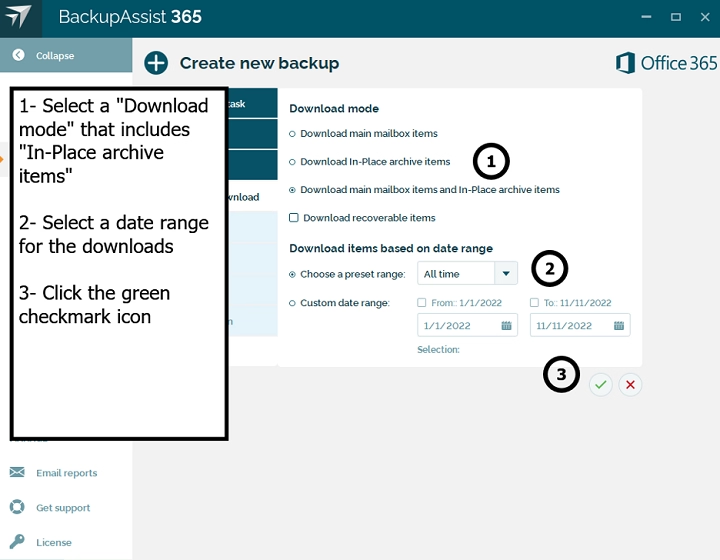
Managing large volumes of emails can clutter your inbox and impact performance. In-Place Archive in Microsoft Outlook offers a convenient solution by providing additional storage space for older or infrequently accessed emails without deleting them. Here’s everything you need to know about In-Place Archive and how to use it effectively.
What is In-Place Archive?
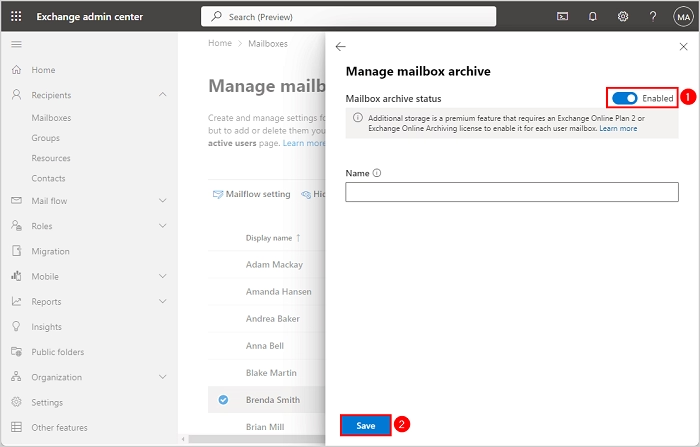
In-Place Archive is a feature in Microsoft Exchange and Office 365 (Microsoft 365) that provides users with a separate, dedicated mailbox storage space. It’s commonly referred to as an archive mailbox and is designed to store older emails, helping reduce clutter in your primary mailbox while keeping data accessible.
Key Features of In-Place Archive
- Additional Mailbox Storage: Separate storage space apart from your primary mailbox.
- Searchable: Emails in the archive mailbox can be searched just like those in the main inbox.
- Auto-Archiving Rules: IT administrators can set policies to move older messages automatically.
- Accessible from All Devices: Available in Outlook desktop, web, and mobile apps.
Benefits of Using In-Place Archive
- Improves Performance: Keeps the primary mailbox light and fast.
- Easy Access to Old Emails: No need to delete important messages.
- Compliance & Retention: Helps organizations comply with email retention policies.
- No Need for PST Files: Reduces reliance on local storage and .pst file backups.
How to Access In-Place Archive in Outlook
Outlook Desktop App:
- Open Outlook.
- In the folder pane, you’ll see a separate folder named In-Place Archive or Online Archive.
- Expand it to view and manage archived emails.
Outlook Web (Outlook.com / Office 365):
- Log in to Outlook on the web.
- The archive mailbox appears alongside your primary folders.
How to Move Emails to In-Place Archive
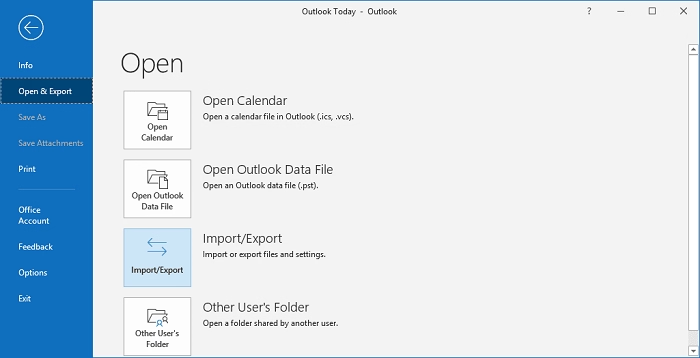
- Manual Move:
- Select emails or folders.
- Right-click and choose Move → In-Place Archive.
- Automatic Archiving:
- IT administrators can configure retention policies that automatically move emails to the archive after a specified period.
Differences Between In-Place Archive and AutoArchive
| Feature | In-Place Archive | AutoArchive |
| Storage Location | Server-based (Exchange/Office 365) | Local .pst files |
| Accessibility | Available across all devices | Limited to device where set up |
| Searchability | Searchable within Outlook apps | Search limited to local machine |
| Management | Admin-controlled retention policies | User-configured settings |
FAQs About In-Place Archive
Is In-Place Archive available for all Outlook users?
No, it’s available for Microsoft 365, Exchange Online, and certain on-premises Exchange plans.
Does In-Place Archive take up space on my device?
No, emails are stored on the server, freeing up local storage space.
Can I access my archive on mobile devices?
Yes, In-Place Archive is accessible via the Outlook mobile app.
How much storage does In-Place Archive provide?
Storage limits vary by plan, starting at 100 GB with auto-expanding archive options available.
Can I delete emails from In-Place Archive?
Yes, you can manually delete emails within the archive mailbox.
In-Place Archive in Outlook is an effective tool for managing large volumes of email without sacrificing performance or losing access to older messages. Whether you’re an individual user or an organization, leveraging this feature ensures efficient mailbox management and compliance with retention policies.
