
If you’ve noticed that important emails are going straight to your junk or spam folder, you’re not alone. In 2025, spam filters are smarter—but sometimes too aggressive—causing critical messages to be misclassified. This guide will explain why emails go to junk, how to fix it, and how to ensure important messages always land in your inbox.
Why Emails End Up in Junk or Spam Folders
Spam Filter Sensitivity
Email services like Gmail, Outlook, Yahoo, and others have strong spam filters that sometimes flag legitimate emails incorrectly.
Sender Reputation Issues
If the sender’s domain has a poor reputation (due to past spam activity or bad configurations), emails might be flagged automatically.
Poor Email Content
Emails that contain spam-like elements such as excessive links, attachments, or suspicious language may trigger filters.
Incorrect User Actions
Manually marking an email as spam once can influence future emails from that sender to go straight into junk.
Understanding these causes helps you better control your inbox.
How to Stop Emails from Going to Junk
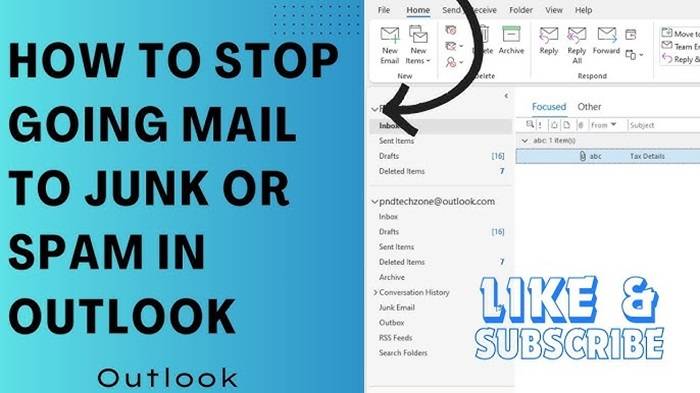
Mark the Email as “Not Spam”
Open your junk or spam folder.
Find the email.
Click Not Spam or Move to Inbox depending on your email provider.
This teaches your email system to recognize that sender as safe.
Add Sender to Your Contacts
Adding the sender’s email address to your contacts or address book tells your email service that messages from them are trustworthy.
Create a Filter or Rule
Most email services allow you to create a filter or rule that forces messages from a specific sender to go directly to your inbox.
Example in Gmail:
- Click Show Search Options in the search bar.
- Enter the sender’s email address.
- Click Create Filter.
- Choose Never send it to Spam.
Check Email Client Settings
If you use apps like Outlook, Thunderbird, or Apple Mail, check that they aren’t applying additional spam filters separately from your main email provider.
Ask the Sender to Check Their End
If it’s a recurring issue, ask the sender to check their domain reputation, email headers, and content formatting to avoid being flagged.
How to Fix Emails Going to Junk in Gmail
Open Gmail and Access Spam Folder
Click More on the sidebar and go into Spam.
Find the important email and click Report Not Spam.
Add Trusted Senders to Contacts
Open the email.
Click the three dots (More) and choose Add [Sender] to Contacts list.
Create a Whitelist Filter
Go to Settings > Filters and Blocked Addresses.
Create a new filter for the sender and select Never send it to Spam.
This ensures future emails from that sender always land in your inbox.
How to Fix Emails Going to Junk in Outlook
Move Email from Junk to Inbox
Right-click the email in Junk.
Choose Mark as Not Junk.
Select Always trust email from this sender if available.
Add Sender to Safe Senders List
Go to Settings > View all Outlook settings > Mail > Junk Email.
Under Safe senders and domains, add the email address or domain.
Adjust Spam Filter Sensitivity
In some Outlook versions, you can lower spam filter sensitivity through account settings to be less aggressive.
Common Problems and Solutions for Emails Going to Junk
Important Work Emails Going to Junk
Solution: Whitelist work domains and add them to your Safe Senders list.
Personal Emails from Friends Going to Junk
Solution: Add the friend’s email address to your Contacts and mark their messages as Not Spam.
Emails Still Going to Junk After Marking as Not Spam
Solution: Check if you have conflicting filters or rules set up in your email client.
Marketing Emails You Want Are Going to Junk
Solution: Subscribe to newsletters using a reputable email address and move desired emails back to Inbox manually.
Tips to Avoid Future Problems with Junk Email
Regularly Check Spam Folder
Scan your spam folder at least once a week for any misclassified important emails.
Maintain a Clean Contact List
Always add regular correspondents to your contacts list.
Be Cautious When Marking Emails as Spam
Avoid marking legitimate emails as spam—even marketing ones you simply don’t want—because it teaches your email provider incorrectly.
Educate Frequent Senders
If you run a business, ensure your outgoing emails have proper SPF, DKIM, and DMARC records to build trust with recipient spam filters.
By staying proactive, you reduce the chances of missing out on important messages.
Frequently Asked Questions (FAQs)
Why do emails from known senders still go to junk?
Spam filters can misinterpret certain content, attachments, or formatting as suspicious, even if the sender is trusted.
How do I whitelist an email address?
In Gmail, Outlook, and Yahoo, create a filter or rule to always send that sender’s emails directly to your inbox.
How long do emails stay in the junk folder?
Usually, emails stay for 30 days before being automatically deleted, depending on the email service.
Will marking an email as “Not Spam” fix future emails too?
Yes, it trains the spam filter to treat similar future emails from that sender correctly.
Can a hacked email cause my emails to land in others’ junk folders?
Yes. If your email account is compromised or sends spam-like messages, your domain reputation will suffer, causing future emails to land in junk.
Emails ending up in junk folders can be annoying, but with the right steps, you can easily fix the problem. By marking trusted emails as Not Spam, adding contacts, setting up filters, and maintaining good email hygiene, you ensure that important messages always reach your inbox without delay.
