
Managing a cluttered inbox can be overwhelming, especially if you’re not sure how to delete an email properly across different platforms. Whether you’re using Gmail, Outlook, Yahoo Mail, or the Mail app on your phone, learning how to delete an email is a key step toward keeping your inbox tidy and organized. This guide covers the step-by-step process to delete emails, both individually and in bulk, on various devices and platforms.
Why Deleting Emails is Important
Organizational Clarity
A clean inbox helps you stay focused. When unnecessary emails pile up, you may miss important messages. Deleting emails allows you to prioritize what really matters.
Storage Management
Email accounts, especially free ones, come with storage limits. When you don’t delete old or irrelevant emails, you can hit that limit faster. Deleting them frees up valuable space.
Improved Productivity
Fewer distractions mean more productivity. An inbox filled with unread or unwanted messages can lead to distraction and delay decision-making.
How to Delete an Email in Gmail
On Desktop
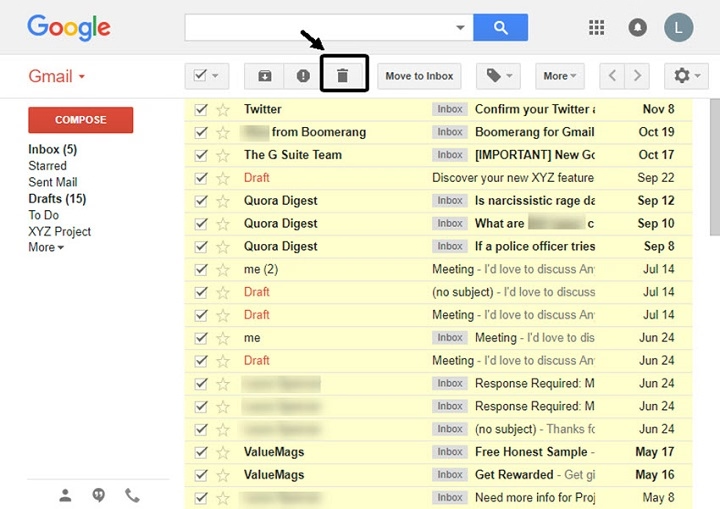
- Open Gmail in your browser.
- Navigate to your Inbox.
- Hover over the email you want to delete; a checkbox will appear.
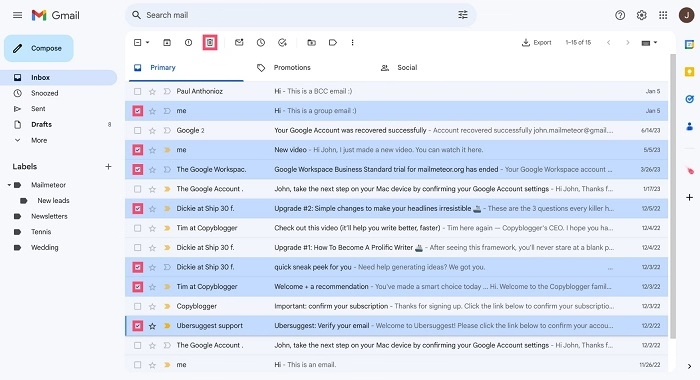
- Check the box, then click the trash icon on the top menu bar.
Deleting Multiple Emails
- Check multiple boxes to select several emails.
- Click the trash icon to delete all selected messages.
Empty Trash Permanently
- On the left panel, click More, then Trash.
- At the top, click Empty Trash Now to permanently delete all emails in Trash.
How to Delete an Email in Outlook
On Desktop
- Log into your Outlook account.
- Go to your Inbox.
- Select the email and click the Delete button (trash icon) at the top.
On Mobile App
- Open the Outlook app.
- Swipe left or tap the trash icon beside the email to delete it.
Bulk Delete
Check multiple boxes or hold down “Ctrl” while selecting emails, then press the Delete key or click Delete on the toolbar.
How to Delete Emails in Yahoo Mail
Via Desktop
- Open Yahoo Mail in your browser.
- Select one or more emails by clicking the checkbox beside each.
- Click the Delete icon on the toolbar.
Empty Trash Folder
- Go to the Trash folder.
- Click Empty Trash to permanently remove emails.
Deleting Emails on iPhone Mail App
Single Email
- Open the Mail app.
- Open the email you want to remove.
- Tap the trash icon at the bottom.
Multiple Emails
- Go to the Inbox.
- Tap Edit in the upper-right corner.
- Select multiple emails and tap Trash.
Automatically Delete Old Emails
Go to Settings > Mail > Accounts, then choose your email account. Set emails to be removed after a certain period under Advanced Settings.
Deleting Emails on Android Devices
Through Gmail App
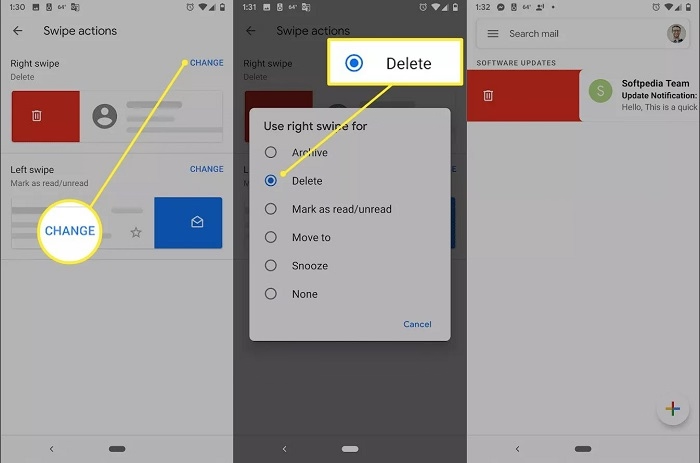
- Open the Gmail app.
- Tap and hold the email to select it.
- Tap the trash icon at the top.
Select and Delete in Bulk
- Tap and hold to select the first email.
- Tap on other emails to select.
- Tap Delete.
How to Delete All Emails from a Sender
- Use the search bar in your email service.
- Type the sender’s name or email.
- Select all results and press Delete.
Deleting Emails Automatically with Filters
In Gmail
- Go to Settings > Filters and Blocked Addresses.
- Create a filter with keywords or sender names.
- Choose Delete it as the action.
This is useful for recurring spam or newsletters you never read.
Difference Between Deleting and Archiving
Deleting an email removes it completely and eventually erases it from your trash.
Archiving stores the email in another folder, so you can retrieve it later.
When managing your inbox, decide whether you may need to refer to that email again.
Deleting Emails in Microsoft Outlook Desktop App
- Open Outlook.
- Go to the Inbox.
- Select emails and press Delete, or right-click and choose Delete.
Auto-Delete Settings in Outlook
- Click on File > Options.
- Navigate to Mail > Clean Up Tools.
- Set up rules to delete old messages or manage junk folders.
Tips for Managing Your Inbox Effectively
Unsubscribe Often
Use the unsubscribe link at the bottom of promotional emails to stop receiving them altogether.
Use Labels and Folders
Instead of letting all emails sit in your inbox, use folders or labels to categorize them.
Set Email Time Limits
Allocate a specific time of the day to check and delete emails. This helps avoid buildup.
When Should You Not Delete an Email?
Emails with important attachments or account information.
Messages involving legal or business matters.
Emails you might need for future reference.
Instead of deleting, consider archiving or moving to a labeled folder.
Common Mistakes to Avoid While Deleting Emails
- Accidentally deleting important emails.
- Not emptying the Trash folder, causing storage issues.
- Forgetting to set rules, which could help automate cleanup.
What Happens After You Delete an Email?
The email goes to your Trash or Deleted folder.
You can recover it within a specific time period (usually 30 days).
If not recovered, it is permanently deleted after that time.
FAQs About How to Delete an Email
How do I delete emails in bulk?
Use the checkbox method on desktop or tap and hold multiple emails on mobile, then select delete.
Can deleted emails be recovered?
Yes, within 30 days (depends on provider). Check your Trash or Deleted Items folder.
What if my delete button doesn’t work?
Try refreshing the page or clearing the app cache. If it continues, check settings or update your app.
How to delete all unread emails in Gmail?
Search is:unread in the Gmail search bar, select all, and click the trash icon.
Will deleting emails free up space?
Yes, especially if your provider has a storage limit. Don’t forget to empty the trash afterward.
