
Email encryption in Outlook is essential for protecting sensitive information from being intercepted or read by unauthorized recipients. Whether you’re handling financial data, legal documents, or confidential conversations, encrypting your email adds a layer of security to keep your communication private. This guide explains how to encrypt email in Outlook, the types of encryption available, and step-by-step instructions for desktop, web, and mobile users.
Why Encrypting Emails in Outlook Is Important

Confidential Communication
When you’re sending personal or business-sensitive information, encryption ensures only the intended recipient can read the message.
Protection from Hackers
Encryption helps guard your email content against interception by cybercriminals, especially when using public or unsecured networks.
Compliance with Regulations
For professionals in healthcare, finance, or legal industries, encrypting emails is often necessary to meet data protection regulations such as HIPAA or GDPR.
Understanding Email Encryption in Outlook
Outlook supports two main types of email encryption:
S/MIME Encryption (Secure/Multipurpose Internet Mail Extensions)
- Best for enterprise environments using Microsoft Exchange.
- Requires a digital certificate installed on both sender and recipient systems.
Microsoft 365 Message Encryption (OME)
- Available with Microsoft 365 subscriptions.
- Allows encrypted emails to be read by recipients using any email service (Gmail, Yahoo, etc.).
- Easier to use, no certificates needed.
How to Encrypt Email in Outlook for Microsoft 365 Users
Step-by-Step: Outlook Desktop App
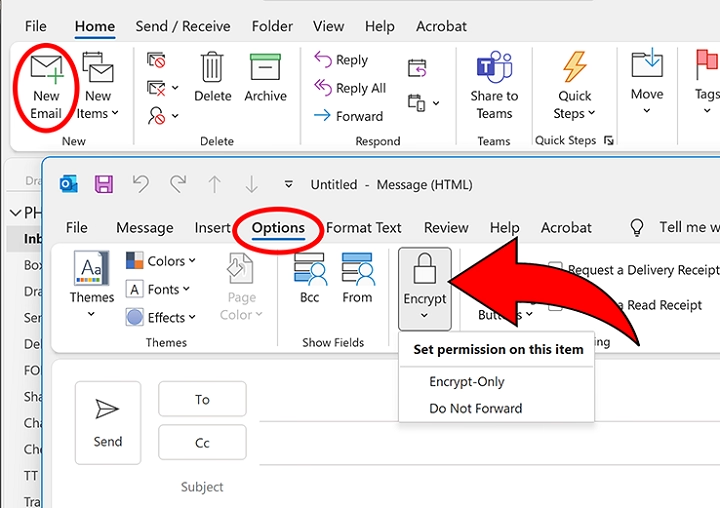
- Open Outlook and click New Email.
- Write your message and add recipients.
- Click Options in the toolbar.
- Click Encrypt (padlock icon).
- Choose from the following:
- Encrypt-Only: Message is encrypted but recipients can forward.
- Do Not Forward: Message can’t be forwarded or copied.
- Click Send.
How to Check if an Email Is Encrypted
After clicking Encrypt, you’ll see a message above the email body confirming encryption settings are enabled.
Encrypting Email on Outlook Web (Outlook.com or OWA)
- Log in at Outlook.com or your organization’s Outlook Web Access.
- Click New Message.
- In the compose window, click the three dots (More options) > Encrypt.
- Choose Encrypt or Encrypt and Prevent Forwarding.
- Compose and send your message.
How to Encrypt Email Using S/MIME in Outlook
Requirements
- Both sender and recipient must have a digital ID (certificate).
- Certificates must be installed and shared between both parties.
Setup Process
- Obtain a digital certificate from a trusted provider (e.g., Comodo, DigiCert).
- Install the certificate:
- Go to File > Options > Trust Center > Trust Center Settings > Email Security.
- Click Import/Export to add your certificate.
- Go to File > Options > Trust Center > Trust Center Settings > Email Security.
- Enable digital signing and encryption by checking:
- Encrypt contents and attachments for outgoing messages
- Add digital signature to outgoing messages
- Encrypt contents and attachments for outgoing messages
Sending S/MIME Encrypted Emails
- Compose a new message.
- Go to the Options tab.
- Click the Message Options button (small arrow in the lower right corner).
- Under Security Settings, select Encrypt message contents and attachments.
- Send your email.
Encrypting Email in Outlook Mobile App

Using Microsoft 365 Encryption
- Open the Outlook app on iPhone or Android.
- Tap the New Email icon.
- Tap the three dots in the top-right corner (Android) or bottom (iOS).
- Select Encrypt or Encrypt and Do Not Forward.
- Compose and send.
Note: Mobile encryption may only be available if your account is connected to Microsoft 365 or an Exchange server.
Tips for Secure Email Practices in Outlook
Use Strong Passwords
Always secure your Outlook account with a strong, unique password and enable two-factor authentication.
Avoid Sending Sensitive Info in Plain Text
Never send passwords, banking info, or private documents without encryption.
Notify Your Recipient
Let the recipient know beforehand if you are sending an encrypted message—especially if they need a decryption key or certificate.
Regularly Update Outlook
Keep your Outlook app updated to access the latest security features and compatibility improvements.
Limitations of Outlook Email Encryption
- S/MIME requires setup on both ends, which may be too technical for casual users.
- OME (Office 365 encryption) may require a Microsoft 365 subscription.
- Encrypted emails can’t be searched easily, as the contents are scrambled.
When Should You Encrypt Emails?
- Sending confidential work documents
- Emailing medical or legal information
- Communicating with clients who expect secure messaging
- Sharing passwords or secure links
- Collaborating on business contracts
Troubleshooting Encryption Issues
The Encrypt Button is Missing
Ensure you’re using a Microsoft 365 account and that encryption is supported by your license.
Recipient Can’t Open the Email
Ask the recipient to follow the “Read the message” link and verify their identity. If using S/MIME, confirm they’ve imported your public key.
Error: “Encryption Failed”
This could be due to expired certificates or a mismatch between sender and recipient security settings. Update your certificate or contact support.
FAQs About How to Encrypt Email in Outlook
How do I enable encryption in Outlook?
Use the Encrypt option in the Options tab when composing a message if you’re using Microsoft 365.
Is Outlook email encryption free?
Microsoft 365 encryption is included with some plans. S/MIME requires purchasing and installing a certificate.
Can I encrypt attachments in Outlook?
Yes, attachments are automatically encrypted along with the email content.
What’s the difference between Encrypt and Do Not Forward?
Encrypt scrambles the message; Do Not Forward restricts recipients from copying or forwarding the message.
How do I know if my email was encrypted?
A message bar above your email confirms the encryption type used before sending.
