
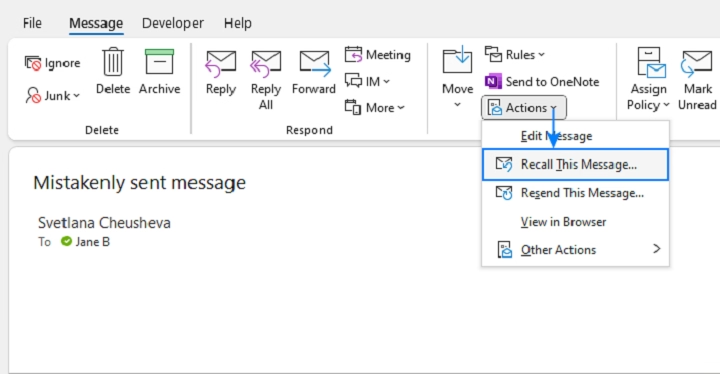
Ever hit “Send” too soon and instantly regretted it? Learning how to recall an email in Outlook can save you from that heart-sinking mistake. Whether it’s a message sent to the wrong person, missing an attachment, or an email sent in haste, Microsoft Outlook offers a built-in recall feature—if used quickly and under the right conditions. This guide walks you through the steps to recall an email in Outlook and what you can do when it doesn’t work.
What Is Email Recall in Outlook?

Recalling an email means attempting to unsend a message that’s already been delivered to the recipient’s inbox. Outlook’s Recall This Message feature allows you to:
- Delete unread copies of the message from recipients’ inboxes.
- Replace the original message with an updated version.
When Can You Recall an Email in Outlook?
Not every email can be recalled. The feature only works under specific conditions:
- You and the recipient must both be using Microsoft Outlook and connected to the same Microsoft Exchange server (usually within the same organization).
- The recipient must not have read the email yet.
- The email must still be in the Inbox, not moved or archived.
If any of these conditions aren’t met, the recall will fail or partial success may occur.
Step-by-Step: How to Recall an Email in Outlook (Desktop App)
Open Your Sent Items Folder
- Launch Outlook.
- Navigate to the Sent Items folder on the left panel.
- Find and double-click the email you want to recall.
Access the Message Tab
- In the open email window, click the Message tab on the top menu.
Click on “Actions”
- Choose Actions from the Move group.
- Select Recall This Message.
Choose Recall Options
A dialog box will appear with two options:
- Delete unread copies of this message
- Delete unread copies and replace with a new message
Choose the option you need and click OK.
(Optional) Compose Replacement Message
If you choose to replace the message, Outlook will open a new email window with your original content. Edit it and send again.
How to Check If Your Recall Was Successful
Outlook usually sends a notification email indicating whether the recall worked. The results depend on whether the recipient read the message or moved it out of the Inbox.
Success Scenarios:
- The message was unread.
- The recipient’s inbox rules didn’t move the message.
- The recipient is on the same Exchange server.
Failure Scenarios:
- Email was already read.
- The recipient uses a non-Outlook client.
- The original email was moved from the Inbox.
Can You Recall an Email in Outlook Web (Outlook.com)?

Unfortunately, Outlook Web App (OWA) and Outlook.com do not support message recall. You can’t unsend a message from the web interface once it’s delivered.
Workaround: Delay Email Delivery
You can set a delay rule so emails are held in your Outbox for a few minutes before sending:
- Go to File > Manage Rules & Alerts.
- Create a new rule for Apply rule on messages I send.
- Set a delay of 1–5 minutes.
- Save and apply.
This gives you a grace period to manually delete or modify the message before it’s sent.
How to Recall an Email Using Microsoft 365 Admin Tools
If you’re an IT administrator, you may be able to use Compliance Center tools in Microsoft 365 to delete messages from users’ inboxes organization-wide. This isn’t a recall but a message deletion via admin access. Only applies to sensitive or policy-related errors.
Best Practices to Avoid Needing a Recall
Double Check Recipients
Always verify the “To,” “CC,” and “BCC” fields to ensure you’re sending it to the right person.
Use the Delay Rule
Setting a 1-minute delay on all sent messages can act as a safety net.
Proofread and Attach Before Writing the Body
Add attachments and double-check the subject and tone before clicking Send.
Use Drafts
If the email is important, save it as a draft and review it later with a fresh mind.
Limitations of Outlook Recall Feature
- Doesn’t work outside the organization or on non-Outlook clients.
- May result in more attention to the original email if the recall fails.
- Doesn’t guarantee deletion—especially if users have auto-preview enabled.
Alternative Options to Email Recall
Send a Follow-Up Email
If the recall fails, immediately send a follow-up explaining the error and including the corrected message.
Use Microsoft Teams or Internal Chat
If you catch the mistake early, you can message the recipient directly and ask them to disregard or delete the email.
Flag the Message as “Ignore”
Ask the recipient to right-click the message and select Ignore Conversation in Outlook to reduce visibility.
FAQs About How to Recall Email in Outlook
How do I know if my recall worked?
Outlook sends you a notification email telling you whether each recipient’s email was successfully recalled.
Why can’t I recall a message in Outlook?
Recall only works if both sender and receiver are using Outlook with Exchange on the same organization and the email is unread.
Can I recall an email in Outlook on my phone?
No, the mobile versions of Outlook do not support message recall.
What’s the best alternative if recall fails?
Send a corrected follow-up email and clearly explain the mistake or changes.
Can I recall an email with attachments?
Yes, attachments are included in recalls. However, if the email is opened, the attachment can’t be taken back.
