
Sending an email and instantly regretting it is a common scenario for many users. Microsoft Outlook offers a feature that allows users to retract emails under specific conditions, helping avoid embarrassment or errors. If you’ve hit “Send” too quickly, this guide will walk you through how to retract email in Outlook, explain its limitations, and provide helpful alternatives and tips to improve your email workflow.
What Does It Mean to Retract an Email in Outlook?
Retracting an email in Outlook refers to the process of recalling a sent message from the recipient’s inbox. You can also replace it with a corrected version. This feature is especially useful when emails are sent to the wrong recipient or contain incomplete or incorrect information.
When You Can Retract an Email in Outlook
Before you attempt to retract an email in Outlook, it’s crucial to know the conditions under which the feature works:
- Both you and the recipient must use Microsoft Outlook with an Exchange or Microsoft 365 account.
- You and the recipient must belong to the same organization.
- The recipient must not have opened the email.
- The recipient must be using Outlook desktop (not web or mobile versions).
These are key prerequisites for the retract feature to function successfully.
Step-by-Step: How to Retract an Email in Outlook
Locate the Sent Message
- Open Microsoft Outlook.
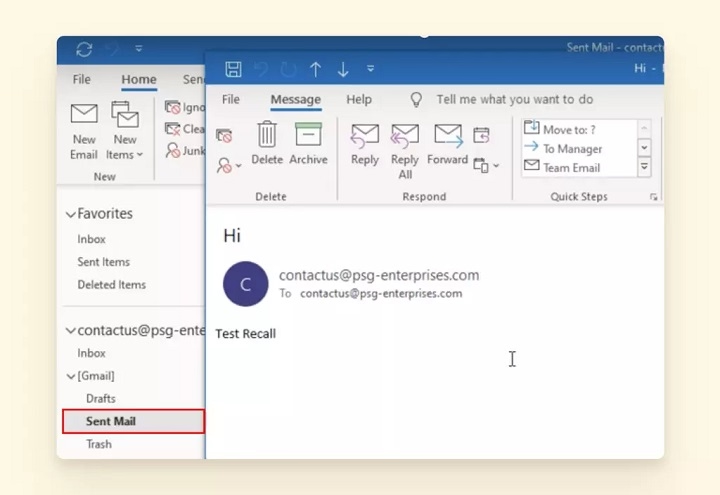
- Navigate to the Sent Items folder.
- Double-click the email you want to retract. This opens the email in a new window.
Access the Retract (Recall) Feature
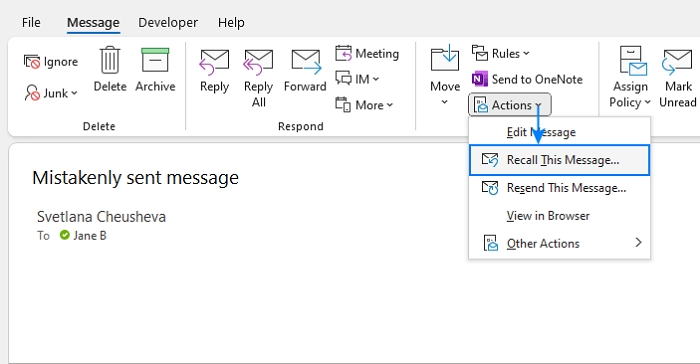
- Inside the email window, go to the Message tab.
- Click on Actions in the “Move” group on the toolbar.
- Choose Recall This Message from the dropdown.
If you don’t see this option, your account or message may not meet the required conditions.
Choose Your Retract Option
A pop-up window will appear with two choices:
- Delete unread copies of this message
- Delete unread copies and replace with a new message
Select the desired action. If you want to resend a corrected email, choose the second option.
Enable Status Notifications (Optional)
Check the box for “Tell me if recall succeeds or fails for each recipient.” This lets you track the recall status and know who still received the original message.
Confirm the Action
Click OK to initiate the email retraction. If you’re replacing the email, Outlook will open a new draft. Edit and send the new message.
Why Retracting Email in Outlook May Fail
The Recipient Opened the Email
If the recipient opens your email before the retract request is processed, the recall attempt will fail.
Using Non-Compatible Versions
If the recipient uses:
- A non-Outlook client (e.g., Gmail, Apple Mail)
- Outlook Web App or mobile app
The retraction won’t work.
The Message Was Moved by Rules or Filters
If the recipient has rules that move your message out of their inbox, Outlook cannot retrieve it.
External Recipients Are Involved
Emails sent outside your company domain or Microsoft Exchange environment cannot be retracted.
Best Practices to Increase Retract Success
Act Immediately
The faster you try to retract the message, the higher the chance it hasn’t been read or moved.
Use Delay Send Feature
Delay send adds a buffer time before the email actually leaves your outbox. Here’s how:
- Click Options > Delay Delivery in the email composer.
- Check “Do not deliver before” and set a time.
This gives you a cushion to catch errors before sending.
Enable Undo Send in Outlook Web
While email retraction doesn’t work in Outlook Web, you can enable the “Undo Send” feature:
- Go to Settings > Mail > Compose and reply.
- Enable Undo Send and set the delay time (up to 10 seconds).
This can act as a short-term safeguard against mistakes.
Alternative Strategies if Retraction Fails
Send a Correction Email
If the retraction doesn’t work, quickly send a follow-up message explaining the mistake. Transparency and prompt communication can reduce confusion.
Use Email Templates
Standardized templates help avoid missing information or formatting errors. They are especially useful for frequent communications.
Create a Delay Rule for All Emails
To add a delay for every email:
- Go to File > Manage Rules & Alerts.
- Create a rule for outgoing mail.
- Choose “Defer delivery by a number of minutes”, then set the time.
This ensures all emails are held for review before being sent.
Recalling vs Retracting vs Undo Send: Know the Difference
| Action Type | Works In Outlook Desktop | Works In Web/Mobile | Ideal For |
| Retract Email | ✅ Yes | ❌ No | Internal messages, unread emails |
| Replace Message | ✅ Yes | ❌ No | Sending corrected versions |
| Undo Send | ❌ No (Desktop) | ✅ Yes (Web) | Immediate cancellations (few secs) |
Understanding the difference between retract, replace, and undo send helps you choose the best method based on your platform.
Tips to Avoid Needing Email Retraction
Double-Check Everything
Before sending:
- Verify recipient addresses.
- Confirm attachments are included.
- Review spelling, tone, and clarity.
Use “Send Later” Option
Schedule emails during working hours or after rechecking with team members.
Avoid Sending Sensitive Info Hastily
Take extra time when handling confidential or sensitive content. Consider adding a reminder or internal approval step.
Common Scenarios Where Email Retraction Helps
- Accidentally replying to all in a group email
- Sending incomplete reports or missing attachments
- Forwarding sensitive internal data to the wrong recipient
- Using informal or incorrect language in professional emails
In each case, retraction offers a quick remedy—when used correctly.
FAQs
How do I retract an email in Outlook 365 desktop?
Go to Sent Items > open the message > Message tab > Actions > Recall This Message. Then choose your desired action and confirm.
Can you retract an email sent outside your organization?
No, email retraction only works within the same Microsoft Exchange or Microsoft 365 organization.
Is it possible to undo send in Outlook Web?
Yes, enable Undo Send in the settings under “Compose and reply.” It delays sending for up to 10 seconds.
What happens if the recipient already read the email?
The retraction will fail. Outlook cannot remove messages that have already been opened.
Why don’t I see the “Recall This Message” option in my Outlook?
You may be using a version that doesn’t support the feature, or your account is not connected to a Microsoft Exchange server.
