
Outlook is a powerful email tool used by millions around the world for personal and professional communication. One of its useful features is the ability to create email templates, which can save time and effort when sending repetitive messages. Whether you need to send the same response to multiple clients, colleagues, or contacts, email templates are a time-saving solution. In this guide, we’ll walk you through how to create email templates in Outlook, making your email workflow more efficient.
Why You Should Use Email Templates in Outlook
Before diving into the how-to, it’s important to understand why creating email templates in Outlook is a good idea. Here are some key reasons to use them:
Consistency in Communication
Templates allow you to send messages with consistent content and tone, ensuring you maintain a professional and uniform communication style.
Time-Saving
If you regularly send similar types of emails, such as responses to customer inquiries or meeting requests, creating templates can save you significant time by not having to type the same content repeatedly.
Error Reduction
Using templates reduces the chances of making errors in your emails. You’ll have pre-written messages with correct spelling, grammar, and formatting, which is especially important for business communication.
Efficiency in Follow-Ups
Templates can also be helpful for follow-up emails, making it easier to reach out to contacts after meetings, proposals, or discussions.
How to Create an Email Template in Outlook
Creating an email template in Outlook is a simple process, but it differs depending on whether you’re using the Outlook desktop app or the web version. Below are the step-by-step guides for both methods.
How to Create an Email Template in Outlook for Desktop (Windows or Mac)
Open Outlook
Launch the Outlook desktop app on your computer.
Compose a New Email
Click on the New Email button in the top-left corner of the window to create a new message.
Write the Email Content
Compose the email as you normally would. Include any text, subject lines, greetings, or signatures that you’d like to appear in the template.
Save the Email as a Template
Once you have your email ready, follow these steps:
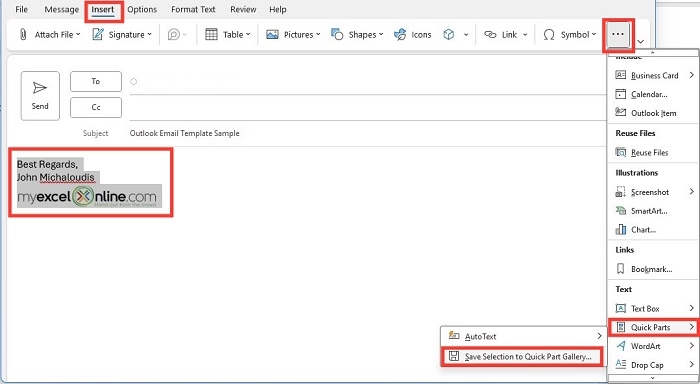
- In Windows, go to the File tab and select Save As.
- In the Save As dialog, under Save as type, choose Outlook Template (*.oft).
- Name your template and choose a location to save it (the default location is usually fine), then click Save.
Using the Template
To use your template in the future:
- Open the Home tab in Outlook and click on New Items.
- From the dropdown, select More Items and then Choose Form.
- In the Choose Form dialog box, select User Templates in File System.
- Find your template, select it, and click Open. The email will open with the pre-written content, and you can make any necessary adjustments before sending it.
How to Create an Email Template in Outlook Web
In the Outlook web version, the process for creating and using email templates is a bit different but still simple.
Log into Outlook Web
Go to Outlook.com and sign in to your account.
Compose a New Email
Click on the New Message button to create a new email.
Write the Email Content
Type the body of the email, including the subject line, text, and any other information you’d like to save as part of the template.
Save as a Template
To save your email as a template in Outlook Web:
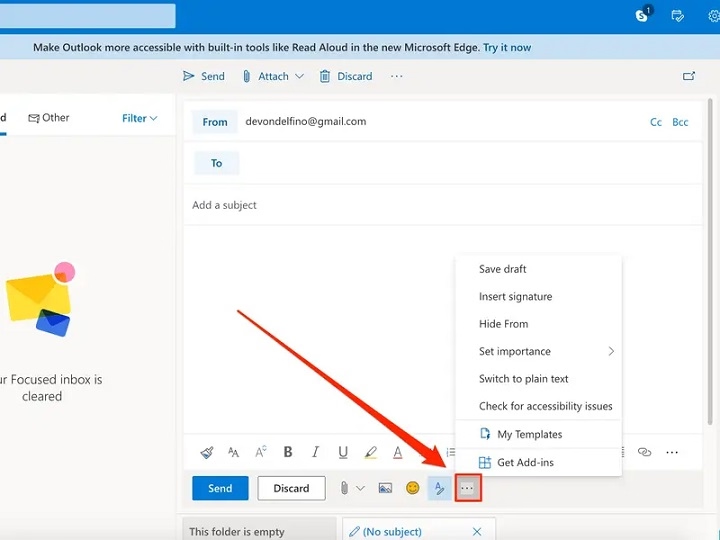
- Click on the three dots (More Options) at the bottom of the message window.
- Select My Templates from the menu.
- If you haven’t created a template before, click + Template to create a new one.
- Give your template a name and paste the content of your email in the body section, then click Save.
Using the Template
To use the saved template:
- Click New Message to compose a new email.
- Click on the three dots (More Options) at the bottom of the message window.
- Choose My Templates.
- Select the template you wish to use. The content will automatically be inserted into your email. You can then edit it as necessary before sending.
How to Create a Quick Step Template in Outlook Desktop
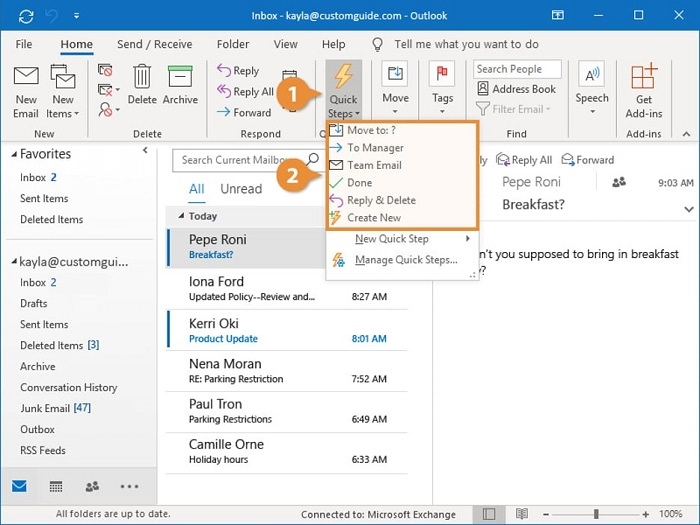
For quick access to frequently used email templates, you can create a Quick Step in Outlook. This method allows you to automate sending certain emails with just one click.
Open Outlook and Navigate to Quick Steps
In the Outlook desktop app, go to the Home tab, and in the Quick Steps section, click Create New.
Set Up the Quick Step
In the Edit Quick Step window:
- Choose a name for your Quick Step, such as “Follow-up Email”.
- Select New Message from the actions list.
- In the To field, you can add a default recipient’s email address, or you can leave it blank to enter it manually when you use the Quick Step.
- In the Subject and Text sections, you can enter the pre-written text for your template.
- Click Finish to save the Quick Step.
Using the Quick Step
Whenever you need to use your template, simply click on the Quick Step you created in the Home tab. The email will open with the pre-set content, ready for you to make any additional changes and send.
Editing or Deleting Email Templates
If you ever need to make changes to your saved email templates in Outlook, here’s how you can do it:
For Desktop Version (Windows or Mac):
- To edit your template, open it from the Choose Form option under User Templates in File System, make the necessary changes, and save it again using the Save As function.
- To delete a template, locate the template file (usually in your Templates folder), and delete it manually.
For Outlook Web:
- To edit a template, go to My Templates, click the template you want to edit, and make the necessary changes.
- To delete a template, go to My Templates, hover over the template, click the trash can icon, and confirm deletion.
Tips for Using Email Templates Effectively
- Use Variables: If you use a template often, consider adding placeholders like “[Name]” to personalize the email before sending.
- Keep Templates Updated: Regularly review and update your templates to ensure they remain relevant and accurate, especially for business communications.
- Include Attachments: You can manually add attachments when using templates, or you can mention in the template that a specific attachment needs to be included.
- Use for Follow-ups: Create templates for follow-up emails, reminders, or thank you notes. This is especially helpful for business and customer service scenarios.
FAQs About Creating Email Templates in Outlook
Can I Create Email Templates for Different Languages in Outlook?
Yes, you can create different templates for various languages. Simply write the email in the desired language and save it as a template.
Can I Add Attachments to Email Templates?
While you cannot directly add attachments to templates in Outlook, you can easily attach files when using the template by selecting Attach File after opening the template.
Are Email Templates Available in All Versions of Outlook?
Yes, email templates are available in both the desktop and web versions of Outlook. The exact process may vary slightly depending on the platform.
Can I Use Templates for Meeting Invitations?
Outlook does not support meeting invitation templates in the traditional sense, but you can create a custom message that can be quickly adapted for meeting invites.
How Do I Access My Templates on Different Devices?
Templates created in the desktop version of Outlook are stored locally, while those created in Outlook Web are available wherever you access your account.
