
You hit Send. Then it happens.
You spot a typo. You forgot the attachment. You emailed the wrong person. You wrote the wrong tone. You shared something you didn’t mean to. You panicked.
So you ask the same question millions of Gmail users ask every day: Can I recall a Gmail email?
Gmail doesn’t have a true “recall” button like Outlook. But it does give you a powerful feature that feels like recall Undo Send. This 2025 guide explains exactly what Gmail lets you undo, how long you have, how to set the timer, and what to do when the email has already been delivered.
Does Gmail Have a Recall Button?
No. Gmail does not have a traditional recall feature that pulls an email back from someone’s inbox.
Instead, Gmail offers:
- Undo Send — stops the email before it leaves
- Draft editing — lets you fix before sending
- Follow-up corrections — when you cannot undo
Undo Send is Gmail’s version of recall.
What Undo Send Really Does
Undo Send doesn’t pull emails back.
Instead:
- Gmail delays the email for a few seconds
- You have a short timer to undo
- If you click Undo, Gmail never sends it
- If you don’t click Undo, it sends normally
This is why setting a longer timer is important.
How to Recall (Undo) an Email in Gmail Desktop
Steps:
- send an email
- look at bottom-left of Gmail
- you’ll see: Message sent. Undo. View message.
- click Undo
The email returns to Drafts, not sent. This works only within the timer window.
How to Recall (Undo) an Email in Gmail App
Steps:
- send an email in Gmail app
- at bottom of screen, you’ll see:
Sent • Undo - tap Undo
Your email pops back into Drafts fast.
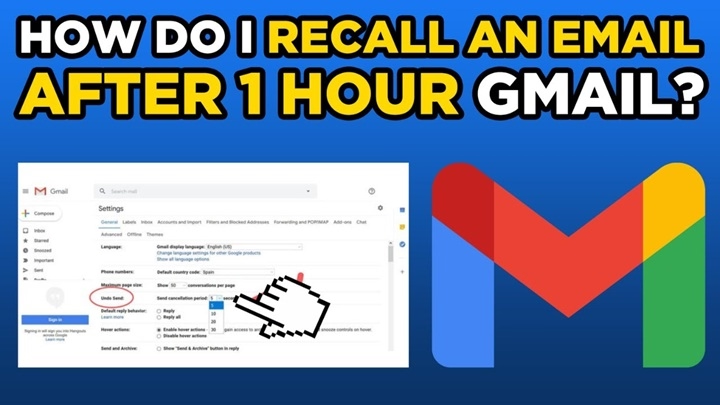
How to Change the Undo Send Timer
Gmail lets you choose how long you have to undo.
Steps:
- open Gmail on computer
- click Settings (⚙️)
- click See all settings
- scroll to Undo Send
- choose:
- 5 seconds
- 10 seconds
- 20 seconds
- 30 seconds
- save changes
Most people choose 30 seconds the safest option.
How to Check if Undo Send Worked
After clicking Undo:
- the email should re-open as a draft
- “Message sent” disappears
- the recipient receives nothing
If the draft reopens, the recall succeeds.
What to Do If You Missed the Undo Window
If the timer expires, the email is gone. You cannot pull it back.
But you can fix things with:
- a correction email
- a follow-up
- an apology
- the correct attachment
- a clearer explanation
People appreciate fast follow-ups more than silence.
Example fix:
“Hi Sarah, send the corrected file here. Please ignore my previous message.”
Short, clean, professional.
How Gmail Recall Works in Google Workspace (School or Work Accounts)
Workspace accounts have the same Undo Send control.
Steps:
- open Gmail
- send email
- click Undo within timer
Some organizations set the timer for all employees. Undo Send still works the same.
How to Stop an Email Before Sending It
If you catch the mistake mid-send:
Steps:
- press Escape (Esc)
- click away from the send window
- close Gmail tab
- turn off Wi-Fi
If the message hasn’t finished sending, Gmail may cancel delivery. This is rare but can work.
How to Prevent Mistakes Before Sending
Gmail includes features to reduce errors.
Spell check
- mistakes highlighted
- right-click to fix
Smart Compose
- completes sentences intelligently
Attachment reminder
If you type “attached” but don’t attach anything:
- Gmail warns: “Did you mean to attach a file?”
Recipient suggestion
If you meant Mary but typed Maria:
- Gmail warns you
These tools help prevent recall situations.
How to Delay All Email Sends in Gmail (Advanced Safety Step)
You can turn email delays into your personal recall system.
Steps:
- open Settings
- go to Filters and Blocked Addresses
- create filter → Has the words: *
- choose Send it after XX seconds (with add-on tools)
Tools like Boomerang or Mailbutler allow scheduled sending with delay. This gives you more time to catch mistakes.
How to Recall an Email With Confidential Mode
Confidential Mode doesn’t recall emails
but it does:
- prevent forwarding
- prevent copying
- prevent printing
- prevent downloading
- allow expiration dates
Steps:
- click Compose
- click Confidential Mode icon
- set expiration
- send
It won’t undo a sent email — but it limits damage.
How to Check if the Email Was Delivered Before You Undo
If you close Gmail too fast:
- reopening Drafts
- checking Sent Mail
If it still appears in Drafts → not sent. If it’s in Sent → too late. Undo must be used immediately.
Gmail Recall vs Outlook Recall
Outlook Recall tries to pull messages back. Gmail does not.
Comparison:
Gmail Undo Send
- works always
- works instantly
- stops the email from leaving
- must be used in seconds
Outlook Recall
- may fail
- depends on server
- recipients may still see message
Gmail’s recall is more reliable but time-limited.
What Happens When Gmail “Recall” Fails
If Undo wasn’t clicked in time:
- email delivered
- cannot be reversed
- cannot be pulled back
- cannot be deleted remotely
Fix with a follow-up email.
Troubleshooting: When Undo Send Doesn’t Show
If you don’t see Undo:
- Undo Send disabled
- timer set to 0
- old Gmail version
- bad internet connection
- extension blocking Gmail scripts
Fix:
- enable Undo Send
- set timer
- update browser
- disable add-ons
- refresh Gmail
Undo will appear again.
Organization Tips to Avoid Needing Recall
To stay safe:
- proofread before sending
- add recipients last
- keep Undo Send at 30 seconds
- attach files before writing
- check names twice
- avoid writing angry messages
- send drafts later if emotional
Good habits prevent panic.
Quick Summary
Gmail recall = Gmail Undo Send. Here’s what you need to know:
- Gmail cannot recall delivered emails
- Undo Send stops the email before it goes out
- you have 5–30 seconds
- click Undo to pull it back
- timer can be changed
- mobile works the same
- once delivered, cannot be removed
- use follow-up emails to fix mistakes
Two seconds — that’s your recall window.
FAQs
Can Gmail recall a sent email?
No — Gmail can only undo before sending.
How long do I have to undo an email?
Between 5 and 30 seconds depending on your settings.
Does Undo Send delete the email from the other person’s inbox?
No — it prevents the email from ever being sent.
Does Undo Send work on mobile?
Yes — Gmail app supports Undo Send.
What if the email already arrived?
Send a follow-up correction.
