
The best method for downloading YouTube on Huawei is through the use of AppGallery. The AppGallery is the app store created by Huawei for its users’ consumption. You can find thousands of different apps, games, and utilities available on the app for your personal download. If you want to have Google apps like YouTube on your device, you have to do a quick read of this article in order to know the proper way of installing YouTube. These are four simple steps that you can take to keep your phone or tablet safe as you use this process.
Steps for Downloading YouTube Using AppGallery
Look for AppGallery
If you are a first-time Huawei owner, you may not be familiar with the different apps that are already available at your fingertips. One such app is the AppGallery. You can use this platform and explore the interface so that you will begin to know how to download youtube on huawei devices. The AppGallery is a very functional app that presents you with thousands of apps that you can download to your device. Huawei AppGallery adheres to strict international data privacy standards, which guarantee the effective protection of users’ personal information. When you use AppGallery to install apps, you are keeping yourself safe from possible malware and viruses because of downloadable apps that can be found on other sites.
Find YouTube
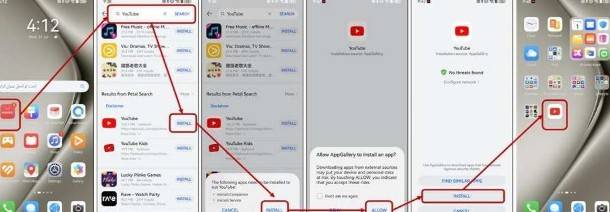
The next thing that you should do is to look for the YouTube app. If you have used other app stores before, this functions the same way that they do. You can browse the different categories offered by the app for you to see and explore. YouTube is listed as one of the most popular apps that users download on Huawei. You can select it and tap Install to download the file. Another quick way to do it is to use the search bar to find YouTube. Either method is fine as long as you find the installer for the app.
Install YouTube
You can select Install to download the YouTube file and install it on your device. Because YouTube is not a native app to Huawei devices, you may be asked by AppGallery to download additional apps for it to function properly. This may include microG and GBox, depending on the kind of device that you are using to download YouTube. You should select Install to download these files as well. Do not worry about these additional installations because they have also gone through the same process of app evaluation conducted by AppGallery. Once you are done, you will see the YouTube icon on your home screen.
Compatibility with Specific Devices
It’s crucial to remember that specific Huawei devices will have different ways to install YouTube. If you have any of the phones in the Pura 80 series, Mate 50 series, Pura 70 series, P60 series, P50 series, nova 13 series, nova 12 series, or tablets like the MatePad Pro, MatePad Air, MatePad, and MatePad SE, you will need to install microG Companion and microG Service. Other Huawei devices that are not listed here may require you to download GBox. AppGallery will help you identify which apps to download. It has incorporated into its processes the apps to download in addition to YouTube. You can try downloading YouTube through AppGallery now.
Conclusion
The brand’s ability to allow consumers to enjoy their mobile devices through developments like these is what devoted Huawei supporters find appealing. Knowing how to download YouTube on Huawei correctly will help you enjoy the app without the hassle of looking for ways to get the installer for it. You can go to AppGallery and see its interface. You also have to download the apps necessary for YouTube to run on your device. You can go ahead and test it out for yourself.
