
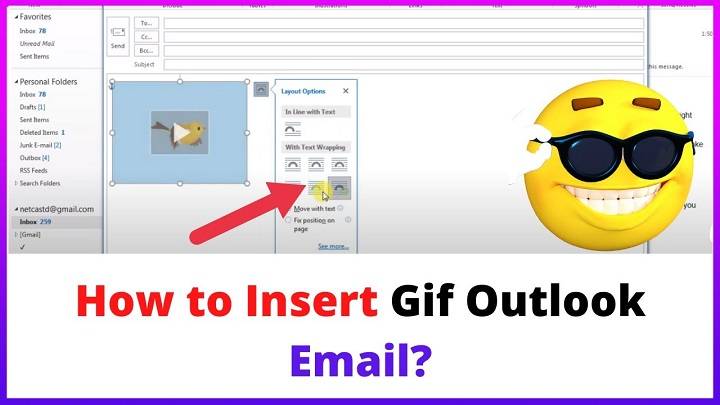
GIFs are everywhere now. They help show how you feel. They add fun to emails. They make boring messages come alive. You know how a simple moving picture can say more than ten sentences? That’s why people love GIFs. But here’s the thing – lots of folks want to use them in Outlook but worry they’ll look broken or weird.
Good news! Outlook totally works with moving GIFs in 2026. Bad news? You gotta do it right. Add it wrong and your GIF just sits there. Frozen. Like a regular photo. Or worse – it shows up as some file thing that people have to download.
This guide shows you the right way to add GIFs. We’ll cover what works best. And we’ll make sure your GIF actually moves when people open your email.
Does Outlook Support Animated GIFs?
Yep! Outlook plays nice with moving GIFs. Works on your computer. Works on the web. Works on your phone too. When you put a GIF in the right way, it just starts moving for whoever gets your email.
The person getting your email? They don’t need to do anything. If they can see pictures in their email, they’ll see your GIF moving around. Most problems happen because of how you add the GIF. Not because Outlook hates fun.
How Outlook Treats GIFs in Emails
Outlook sees GIFs like regular pictures. Not videos. This means your GIF sits right in the email. Just like a photo would.
Put the GIF inside the email? It moves. Add it as a file attachment? Nope – stays frozen until someone opens it. Get this difference and you’re golden.
Things to Consider Before Adding a GIF
Hold up a second. Before you throw GIFs everywhere, think about it. Email is still kinda serious, even in 2026.
A good GIF can make your point clear. Or lighten the mood. But too many? That’s just messy.
Ask yourself:
- Does this GIF help my message?
- Will the person getting this think it’s cool?
- Is the file small enough?
- Can everyone enjoy this? (Some folks can’t handle flashy stuff)
Use GIFs smart. Not just because you can.
Drag and Drop a GIF Into Outlook (Desktop)
This is the easiest way. Works great on Windows and Mac. Your GIF stays moving and goes right where you want it.
Steps to Drag and Drop a GIF
Here’s how you do it:
- Open Outlook
- Click New Email
- Put your cursor where you want the GIF
- Grab the GIF file from your computer
- Drop it in the email
Boom. Your GIF shows up and moves when you send it.
Insert a GIF Using the Insert Menu
Like using menus? This works just as well. Nice when you’re writing longer emails.
Steps Using the Insert Option
To use Outlook’s menu:
- Start a new email
- Click the Insert tab up top
- Hit Pictures
- Pick This Device
- Find your GIF file
- Click Insert
Your GIF goes in and keeps moving.
Copy and Paste a GIF Into Outlook
Copy and paste can work. But it’s kinda iffy. Some websites mess with GIFs in ways Outlook doesn’t like.
How to Copy and Paste a GIF Safely
If you wanna try:
- Right-click on the GIF
- Pick Copy Image
- Paste in your email
- Wait a bit for Outlook to think
GIF looks frozen? Just download it first. Then insert it properly.
Add a GIF in Outlook Web (Outlook.com)
The web version? It’s pretty good with GIFs. Sometimes better than the old desktop app.
Steps for Outlook Web
To add a GIF online:
- Go to Outlook.com
- Sign in
- Click New Message
- Click where you want the GIF
- Drag it in or use Insert → Pictures
Your GIF moves just fine once you send.
Add a GIF in Outlook Mobile
Phone apps work too! iPhone, Android – both handle GIFs. You just need the GIF saved on your phone first.
Steps for Outlook Mobile
On your phone:
- Open Outlook app
- Tap New Email
- Tap the picture icon
- Pick your GIF
- Put it in the message
People will see it moving in their email.
Why Your GIF Might Not Animate
GIF not moving? It’s almost always about how you added it. Outlook doesn’t just turn off animations for fun.
Common problems:
- You attached it instead of putting it inline
- You copied from a weird website
- The GIF file is messed up
- You’re looking at it in preview mode (which pauses stuff)
Just take it out and put it back in right. Usually it.
Inline GIF vs GIF Attachment
Inline GIFs live inside your email. They move right away. Attached GIFs? They’re just files. No movement until someone opens them.
Want visual impact? Go inline. Every time. Only attach if the moving part doesn’t matter.
How GIFs Look to Recipients
In 2026, most email apps show moving GIFs fine. Outlook, Gmail, Apple Mail – they all work. Phone apps too.
Some people block images at first. They might need to click “Load images” to see your GIF move. Once images load? Animation starts right up.
File Size Limits and Performance
Big GIFs are trouble. They load slowly. They might hit size limits. Email services don’t like huge messages.
Keep GIFs small. Simple ones work best. Think of it like this – smaller is faster. Faster is better.
Accessibility and GIF Use
Some people find looping stuff hard to look at. Fast or flashy GIFs? Even worse.
Using GIFs? Don’t make them the only way to get your point. Always add text that explains things too. Being inclusive means everyone can enjoy your email.
Is It Professional to Use GIFs in Outlook Emails?
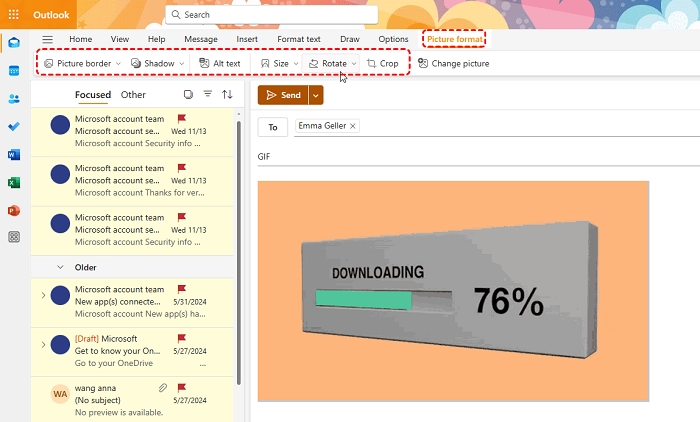
GIFs can be pro when you use them right. Great for team emails. Good for welcome messages. Nice for friendly updates.
But for serious stuff? Legal things? Sensitive topics? Maybe skip the GIF. Know your audience. That matters more than anything.
Troubleshooting GIF Issues in Outlook
GIF acting weird? Simple fixes usually work. Test it first – send yourself the email before sending to others.
Quick Fixes That Often Work
GIF not moving? Try these:
- Take it out and put it back
- Insert from file (not copy-paste)
- Use drag and drop
- Try Outlook Web instead
- Make the file smaller
One of these usually does the trick.
Are GIFs Still Common in Email in 2026?
You bet. People still use GIFs all the time. Team chats, newsletters, friendly emails – GIFs are everywhere.
Why? They show feelings fast. They’re clear. They’re fun. Use them right and they feel fresh. Not annoying.
Quick Summary
Adding GIFs to Outlook is easy when you know how. Drag and drop works great. So does the Insert menu. Or try Outlook Web. The key? Put the GIF inside the email, not as an attachment. Do it right and it moves for everyone.
In 2026, Outlook will handle GIFs on all devices. Keep files small. Pick the right moments. Your GIFs will make emails better, not worse.
FAQs
Do animated GIFs work in Outlook emails?
Yes! Put them inline and they move on their own.
Why does my GIF show as a static image?
You probably attached it or copied it wrong. Try again.
Can I add GIFs in Outlook mobile?
Sure can. Just pick from your saved files.
Will recipients need to download the GIF?
Nope. Inline GIFs play right away when images load.
Are GIFs safe to use in professional emails?
Depends on who you’re emailing. Know your crowd.
