
Barracuda Email Gateway Defense is one of the most trusted email security systems in schools, corporations, hospitals, government offices, and global organizations.
It sits in front of your email server like a shield. It filters threats. It blocks dangerous content. It stops harmful messages before they ever reach your inbox.
But many users find Barracuda confusing. Why are emails blocked? What is quarantined mail? How do you release legitimate messages? How do you whitelist someone? Why does the system send daily quarantine reports? What is the difference between blocking, allowing, and marking as spam?
This guide explains everything clearly. Step-by-step and simple.
Why Barracuda Email Gateway Defense Matters
 Every day, email is the number one target for:
- phishing
- malware
- ransomware
- identity spoofing
- fake login pages
- suspicious attachments
- impersonation attempts
- spam
- bulk advertising
- unsafe URLs
Barracuda Email Gateway Defense protects against all of these threats automatically.
Its benefits include:
- blocking dangerous emails
- scanning attachments for viruses
- analyzing sender reputation
- filtering spam and phishing
- quarantining suspicious content
- preventing data leaks
- reducing inbox clutter
- improving overall email safety
- stopping email impersonation
- protecting accounts from theft
It acts as a security checkpoint for all incoming mail.
How Barracuda Email Gateway Defense Works
Here’s what happens when someone sends you an email:
- message arrives at Barracuda
- system scans sender reputation
- checks SPF, DKIM, DMARC
- analyzes headers for fraud
- scans body for phishing keywords
- checks URLs for dangerous redirects
- scans attachments for malware
- analyzes behavior for spam-like patterns
- assigns a security score
- safely delivers clean emails
- quarantines suspicious messages
- blocks confirmed malicious mails
Barracuda works instantly — before anything reaches your inbox.
What the Barracuda Quarantine Report Is
Most users receive a daily quarantine email.
This report includes:
- emails suspected as spam
- bulk promotional messages
- messages flagged as phishing
- emails with suspicious URLs
- unsafe attachments
- spoofed senders
- emails from blocked addresses
In the report, you will see action buttons:
- Deliver → sends the message to your inbox
- Whitelist → marks sender as safe
- Delete → removes the message from quarantine
- View → safely preview email inside Barracuda
You stay in control of every filtered email.
How to Log In to Barracuda Email Gateway Defense
Your organization may allow direct portal access.
Steps:
- open your browser
- go to your Barracuda Gateway Defense portal link
- enter your work email
- log in
- open Message Log or Quarantine Inbox
- review messages
- select emails and choose Allow, Block, or Deliver
The portal gives you more control than the daily email report.
How to Release a Quarantined Email
If Barracuda blocked something important:
Steps:
- open your quarantine report
- find the message
- click Deliver
- check your inbox — it arrives instantly
To avoid future filtering:
- click Whitelist
Now Barracuda will not block that sender again.
How to Whitelist or “Allow” a Sender
If you want future emails to always reach your inbox:
Steps:
- log in to Barracuda
- go to Allow List
- click Add Email Address
- type the sender’s email or domain
- save
You can also whitelist directly from the daily report.
How to Block a Sender or Domain
Blocking prevents future messages from a sender.
Steps:
- log in to Barracuda portal
- go to Block List
- add the email or domain
- save
Barracuda will fully block them going forward.
Understanding the Message Log
The Message Log is the heart of Barracuda.
It shows:
- allowed messages
- blocked spam
- quarantined messages
- deferred messages
- delivered mail
- filter reason
- sender details
- delivery status
You can click any email to:
- deliver
- whitelist
- block
- delete
- view properties
This log helps users and IT staff understand why emails were filtered.
Method 8: Why Emails Get Quarantined or Blocked
Common reasons include:
- suspicious URLs
- malware-like attachments
- fake sender addresses
- suddenly sending many emails at once
- domain reputation problems
- mismatched SPF/DKIM
- spam-like formatting
- bulk mailing
- impersonation attempts
- message anomaly detection
- known phishing keywords
Barracuda constantly updates its threat database.
What Happens to Extremely Dangerous Emails
Some emails are so harmful that Barracuda:
- blocks them completely
- never delivers to quarantine
- never appears in reports
- silently discards them
Examples:
- ransomware attachments
- credential stealing pages
- emails from infected servers
- high-risk spoofing attacks
This is normal behavior for advanced security systems.
How to Search for Emails Inside Barracuda
Steps:
- log in to the gateway portal
- click Message Log
- use filters such as
- sender
- recipient
- date
- message type
- action (blocked, allowed, quarantined)
- sender
You can track down missing emails easily.
How to Change Barracuda Spam Filter Sensitivity
If your organization allows it:
Steps:
- go to Preferences
- adjust spam scoring
- choose:
- Relaxed
- Standard
- Aggressive
- Relaxed
- save settings
Aggressive filtering catches more spam but may quarantine more legitimate messages.
How Barracuda Protects Against Phishing
Barracuda uses advanced phishing detection:
- checks domain impersonation
- detects login-page URLs
- finds suspicious redirects
- scans for attempts to steal passwords
- blocks fake invoices
- blocks fake shipping notices
- analyzes email signature mismatches
- flags suspicious sender identities
Phishing is the most common attack, and Barracuda is built to stop it.
How to Fix “Barracuda Blocked My Email” When YOU Are the Sender
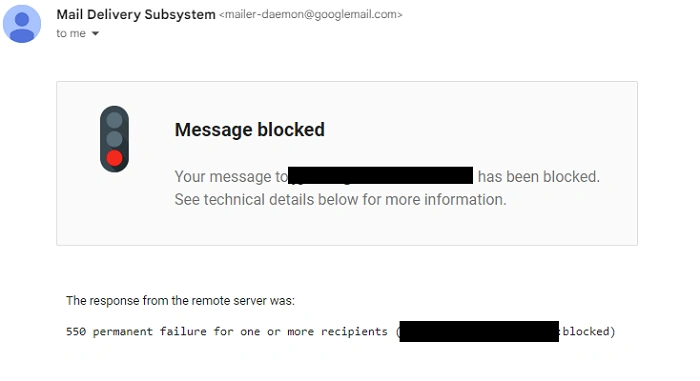
If your outgoing email gets blocked by someone else’s Barracuda:
Check:
- your domain spam reputation
- SPF, DKIM, and DMARC settings
- excessive links in your message
- large attachments
- too many recipients
- suspicious wording
Fix:
- remove sensitive links
- compress attachments
- send to fewer people
- ask recipient to whitelist your address
- contact your IT admin
Most delivery failures come from incorrect domain authentication.
Also Read: How to Delete an Email Address From Gmail: The 2025 Easy Guide to Removing Accounts and Autofill
When Barracuda Blocks Too Much
If legitimate emails are being filtered:
Try:
- lowering spam sensitivity
- whitelisting important senders
- clearing block list
- checking Message Log
- reviewing why messages were flagged
- contacting IT admin for adjustments
Sometimes rules are set too aggressively and need manual tuning.
Organization Tips for Barracuda Users
- check your quarantine report daily
- whitelist safe contacts
- block junk senders
- review Message Log weekly
- avoid clicking unknown emails
- delete old quarantine items
- keep personal allow/block lists updated
- report suspicious messages immediately
A clean Barracuda setup leads to a clean inbox.
Quick Summary
Barracuda Email Gateway Defense:
- scans every incoming message
- blocks spam and phishing
- quarantines suspicious mail
- filters dangerous attachments
- protects against impersonation
- sends daily quarantine reports
- allows user control through Message Log
- supports whitelisting and blocking
- keeps inboxes safe and clean
Two clicks — and your inbox stays protected.
FAQs
- What is Barracuda Email Gateway Defense?
A security system that filters spam, malware, and phishing before emails reach your inbox. - How do I release a blocked email?
Open the quarantine report and click Deliver. - Can I whitelist a sender?
Yes — from the report or from the Allow List. - Why are emails blocked without showing in quarantine?
Some messages are too dangerous and are dropped instantly. - Why am I not receiving emails?
They may be in quarantine, blocked, or the sender has poor domain reputation.
