

Getting junk emails stinks, right? It’s like the worst part of being online. Some emails just try to sell you stuff. But others? They’re spam, scams, or fake messages. Or maybe they’re from that person you really don’t want to hear from anymore. That’s why you need to know how to block emails. Like, really need to know. Do you use Gmail? Outlook? Yahoo? Apple Mail? Doesn’t matter. Blocking emails keeps your info safe. It cuts down stress. And hey, it makes your inbox look way nicer too. Here’s your guide. We’ll show you how blocking works. How to do it on all the big email sites. And how to handle those annoying messages the right way.
What Does Blocking an Email Mean?
Blocking an email stops messages from someone. They can’t reach your inbox like normal anymore.
What happens next? Depends on your email:
- They might go to spam or junk
- They might get deleted right away
- They might hide in another folder
- They might just vanish completely
Here’s the cool part. The sender won’t know. Most times, they have no clue you blocked them.
Pretty neat way to stop those messages, right?
Why People Block Emails
Why do folks block emails? Lots of reasons actually.
Check these out:
Spam Emails
You know those ads that won’t stop coming? Fake deals everywhere? Mass emails filling your inbox every single day?
Scam or Phishing Attempts
Bad guys send fake emails all the time. They pretend to be your bank. Or Amazon. Or the post office. Even the government sometimes.
Block them. Stay safe.
Harassment or Unwanted Contact
Sometimes people won’t stop emailing you. You don’t want to talk to them anymore.
Blocking stops them cold.
Excessive Promotions
Remember that site you joined years ago? Now they send sales emails every day. Every. Single. Day.
Time to block them.
Malware Protection
Some emails have bad files. Or dangerous links. Blocking sketchy senders helps protect you.
Common Signs of Dangerous Emails
Before you block, learn to spot the bad ones.
Watch for these red flags:
- Weird email addresses
- Bad spelling everywhere
- They rush you or threaten you
- They want your password
- Links that look strange
- Files you didn’t expect
- Deals that seem too good
Something feels wrong? Don’t click anything.
How to Block an Email in Gmail
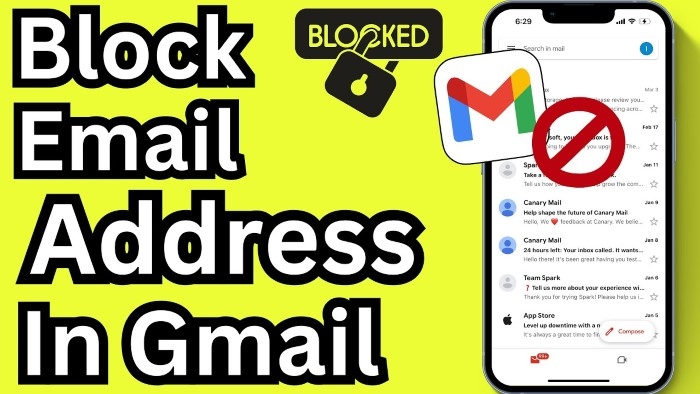
Gmail’s super popular. And blocking is super easy.
On Desktop
- Open Gmail
- Find the bad email
- Click the three dots up top
- Pick “Block [Their Name]”
Done! Their emails go to spam now.
On Mobile
- Open Gmail app
- Open the bad email
- Tap three dots
- Hit “Block”
Easy peasy.
How to Block Emails in Outlook
Outlook makes it simple too.
On Desktop
- Open Outlook
- Right-click the email
- Pick Junk
- Click “Block Sender”
On Outlook Web
- Open the email
- Click three dots
- Pick “Block”
- Say yes
No more emails from them in your inbox.
How to Block Emails in Yahoo Mail
Yahoo users can block people fast.
Steps
- Open Yahoo Mail
- Open the email
- Click three dots
- Pick “Block Sender”
- Say yes
Yahoo lets you see all blocked people in settings too.
How to Block Emails on Apple Mail
Apple Mail works a bit differently. Depends what you’re using.
On iPhone or iPad
- Open Mail app
- Open the email
- Tap sender’s name
- Pick “Block this Contact”
On Mac
- Open Mail
- Pick the message
- Go to Message menu
- Click “Block Contact”
Blocked emails still come. But they’re marked as blocked.
Blocking Emails on Android Devices
Most Android phones use Gmail. So it’s the same steps.
But other email apps? They might be different.
Usually goes like this:
- Open email
- Tap menu
- Pick Block Sender
Difference Between Blocking and Unsubscribing
People mix these up all the time.
They’re not the same thing!
Blocking
- Stops all emails from someone
- Sends them to spam
- Good for spam or mean people
Unsubscribing
- Takes you off their list
- For newsletters and ads
- Look at the bottom of emails
Real companies? Try unsubscribing first.
Sketchy emails? Just block them.
Should You Delete Spam Emails?
Yeah, usually you should.
But first:
- Don’t open weird files
- Don’t click bad links
- Mark it as spam maybe
Delete spam. Keep your inbox clean.
How to Report Spam Emails
You can report spam too. Helps everyone stay safe.
Gmail
Hit “Report Spam”
Outlook
Pick Junk → Report as Junk
Yahoo
Click Spam
Reporting works better than just deleting.
How to Create Email Filters
Don’t want to block but want to organize? Use filters!
Filters can:
- Move emails places
- Delete stuff for you
- Mark things as read
- Save emails
Gmail Filters Example
- Open Gmail Settings
- Find Filters and Blocked Addresses
- Make new filter
- Type sender info
- Pick what happens
Great for work emails. Or newsletters.
Can Blocked Senders Still Email You?
Yeah, they can send emails.
But you won’t see them. Your email hides them for you.
Pretty smart, right?
How to Unblock an Email Address
Blocked someone by mistake? No worries.
Gmail
- Settings
- Filters and Blocked Addresses
- Unblock them
Outlook
- Settings
- Junk Email
- Remove from blocked list
Yahoo
- Settings
- Security and Privacy
- Remove blocked address
How to Protect Your Email Privacy
Blocking is just one part. Do these things too:
- Use strong passwords
- Turn on two-factor stuff
- Don’t share your email everywhere
- Change passwords sometimes
- Watch out for weird sites
- Never share codes
These keep you safe online.
Email Blocking for Businesses
Companies block emails too.
They block:
- Spam sites
- Phishing tries
- Bad files
- Weird addresses
Keeps workers and customers safe.
Common Email Blocking Mistakes
People mess up sometimes. Here’s what goes wrong:
Blocking Important Contacts
Check who you’re blocking. Double check!
Ignoring Phishing Attempts
Blocking isn’t enough if you clicked bad links already.
Forgetting Spam Filters
Good emails end up in spam sometimes.
Check your spam folder. Just in case.
How Email Spam Filters Work
Email services are pretty smart now.
They check:
- Who sent it
- What’s in the message
- Any weird links
- Files attached
- What users report
Computers learn what’s bad. That’s why spam filters got way better.
Are Blocked Emails Permanently Gone?
Not always.
Some go to spam for a while. Then get deleted later.
Others just hide forever.
Each email service is different.
Best Practices for Managing Your Inbox
Want a clean inbox? Try these:
- Delete old stuff often
- Unsubscribe from junk
- Block bad senders
- Make folders
- Report spam
- Save old talks
Small steps. Big difference.
FAQs
Can someone tell if I blocked their email?
Nope. They won’t know.
Is blocking an email permanent?
Not really. You can unblock anytime.
Will blocking stop all spam?
Nothing’s perfect. But it helps a lot.
Should I unsubscribe or block?
Real newsletters? Unsubscribe. Spam or creeps? Block.
Can blocked emails still appear in spam?
Yeah. Some services do that instead of deleting.
Is it safe to open spam emails?
Opening is safer than clicking links. But still be careful.
Can I block entire domains?
Some services let you. Blocks everyone from that site.
Why am I still receiving emails after blocking?
They might use different addresses. Or fake ones.
Learning to block emails is super important. It makes your online life way better. Spam hurts. Scams are scary. Too many ads drive you nuts. But email services make blocking really easy now. Gmail, Outlook, Yahoo, Apple Mail. Just a few clicks and you’re done. Stay careful though. Check weird emails. Don’t click bad links. Use those spam tools your email gives you. Clean inbox means less stress. Better organization. And you stay safer online too.
