
Managing your contact list is essential to keep your phone, email, and apps organized. If you have outdated or duplicate contacts, it’s easy to delete them. Here’s a comprehensive guide on how to delete a contact on various devices and platforms.
How to Delete a Contact on iPhone

Open Contacts App
- Launch the Phone app and tap the Contacts tab.
- Alternatively, open the Contacts app directly.
Select Contact to Delete
- Scroll or search for the contact you want to remove.
- Tap the contact’s name.
Delete the Contact
- Tap Edit in the top-right corner.
- Scroll down and tap Delete Contact.
- Confirm deletion.
How to Delete a Contact on Android
Open Contacts App
- Launch the Contacts or Google Contacts app.
Select Contact to Delete
- Find and tap the contact’s name.
Delete the Contact
- Tap the three dots (menu) icon.
- Choose Delete.
- Confirm deletion.
How to Delete a Contact in Gmail
Access Google Contacts
- Go to Google Contacts and log in.
Select Contact to Delete
- Find the contact using the search bar.
- Click the contact’s name.
Delete Contact
- Click the three dots (More Actions) icon.
- Select Delete.
- Confirm by clicking Delete again.
How to Delete a Contact in Outlook

Open Outlook
- Go to Outlook.com or open the Outlook app.
Access People/Contacts
- Click the People icon or navigate to the Contacts section.
Delete Contact
- Select the contact.
- Click Delete or the trash bin icon.
- Confirm deletion.
FAQs About Deleting Contacts
Can I recover a deleted contact?
Yes, many services like Google Contacts offer a Trash or Undo option within 30 days.
Will deleting a contact remove them from linked apps?
Deleting from your device may also remove them from apps like WhatsApp or Messenger.
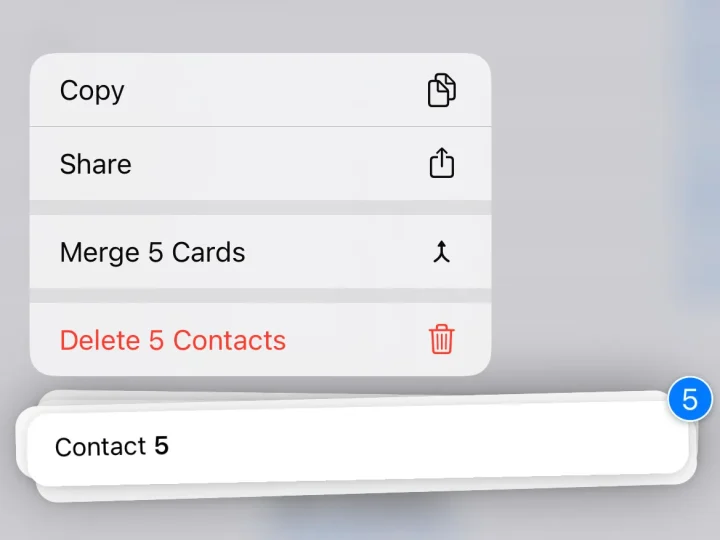
Can I delete multiple contacts at once?
Yes, on platforms like Google Contacts and Outlook, you can select multiple contacts and delete them together.
Does deleting a contact delete message history?
No, the message history remains unless manually deleted.
How do I delete contacts synced from social media apps?
Go to the respective app settings and disable contact syncing, then delete unwanted entries from your contact list.
Deleting contacts is a straightforward process across all devices and platforms. Whether you’re tidying up your phone book or removing outdated information, following these steps will help you manage your contact list efficiently.
