
You send an important email. Then you wait and wonder. Did they open it? Did they see it? Are they ignoring you? Or did it get buried somewhere in their inbox?
Knowing if someone reads your email can save you stress, guesswork and follow-ups. That feels awkward. And in 2025, there are more ways than ever to check — built-in tools, read receipts, tracking options and smart settings that show when your message was viewed.
Whether you’re using Gmail, Outlook, business email or your phone, this guide gives you all the methods. Simple, clean and step-by-step.
Why Knowing If Your Email Was Read Matters
Knowing an email was opened helps you:
- Stop worrying
- Decide whether to follow up
- See if your message reached the inbox
- Know if someone is ignoring or just busy
- Track important work emails
- Confirm delivery of proposals, invoices, or documents
Check Read Receipts in Gmail (Desktop)

Gmail can request a read receipt but only for Google Workspace (school or work accounts).
Steps:
- Open Gmail.com.
- Compose a new email.
- Click the three dots (More Options).
- Click “Request read receipt.”
- Send the email.
When the recipient opens your message, Gmail sends you a confirmation notice.
Tip: They may need to click “Send receipt,” depending on their email settings.
Use Gmail’s “Last Account Activity” Trick
If you’re emailing someone inside your own organization, sometimes shared activity logs help.
Steps:
- Open Gmail.
- Scroll to the bottom right of your inbox.
- Click “Details.”
- Look for recent access or device activity.
This only works internally and indirectly — not for outside recipients.
Tip: If you see new activity right after sending an important email, it may indicate a reply is coming.
Track Email Opens Using Outlook Read Receipts
Outlook supports read receipts for personal and work accounts.
Steps:
- Open Outlook.
- Click New Email.
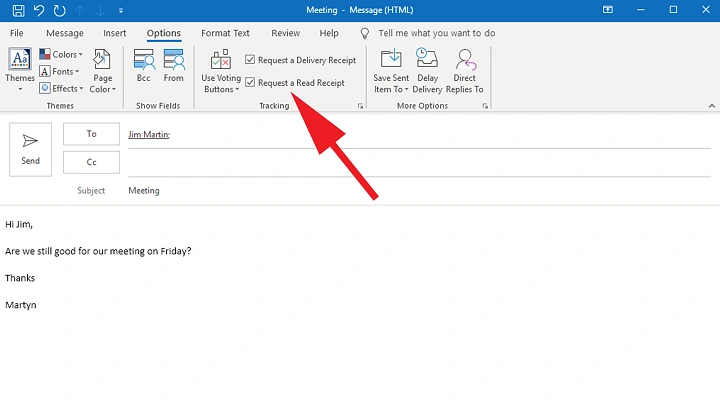
- Go to the Options tab.
- Tick “Request a read receipt.”
- Send the email.
You’ll receive a notification after the recipient opens it.
Warning: They can decline the receipt — so it’s not always guaranteed.
Use Delivery Receipts in Outlook
Delivery receipts tell you the email reached their inbox (not opened, just delivered).
Steps:
- Open Outlook.
- Create a message.
- Options → “Request a delivery receipt.”
- Send.
Good for confirming the email didn’t bounce.
Use Email Tracking Extensions (Gmail & Outlook)
These tools show when your email is opened, how many times and from what device.
Popular trackers:
- Mailtrack
- Yesware
- HubSpot Email Tracking
- Streak
Steps (Mailtrack example):
- Install Mailtrack extension.
- Sign in with your Gmail.
- Compose your email normally.
- Send.
- Look for the ✓✓ double-check mark when opened.
Tip: Most tracking apps add real-time notifications — very helpful.
Check “Viewed” Indicators in Work Collaboration Tools
If you’re emailing inside a company with integrated tools (Google Workspace, Microsoft 365), you may see internal read data.
Steps:
- Send an internal email.
- Check activity logs.
- Check message analytics (if admin enabled).
This works only in organizations with tracking enabled.
Use Pixel-Based Tracking (Automatic with Some Tools)
Many newsletter tools and CRM platforms include a built-in tracking pixel.
Steps:
- Send email from tool (Mailchimp, ConvertKit, Zoho Campaigns).
- Open the dashboard.
- Click Email Campaign.
- Check “Open Rate” or “Email Opens.”
It shows:
- Opened
- Opened multiple times
- Location (approximate)
- Device type
Note: Not for personal email — only business or marketing.
MeSend a Link and Track the Click
If you’re not sure they opened your email, track a link inside it.
Steps:
- Use a trackable link shortener (Bitly, Rebrandly).
- Insert that link in your email.
- Send the message.
- Check your Bitly dashboard.
If the link gets clicked, you know the message was opened.
Pro Tip: Use this for proposals, downloads, or attachments.
Ask Directly in a Polite Follow-Up
Sometimes the simplest method works best.
Steps:
- Wait 1–3 days.
- Send a short message:
“Hi, just checking if you had a chance to see my previous email.”
This gives them a chance to respond without pressure.
Tip: People often appreciate gentle reminders.
How to Know If Someone Read Your Email on Mobile (Android)
Gmail mobile app doesn’t show read receipts unless it’s a Workspace account.
Steps for Workspace Gmail:
- Open Gmail app.
- Tap Compose.
- Tap three dots (top-right).
- Tap “Request read receipt.”
- Send email.
If enabled, you’ll get a notification when it’s opened.
Tip: Only works for Work/School Gmail.
How to Know If Someone Read Your Email on iPhone
iPhone Mail doesn’t support read receipts for regular email.
But Outlook for iOS does.
Steps:
- Open Outlook app.
- Compose new email.
- Tap three dots.
- Tap “Request read receipt.”
- Send.
You’ll get a notice when opened.
Track When Someone Reads an Email Without Them Knowing
This is done with third-party extensions.
Steps:
- Install Mailtrack or Yesware.
- Enable tracking.
- Send your email.
- Watch for open notifications.
The recipient won’t see any pop-up or permission prompt.
Warning: Use ethically. Avoid sensitive or confidential emails.
How to Tell If Someone Opened Your Email Without Any Tools
You can sometimes guess based on:
- Quick replies
- New activity in a shared document
- A changed meeting time
- A read status changing in messaging apps
- Someone mentioning something from your email
This is not guaranteed — but it gives hints.
Troubleshooting: Why You Can’t Tell If an Email Was Read

If your tracking didn’t work:
- Their email blocked images (prevents pixels).
- They use privacy mode.
- They declined the read receipt.
- They read it in preview mode (doesn’t always trigger tracking).
- Your extension isn’t installed correctly.
- Email tracking was disabled by their IT admin.
Fix:
- Try another tracking tool.
- Send a polite follow-up.
- Use link tracking instead.
- Move to Outlook if Gmail doesn’t give receipts.
Also Read: Can You Edit an Email After Sending? The 2025 Outlook Reality Guide You Should Know
Organization Tips After You Track Email Opens
Now that you know if your email was opened:
- Follow up if needed.
- Archive old sent emails.
- Label emails for tracking.
- Use reminders for unseen messages.
- Track important clients or students.
- Set auto-follow-up for no replies.
Knowing opens = smarter communication.
Quick Summary
How to know if someone read your email:
- Gmail read receipt (Workspace only).
- Outlook read receipts.
- Delivery receipts.
- Mailtrack or Yesware.
- Marketing email analytics.
- Trackable links.
- Polite follow-ups.
- Outlook iOS tracking.
A few clicks and you know whether your message was seen.
FAQs
Can I force someone to send a read receipt?
No. They can decline it.
Can I see if a Gmail message was read for free?
Yes — with Mailtrack or Gmail Workspace read receipts.
Does opening an email in preview count as “read”?
Sometimes — depends on the program.
Why didn’t I get a receipt?
They declined or their settings blocked it.
Can I track an email secretly?
Yes — tracking extensions do it silently.
