
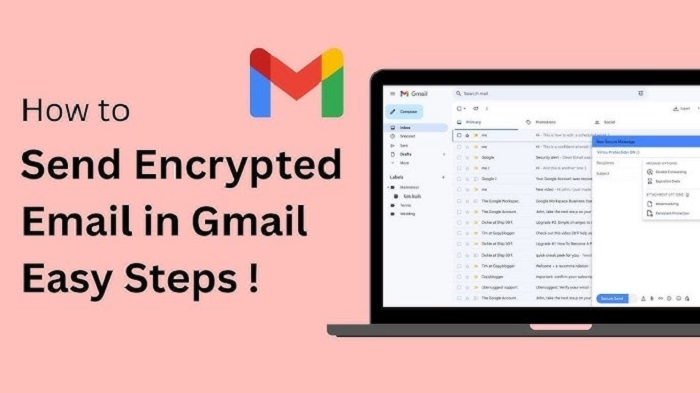
Email has become an essential part of our digital communication, especially for sharing personal, financial, or business-sensitive information. But how do you ensure your emails are safe from unauthorized access? If you’re a Gmail user, you’re in luck—Google provides multiple tools and features to help you send secure email in Gmail.
In this guide, you’ll learn everything you need to know about how to send secure email in Gmail, including tips on encryption, Gmail’s built-in confidentiality features, third-party tools, and advanced settings that enhance your email security.
Why Email Security in Gmail Matters
Despite Gmail’s built-in protections, sending sensitive information without extra layers of security leaves you vulnerable to cyber threats like phishing, unauthorized access, or data leaks. Learning how to send secure email in Gmail helps protect personal data, business secrets, and financial information from falling into the wrong hands.
Whether you’re a professional, student, or casual user, knowing how to use Gmail securely is crucial in today’s digital world.
Gmail’s Built-In Security Features
Gmail uses TLS (Transport Layer Security) to encrypt emails in transit. This means that if both the sender’s and recipient’s email services support TLS, the message is encrypted while it travels between servers.
What Gmail Automatically Secures
- In-transit encryption using TLS
- Spam and phishing filters
- Two-step verification for account access
- Google’s AI scanning for suspicious activity
However, this doesn’t mean the content of your email is completely private. Gmail’s TLS encryption does not protect the email once it reaches the recipient’s inbox or if their server doesn’t support TLS.
Using Gmail Confidential Mode
Gmail’s Confidential Mode allows you to send emails with expiration dates and access restrictions. It’s the easiest way to send secure email in Gmail without third-party tools.
How to Enable Confidential Mode in Gmail
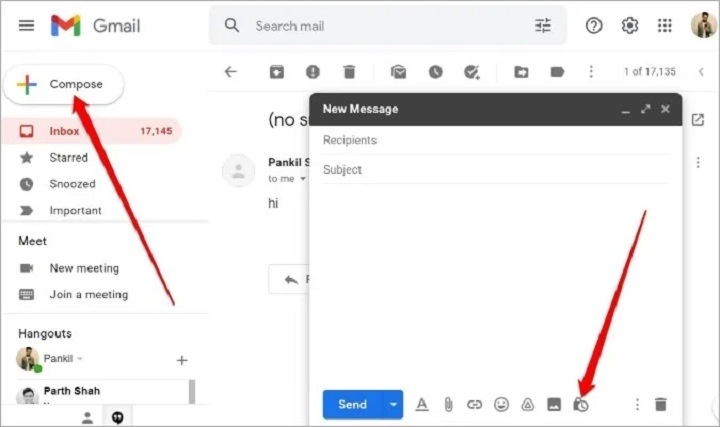
- Open Gmail and click Compose.
- Click the padlock and clock icon at the bottom of the message window.
- Set an expiration date and choose whether to require an SMS passcode.
- Click Save to return to your message draft.
- Compose and send your email as usual.
What Confidential Mode Does
- Prevents the recipient from forwarding, copying, downloading, or printing the email.
- Allows you to set an expiration date.
- You can revoke access at any time after sending.
- Optional passcode via SMS for added security.
However, keep in mind that Confidential Mode doesn’t encrypt the content end-to-end. It’s more about controlling what the recipient can do with your message.
Sending Encrypted Email in Gmail
For higher security, consider using end-to-end encryption tools that integrate with Gmail. This ensures only the intended recipient can read the email content—even Google can’t access it.
Best Tools for End-to-End Encryption
FlowCrypt (Browser Extension)
- Adds OpenPGP encryption to Gmail.
- Allows you to encrypt emails and attachments directly from your inbox.
- Free basic version; premium offers advanced features.
ProtonMail (Separate Service)
- Offers Gmail users the ability to send encrypted messages to ProtonMail users.
- Provides password-protected messages to external email addresses.
Tutanota
- Like ProtonMail, it allows sending encrypted emails to both registered and unregistered users.
- Offers an easy-to-use encrypted contact form and secure email service.
These tools use public and private key pairs, meaning only the recipient who holds the private key can decrypt the message.
Using S/MIME with Gmail
S/MIME (Secure/Multipurpose Internet Mail Extensions) is a powerful feature that adds email encryption and digital signatures.
S/MIME Requirements:
- You need a Gmail account tied to a Google Workspace (paid) account.
- Both sender and recipient must have S/MIME enabled.
- You’ll need to install an S/MIME certificate.
Steps to Use S/MIME:
- Get a verified S/MIME certificate.
- Install it in your Gmail account settings via Workspace admin console.
- Gmail will automatically use S/MIME when sending to another S/MIME-enabled address.
S/MIME offers robust encryption and confirms sender identity through digital signatures.
Tips to Enhance Email Security on Gmail
Use Strong Passwords
Always use a strong, unique password for your Gmail account. Avoid personal information or easy patterns.
Enable Two-Step Verification
Go to Settings > Security > 2-Step Verification in your Google account. Use the Google Authenticator app or SMS.
Be Aware of Phishing Emails
Double-check links and sender addresses. Gmail flags suspicious emails, but always verify before clicking.
Don’t Share Sensitive Info via Plain Text
Avoid sending things like passwords, credit card numbers, or sensitive files in regular text without encryption.
Use Google’s Security Checkup
Visit myaccount.google.com/security-checkup to review your account’s security status.
Third-Party Add-ons for Secure Gmail Use
Apart from FlowCrypt, other useful Gmail extensions include:
- Virtru – Enterprise-level encryption with compliance tools.
- Mailvelope – Open-source tool that supports PGP encryption.
- PreVeil – Offers end-to-end encrypted email and file sharing.
These are perfect for professionals or businesses needing an extra layer of privacy.
How Gmail Handles Secure Attachments
By default, attachments are protected through TLS. But for confidential or sensitive documents, consider these:
- Use Google Drive links with restricted sharing.
- Set permissions to “View only” or “Download restricted.”
- Require the viewer to log in with a Google account.
Or, encrypt files (e.g., ZIP with password) before attaching them to your message.
Mobile Tips for Sending Secure Email in Gmail
Confidential Mode and secure sending also work on the Gmail mobile app.
- Tap Compose.
- Tap the three dots in the top-right corner.
- Select Confidential Mode.
- Set expiration and passcode.
- Send as normal.
Ensure your mobile device is updated and protected with a screen lock and authentication for Gmail access.
Limitations of Gmail’s Security
- Confidential Mode doesn’t prevent screenshots.
- TLS depends on recipient’s mail server support.
- Gmail scans content for spam filtering—even in Confidential Mode.
That’s why advanced users or businesses often use encryption tools like PGP or S/MIME for greater control.
Frequently Asked Questions
How do I send a secure email in Gmail with a password?
Use Gmail’s Confidential Mode and choose the option to require an SMS passcode. Alternatively, use third-party tools like FlowCrypt or Virtru.
Is Gmail confidential mode end-to-end encrypted?
No. Confidential Mode adds restrictions but does not offer true end-to-end encryption. Use tools like PGP or S/MIME for that.
Can I send secure email from Gmail to Outlook?
Yes, but end-to-end encryption (like S/MIME) must be supported and enabled on both sides.
What is the most secure way to send an email in Gmail?
Using Gmail with an extension like FlowCrypt or Virtru for end-to-end encryption is the most secure method.
Does Gmail encrypt attachments?
Yes, Gmail encrypts attachments during transmission using TLS, but for sensitive documents, consider encrypting the file before sending.
