
We’ve all sent an email too early—maybe with a typo, a forgotten attachment, or to the wrong recipient. If you use Microsoft Outlook, there’s still hope. Learning how to recall an email in Outlook can help prevent miscommunication, protect sensitive information, and save you from embarrassing situations.
Outlook’s built-in message recall feature gives you a chance to take back an unread email, under the right conditions. In this detailed guide, you’ll learn when and how to use this function, its limitations, and what to do if a recall fails.
What Does It Mean to Recall an Email in Outlook

To recall an email in Outlook means to retract a message you’ve already sent, usually within the same organization. This is made possible through Outlook’s “Recall This Message” feature, which allows you to delete the email from the recipient’s inbox or replace it with an updated version.
Unlike Gmail’s short undo window, Outlook offers a more powerful—but more conditional—way to recall a message.
When Can You Recall an Email in Outlook
Before trying to recall an email in Outlook, make sure the following conditions are met:
- You and the recipient must both use Microsoft Exchange or Microsoft 365 accounts.
- The recipient must be in the same organization.
- The email must be unread in the recipient’s inbox.
- The recipient must be using the Outlook desktop application.
- The email must be stored in their Inbox, not moved or filtered elsewhere.
If these requirements aren’t met, the recall may not succeed.
How to Recall an Email in Outlook (Step-by-Step)
Go to Sent Items
Open Outlook and navigate to the Sent Items folder in the left-hand panel. Locate the email you want to recall.
Double-Click to Open the Email
Click to open the email in its own window. You must open the message to access the recall option—it won’t work from the reading pane.
Access the Recall Tool
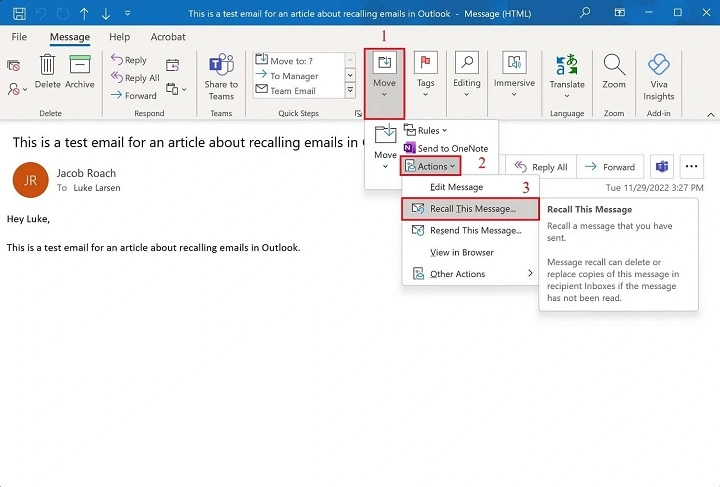
In the toolbar at the top, click on the Message tab. Then, in the Move group, click Actions and select Recall This Message.
Choose a Recall Option
You’ll see a pop-up box with two options:
- Delete unread copies of this message
- Delete unread copies and replace with a new message
Choose the one that fits your need. You can also check the box to receive confirmation about the recall’s success for each recipient.
Confirm the Recall
Click OK to finalize the action. If you chose to replace the email, a new message window will appear where you can rewrite and resend the email correctly.
How to Replace an Email in Outlook
When you select the option to delete and replace an unread email, Outlook will reopen the original message. You can make edits—fix spelling, attach documents, or change the recipient—and send it again. This gives you a second chance to get your message right without sending a separate follow-up email.
Limitations of Email Recall in Outlook
Learning how to recall an email in Outlook also means understanding when it might not work. The feature has several built-in limitations:
- External emails cannot be recalled. The feature only works within your organization.
- Email clients like Gmail, Yahoo, or Apple Mail do not support this feature.
- Read emails can’t be recalled. Once opened, the recall fails automatically.
- Moved or filtered emails cannot be recalled if they’re no longer in the inbox.
This makes timing extremely important.
What Happens If the Recall Fails

If the recall attempt is unsuccessful, Outlook sends a notification to your inbox indicating the failure. In many cases, the original message remains in the recipient’s inbox, and your recall request arrives as a separate message.
To reduce confusion, it’s smart to send a corrected version or apology email if the recall didn’t work.
Best Practices to Avoid Needing to Recall Emails
Even though you now know how to recall an email in Outlook, prevention is always better. Use these habits to avoid common email mistakes:
- Enable delay send: Set a 1–2 minute delay on all outgoing emails to create a buffer time.
- Always proofread before hitting send.
- Double-check recipients, especially if you’re emailing sensitive information.
- Attach files first, so you don’t forget them.
- Use email templates for repetitive messages to reduce typos.
These proactive steps can prevent many errors from happening in the first place.
How to Delay Outgoing Emails in Outlook
Delaying your email gives you a small window to cancel it manually before it sends. This works well as a preventive measure.
To Set a Delay Rule:
- Click File > Manage Rules & Alerts.
- Choose New Rule > “Apply rule on messages I send.”
- Click Next, then select “Defer delivery by a number of minutes.”
- Choose a delay (1 to 10 minutes).
- Save the rule and apply it to all outgoing emails.
Now every email you send will stay in your Outbox for the selected duration, giving you time to change or delete it before it goes out.
Frequently Asked Questions (FAQs)
Can I recall an email in Outlook after it’s been read?
No. Once the recipient opens the email, the recall feature will not work.
Does Outlook webmail (Outlook.com) support email recall?
No. The recall feature is only available in the desktop version of Outlook using Microsoft Exchange or Microsoft 365.
Will the recipient know I tried to recall the email?
Yes. If the recall fails, they will receive a notification about your attempt to recall the original message.
Can I recall an email sent to multiple recipients?
Yes, but the recall only works individually. If some recipients meet the criteria and others don’t, it may succeed for some and fail for others.
Is there a time limit for recalling an email in Outlook?
No specific time limit exists, but it must be recalled before the recipient reads it. The sooner you act, the better your chances.
Knowing how to recall an email in Outlook can save you from unnecessary stress and professional missteps. While it’s not foolproof, the feature is incredibly helpful in controlled environments—particularly within organizations using Microsoft Exchange or Microsoft 365.
Just remember, the recall function has its limits. Emails that are already read, moved, or sent outside the organization can’t be retrieved. To reduce the risk of mistakes, use delayed send rules, double-check your content, and build careful review habits into your routine.
When used effectively, Outlook’s message recall feature becomes a powerful tool to help you stay in control of your communication.
