
We’ve all sent an email too soon—maybe with an error, missing attachment, or to the wrong person. That’s when many Outlook users wonder: can I recall an email in Outlook? The answer is yes, but with some important conditions.
This guide explains how recalling an email in Outlook works, when it’s possible, why it sometimes fails, and what your best alternatives are. Whether you’re using Outlook for personal or business communication, understanding the recall feature can save you from common email mishaps.
What Is Email Recall in Outlook?
Recalling an email in Outlook means trying to unsend a message that you’ve already sent. Outlook’s Recall This Message feature allows you to retrieve a message from the recipient’s inbox or replace it with an updated version—but only under certain circumstances.
It’s a built-in feature available in the desktop version of Microsoft Outlook, mainly used in corporate environments with Microsoft Exchange or Microsoft 365 accounts.
When Can You Recall an Email in Outlook?
The recall feature does not work universally. The following conditions must be met for a recall to be successful:
- Both you and the recipient must be using Microsoft Outlook within the same organization or Microsoft Exchange environment.
- The email must still be unread in the recipient’s inbox.
- The email must have been sent using the desktop Outlook app, not the web or mobile version.
- The recipient must have their Outlook open and be connected to the server.
- Rules like auto-forwarding or moving emails from the inbox may block the recall.
If any of these conditions fail, the recall attempt will likely not work.
How to Recall an Email in Outlook (Step-by-Step)
If you’ve sent an email you want to take back and meet the above criteria, follow these steps:
For Outlook Desktop:
- Go to the Sent Items folder.
- Double-click to open the email you want to recall (you must open it—not just highlight it).
- Click on the Message tab in the ribbon.
- Select Actions > Recall This Message.
- Choose one of the following options:
- Delete unread copies of this message
- Delete unread copies and replace with a new message
- Click OK.
You’ll also have the option to receive a notification about whether the recall succeeded or failed for each recipient.
What Happens If Recall Succeeds?
If the recipient hasn’t read the original message and is using Outlook within the same server setup, the email will be removed from their inbox and replaced with your updated version—or deleted entirely, depending on your choice.
They may still receive a notification that a message was recalled, but they won’t be able to see the original content if the recall is successful.
Why Outlook Email Recall Often Fails
While recalling emails can be helpful, it fails more often than it works. Here are the most common reasons:
- The recipient already opened the email.
- The email was sent to a user outside your organization (Gmail, Yahoo, etc.).
- The recipient has rules or filters that move the email out of the inbox automatically.
- The recipient uses Outlook Web Access or the mobile app.
- Their Outlook account is not connected to Exchange Server or Microsoft 365.
Alternatives to Recalling Emails in Outlook
Use “Undo Send” Feature (Outlook Web)
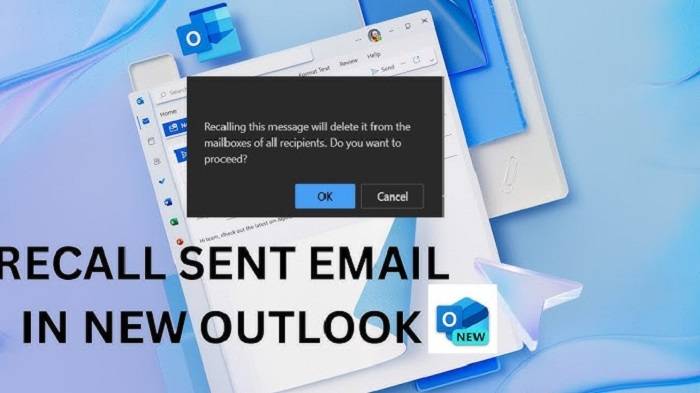
Outlook’s web version includes an “Undo Send” feature that gives you a short window to cancel sending.
To enable Undo Send:
- Go to Settings > Mail > Compose and Reply
- Scroll to Undo send and adjust the delay (up to 10 seconds)
After hitting Send, you’ll see an Undo option for a few seconds.
Delay Email Delivery
For extra safety, set up a delay so emails sit in your Outbox for a few minutes before being sent.
To delay sending in Outlook:
- Go to File > Manage Rules & Alerts
- Click New Rule
- Choose “Apply rule on messages I send”
- Select “Defer delivery by a number of minutes”
- Choose 1–5 minutes, then save
This gives you a window to open your Outbox and cancel or edit the email.
Send a Follow-Up Email
If a recall fails, the next best option is to quickly send a follow-up message:
Subject: Correction – Previous Email
Please disregard the email I just sent. Here’s the correct version…
This is often faster and more effective than relying on the recall system.
Email Recall Limitations You Should Know
- The feature does not work with Gmail, Yahoo, or other third-party mail services.
- Recall doesn’t work if the recipient uses rules to move messages automatically.
- Some recipients may still see the original message, even if the recall partially works.
- If a message is moved to a folder by rules, the recall attempt might not find it.
For this reason, many professionals rely more on preventive steps like delayed sending and double-checking messages before sending.
When to Use Email Recall
- You forgot an attachment
- You made a factual or grammatical mistake
- You sent the email to the wrong recipient within your company
- You’re correcting time-sensitive or confidential content
When Not to Use Email Recall
- When the recipient is external to your organization
- When the email has likely been read already
- When it’s easier to follow up with a corrected message
- When using Outlook Web or Mobile (the recall feature won’t appear)
Frequently Asked Questions
Can I recall an email in Outlook after it’s read?
No, once the recipient opens the email, it cannot be recalled.
Is email recall available in Outlook Web or Mobile?
No, the feature is only available in the desktop version of Outlook for Windows.
How do I know if the recall was successful?
You’ll receive a notification from Outlook stating whether each recall attempt succeeded or failed.
Can I recall emails sent to Gmail or Yahoo?
No, the recall feature only works within Microsoft Exchange or Microsoft 365 environments.
What’s the best way to avoid needing to recall an email?
Use the delay send feature and double-check your message before sending.
