
Email communication is an essential part of both personal and professional life. Sometimes, we send emails in haste or accidentally click “Send” before reviewing the content, leading to the need to delete an email we’ve already sent. While it’s not always possible to delete an email after it has been sent, there are certain scenarios where you can undo your action. In this article, we will walk you through various methods to delete an email you sent, depending on the email service provider you use.
Why You Might Want to Delete an Email You Sent
There are several reasons why you might need to delete an email you’ve already sent:
Mistakenly Sent the Wrong Information
Sometimes, we accidentally send an email with incorrect details, wrong attachments, or outdated information. Deleting the email is an ideal way to fix the mistake before the recipient notices.
Spelling or Grammar Errors
We’ve all been there – hitting send only to realize that the email contains embarrassing spelling or grammar errors. In such cases, deleting or retracting the email can help you avoid embarrassment.
Sent to the Wrong Recipient
Another common issue is sending an email to the wrong recipient. If you’ve sent sensitive or irrelevant information to the wrong person, you may want to delete the email to prevent any issues.
Accidental Send
Sometimes, you might accidentally hit “Send” when you meant to review or save the email as a draft. In such cases, it’s important to delete the email to avoid sending incomplete or unpolished messages.
Confidential or Sensitive Information
If you’ve mistakenly sent an email containing confidential or sensitive information, deleting the message is a crucial step to protecting privacy and security.
How to Delete an Email You Sent on Different Platforms
Whether you’re using Gmail, Outlook, Yahoo Mail, or another email service, the process of deleting sent emails can differ slightly. Below is a detailed guide for some of the most commonly used email providers.
How to Delete an Email You Sent on Gmail
Gmail provides a feature called “Undo Send,” which allows users to retract an email immediately after it has been sent.
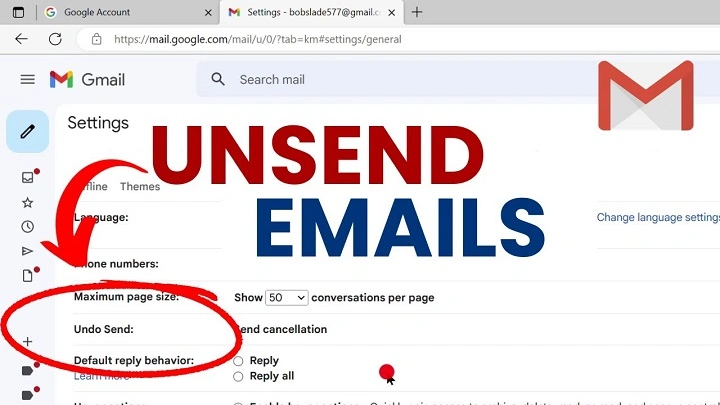
Step 1: Enable Undo Send Feature
If you haven’t already enabled this feature, follow these steps:
- Go to Gmail and click on the gear icon (Settings) in the top-right corner.
- Select See all settings.
- Under the General tab, look for the Undo Send section.
- Ensure the box next to Enable Undo Send is checked.
- Set the cancellation period to 5, 10, 20, or 30 seconds.
- Click Save Changes.
Step 2: Undo Send an Email
Once you’ve enabled the feature, you can undo a sent email:
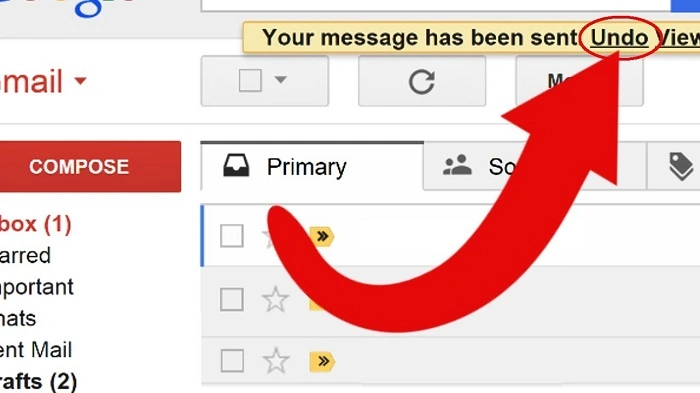
- After sending an email, you will see an “Undo” button at the bottom left of your screen for the duration of the cancellation period.
- Simply click Undo to retract the email within the given time frame.
- The email will reappear in your drafts, allowing you to make corrections or delete it entirely.
How to Delete an Email You Sent on Outlook
Outlook offers a feature called Recall that may allow you to delete an email after it’s been sent, but only if the recipient is also using Outlook and hasn’t read the email yet.
Step 1: Open the Sent Folder
- Go to your Sent Items folder and locate the email you wish to delete.
Step 2: Open the Email
- Double-click to open the email you want to recall.
Step 3: Click on “Actions”
- In the open email, click on the Message tab, then select Actions from the ribbon at the top.
- Choose Recall This Message from the dropdown menu.
Step 4: Select Recall Options
- You’ll be given two options:
- Delete unread copies of this message: This will attempt to delete the email from the recipient’s inbox if it hasn’t been read.
- Delete unread copies and replace with a new message: This allows you to send an updated version of the email.
- Select your desired option and click OK.
Step 5: Wait for Confirmation
Outlook will notify you whether the recall was successful. Keep in mind that the recall feature works only if the recipient hasn’t read the email yet, and if they are using Outlook as well.
How to Delete an Email You Sent on Yahoo Mail
Yahoo Mail does not offer a recall feature, so once an email has been sent, there is no direct way to delete it. However, you can try to act quickly by following these steps:
Step 1: Open Sent Emails
- Go to the Sent folder in your Yahoo Mail account.
Step 2: Attempt to Retract Email via Contacting the Recipient
- While you cannot delete the email, you may try contacting the recipient immediately to explain the mistake and request that they delete the email from their inbox.
How to Delete an Email You Sent on Apple Mail (macOS)
Apple Mail does not have an undo send feature, but if you’ve sent the email to someone using iCloud or another Apple device, you might be able to use the Mail Drop feature to retract or replace it.
Step 1: Check the Recipient’s Device
- If the recipient is using Apple Mail, you may want to call or message them directly to delete the email on their end.
Step 2: Contact the Recipient
- You can contact the recipient and ask them to delete the email if it contains sensitive information or an error.
What Happens After You Delete an Email You Sent?
When you successfully delete or recall an email, the following things may happen:
The Recipient May Still Receive a Copy
In most cases, deleting an email only prevents the recipient from seeing future messages or updates. If the email has already been delivered and read, it cannot be deleted from their inbox unless they take action.
Notification of Email Deletion
In the case of a recall attempt on platforms like Outlook, the recipient may receive a notification informing them that the email has been recalled or replaced.
No Further Action Required
If the email is deleted successfully (for example, via Gmail’s Undo Send feature), you don’t need to take any further action. The recipient will never see the email.
FAQs About Deleting an Email You Sent
Can I Delete an Email After It Has Been Opened?
In most cases, once the recipient has opened the email, you cannot delete it from their inbox. However, some services like Outlook allow you to attempt a recall if the recipient hasn’t yet read it.
How Long Do I Have to Undo a Sent Email?
On Gmail, you have up to 30 seconds to undo a sent email. The exact time frame depends on your settings, but it’s usually around 5 to 30 seconds.
Can I Delete an Email Sent to Multiple People?
Yes, you can delete or recall an email sent to multiple recipients, but the recall or undo feature will only work if all recipients are using the same email service (e.g., Outlook to Outlook) and haven’t read the email yet.
Does Email Recall Work for All Email Services?
No, email recall is only available on certain services like Outlook. It does not work on platforms like Gmail or Yahoo.
What If I Can’t Recall an Email?
If you can’t recall an email, your best option is to send a follow-up email explaining the mistake and requesting the recipient to delete the email.
