

MCHSI email has been around for years as part of Mediacom’s internet service. People use it for work. For school updates. For newsletters. For family messages. For bills and receipts. For everyday communication that needs a simple inbox that just works.
But logging in is not always smooth. Links change. Passwords stop working. Devices forget accounts. Some people do not know the difference between MCHSI and Mediacom Mail. Others cannot find the correct login page.
This 2025 guide shows you exactly how to access your MCHSI email on desktop, phone and browser. How to set it up on Outlook, iPhone and Android. How to reset your password. How to fix the most common login issues. Clear, simple and step-by-step.
What MCHSI Email Actually Is
MCHSI stands for Mediacom High Speed Internet. Your email ends in:
- @mchsi.com
- sometimes @mediacombb.net for older accounts
The inbox works through the Mediacom Webmail portal with username and password tied to your Mediacom account.
Why You May Need MCHSI Email Access
People use MCHSI email for:
- bill notifications
- home service updates
- password resets
- newsletters and subscriptions
- school alerts
- work communication
- personal messages
- account recovery
Access matters because many Mediacom services link directly to this inbox.
How to Log In to MCHSI Email on a Computer
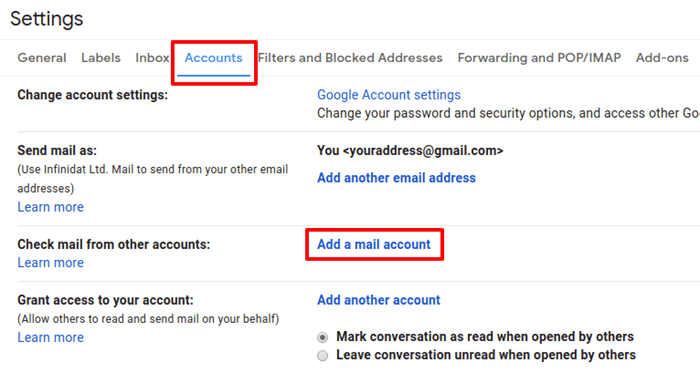
This is the main way most users access their inbox.
Steps:
- open your browser
- go to the official Mediacom Webmail page
- enter your full email address ([email protected])
- enter your password
- click Sign In
- wait for your inbox to load
You now have access to your messages, folders and settings.
Tip:
- if your username is saved but password is not, type it carefully because MCHSI passwords are case sensitive
How to Log In to MCHSI Email on a Phone Browser
Works the same but in a mobile friendly layout.
Steps:
- open your phone’s browser
- go to the Mediacom Mail login page
- type your MCHSI email address
- type your password
- tap Sign In
- browse your inbox normally
Great for people who need quick access without installing apps.
How to Set Up MCHSI Email on Outlook (Windows)
Many users prefer Outlook for daily email.
Steps:
- open Outlook
- click File
- click Add Account
- type your MCHSI email
- click Connect
- enter your password
- Outlook will fill in the Mediacom server settings
- click Done
Your MCHSI email appears instantly as a new inbox.
Server settings if needed:
- Incoming (IMAP): mail.mediacombb.net
- Port: 993
- Security: SSL
- Outgoing (SMTP): mail.mediacombb.net
- Port: 465
- Security: SSL
How to Add MCHSI Email on Outlook for Mac
Mac setup is just as simple.
Steps:
- open Outlook
- click Outlook → Settings
- click Accounts
- click Add Email Account
- enter your MCHSI address
- enter your password
- save
Your email syncs with all folders.
How to Add MCHSI Email on iPhone
The iPhone Mail app supports MCHSI easily.
Steps:
- open Settings
- tap Mail
- tap Accounts
- tap Add Account
- choose Other
- tap Add Mail Account
- enter your name, MCHSI email and password
- enter Mediacom IMAP settings
- save
Your inbox loads inside the Mail app.
How to Add MCHSI Email on Android
Android works with manual settings.
Steps:
- open Email or Gmail app
- tap Add Account
- choose Other
- enter your MCHSI address
- enter password
- choose Manual Setup
- select IMAP
- enter incoming and outgoing server details
- finish setup
Android syncs your inbox automatically.
How to Reset Your MCHSI Email Password
If you cannot log in, a password reset usually fixes everything.
Steps:
- go to Mediacom’s Account Management page
- click Forgot Password
- enter your username
- pass security or recovery questions
- create a new password
- save changes
- sign in again
Choose a password that you can remember but others cannot guess.
How to Recover a Locked or Disabled MCHSI Account
Accounts lock when passwords are typed wrong too many times.
Steps:
- wait at least 15 minutes
- reset your password
- try logging in once more
- if still locked, call Mediacom Support
The support team can unlock old accounts or reactivate inactive ones.
How to Fix MCHSI Email Not Working on Outlook or Phone
If your MCHSI inbox refuses to load, check:
- wrong password
- wrong IMAP or SMTP settings
- internet connection issues
- expired Mediacom account
- outdated email app
- blocked ports
- old cached passwords
Fix:
- reenter your password
- update server settings
- delete the email account then add it again
- restart your device
- try using Webmail to confirm it works
- update Outlook or Email app
Most issues resolve quickly once the correct server settings are entered.
How to Clean Up and Organize Your MCHSI Email
A tidy inbox saves time.
Steps:
- delete old newsletters
- move receipts into folders
- use the search bar for quick sorting
- set filters if supported
- archive messages you do not need daily
- empty Trash often
- remove spam
Keeping your MCHSI email clean makes it easier to find important messages later.
Troubleshooting: When MCHSI Email Still Will Not Open
If you have tried everything and still cannot access your inbox, check:
- Mediacom service outages
- browser cache or cookies
- expired Mediacom subscription
- incorrect username format
- disabled email account
- firewall blocking ports
Fix:
- try a different browser
- clear cookies
- use Mediacom Webmail only
- call Mediacom support if login continues to fail
Support can reset your account on their side if needed.
Quick Summary
How to access MCHSI email:
- Web: go to Mediacom Webmail
- Outlook Desktop: Add Account → enter email
- Mac: Settings → Accounts → add MCHSI
- iPhone: Mail → Accounts → Other
- Android: manual IMAP setup
- Password issues: reset through Mediacom
- Connection issues: check server settings
- Attachments and folders sync with IMAP
Two steps and your MCHSI email becomes accessible again.
FAQs
1. Is MCHSI the same as Mediacom email?
Yes. MCHSI is the older address format used by Mediacom.
2. Can I still use my MCHSI address in 2025?
Yes. It still works through Mediacom Webmail and email clients.
3. What if I forgot my password?
Use the Mediacom password reset tool.
4. Does MCHSI work with Outlook and Apple Mail?
Yes. Use IMAP and SMTP settings.
5. Can I move MCHSI email to Gmail?
Yes. Add it as a POP or IMAP account inside Gmail settings.
