
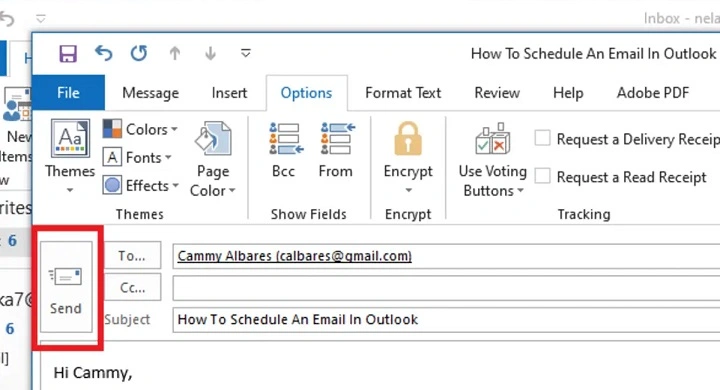
Scheduling helps you:Sometimes you write an email at the wrong time. Too late at night. Too early in the morning. Right after a meeting. Or at a moment when you know the person won’t see it.
You want the email to go out but just not right now.
This 2025 guide shows you every method on Outlook Desktop, Outlook Web, Mac, iPhone, and Android. Simple, clean and step-by-step
Why Scheduling Emails in Outlook Matters
- send messages during business hours
- avoid late-night emails to coworkers
- plan follow-ups in advance
- send reminders automatically
- time emails across time zones
- look more professional
- batch tasks and let Outlook handle timing
- avoid forgetting important emails
It turns Outlook into a productivity tool — not just an inbox.
Schedule an Email in Outlook Desktop (Windows)
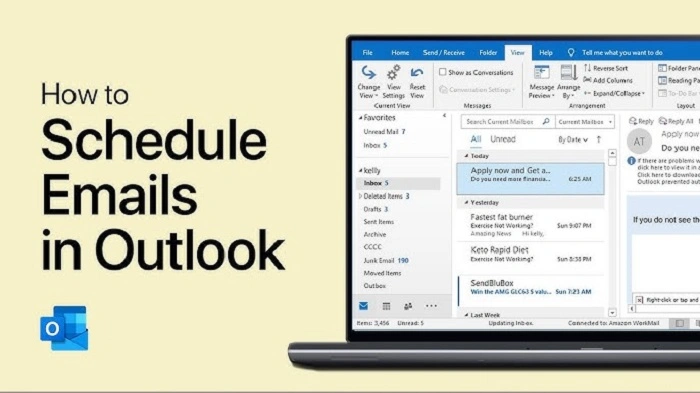
Outlook Desktop has a built-in feature called Delay Delivery.
Steps:
- open Outlook
- click New Email
- write your message
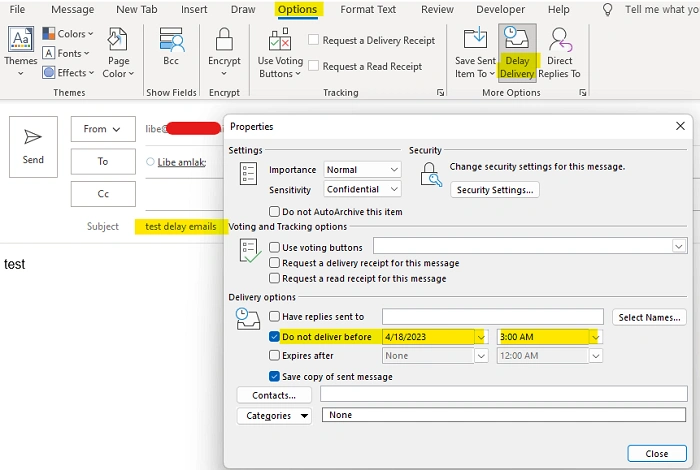
- click the Options tab
- click Delay Delivery
- check the box Do not deliver before
- choose the date
- choose the time
- click Close
- click Send
Your email now sits in the Outbox until the exact time you selected.
Tip:
- older Outlook versions must remain open for delayed emails to send.
Schedule Send in the New Outlook (Modern Desktop Version)
The New Outlook makes scheduling even simpler.
Steps:
- open the New Outlook
- click New Email
- type your message
- click the arrow next to Send
- click Schedule Send
- choose your time
- click Send
This version does not require Outlook to stay open.
Schedule an Email in Outlook Web (Outlook.com)
Outlook Web has one of the cleanest scheduling tools.
Steps:
- open Outlook.com
- sign in
- click New Message
- write your email
- click the arrow next to Send
- select Send later
- choose time and date
- click Send
Your scheduled email appears in the Scheduled folder.
Major benefit:
- it sends even if your device is turned off.
Schedule an Email in Outlook for Mac
Outlook for Mac also supports delayed sending.
Steps:
- open Outlook on Mac
- click New Message
- type your message
- click the arrow next to Send
- tap Send Later
- choose your date
- choose your time
- click Send
Your delayed message appears in the Outbox until it sends.
Schedule an Email in Outlook Mobile (iPhone & Android)
Scheduling in mobile Outlook is simple and perfect for on-the-go planning.
Steps:
- open the Outlook app
- tap New Message
- type your message
- tap the three dots (••• or ⋮)
- tap Schedule Send
- choose a preset
- or tap Pick date & time
- tap Send
Your phone handles all scheduling rules instantly.
Use Delay Delivery for Advanced Control (Outlook Desktop)
Delay Delivery can do more than basic scheduling.
You can:
- set messages to expire
- prevent changes before sending
- control when mail leaves your outbox
- create scheduled sending templates
- delay messages for hours or days
Steps:
- open email
- click Options
- click Delay Delivery
- adjust the settings
- click Close
- send
Perfect for professional workflows.
Create an Automatic Rule to Delay All Outgoing Emails
If you want every email delayed (for example, a built-in safety buffer):
Steps:
- click File
- click Manage Rules & Alerts
- click New Rule
- select “Apply rule on messages I send”
- click Next
- choose Defer delivery by X minutes
- select a time (1–120 minutes)
- finish the rule
Now Outlook delays all messages, giving you time to catch mistakes.
Edit a Scheduled Outlook Email
If you scheduled something too early or too late:
Outlook Desktop:
- open Outbox
- double-click your message
- click Delay Delivery
- change the date or time
- click Send again
Outlook Web:
- open the Scheduled folder
- click the email
- click Cancel send
- edit it in Drafts
- reschedule
Changing a scheduled message takes seconds.
Cancel a Scheduled Email
Sometimes you schedule something and immediately regret it.
To cancel:
Desktop:
- go to Outbox
- delete the email
Outlook Web:
- open Scheduled
- click the message
- click Cancel send
- delete or rewrite
Mobile:
- go to Scheduled folder
- cancel or delete the email
Why Your Scheduled Email Did Not Send
Common problems:
- Outlook closed (old versions only)
- messages stuck in Outbox
- no internet
- VPN interference
- password expired
- server sync failed
- attachment too large
- corrupted send settings
Fix:
- reopen Outlook
- connect to Wi-Fi
- restart the app
- resend from Outbox
- remove large attachments
- disable VPN
- update Outlook
Most issues disappear after a restart.
Schedule Emails for Different Time Zones
If you’re emailing someone in another country:
Steps:
- open Outlook
- go to File → Options → Calendar
- enable time zones
- set your primary zone
- add secondary zone if needed
Outlook adjusts the send time automatically for the recipient’s zone.
Use Templates + Scheduled Sends for Recurring Messages
If you send the same email repeatedly:
Steps:
- create a template
- open the template when needed
- fill in details
- click Schedule Send
- pick your time
Perfect for:
- weekly reports
- monthly reminders
- onboarding emails
- follow-up sequences
Best Times to Schedule Emails
For maximum visibility:
- Monday–Thursday mornings
- between 7am and 10am
- or early afternoon
- avoid late nights
- avoid Friday evenings
- avoid weekends
- schedule early for recipients in other time zones
Your email will land when they’re actually reading.
Troubleshooting: When “Send Later” Is Missing
If you don’t see the button:
Possible causes:
- POP/IMAP account
- old Outlook version
- admin disabled scheduling
- mobile app outdated
- using the Classic Outlook without Delay Delivery
- using unsupported account type
Fix:
- update Outlook
- switch to Microsoft 365 or Exchange
- restart app
- reinstall app
- contact your admin
Most users see the button after updating.
Organization Tips for Scheduled Emails
To stay organized:
- check your Outbox regularly
- make sure you schedule for the right date
- avoid scheduling too many at once
- write reminders in your calendar
- double-check time zones
- use templates for repeated messages
- label drafts clearly
This prevents mis-timed or duplicate emails.
Quick Summary
How to schedule an email in Outlook:
- Desktop: Options → Delay Delivery
- New Outlook: Arrow → Schedule Send
- Outlook Web: Send later
- Mac: Send Later
- Mobile: three dots → Schedule Send
- Edit through Outbox or Scheduled folder
- Cancel anytime with one tap
Two clicks — and Outlook sends your message exactly when you want.
FAQs
Can Outlook schedule emails on mobile?
Yes — both iPhone and Android support it.
Does Outlook need to stay open for scheduled sends?
Only in older desktop versions.
Can I cancel or edit a scheduled email?
Yes — from Outbox or Scheduled folder.
Can I schedule recurring emails?
Not automatically.
Use templates or Power Automate.
Does the recipient know the email was delayed?
No — it looks like a normal email.
